


Delay the non-essential Google Tag Manager tags with a custom event trigger, so pages load faster, PageSpeed and Core Web Vitals improve and your analytics keep working.
We'll be using a few tools in this post, so I'm going to list them all for you and you can come grab the links when you need them. If you're a Webflow expert you're most likely using these every day, but you're going to need:
- Google PageSpeed Insights
- Google Lighthouse (no link for this one: open Chrome, then hit View, Developer and then Developer Tools, and you'll need the Lighthouse tab in Dev Tools. It's basically the same as PageSpeed, but there are other nice insights. More info here.)
- Pingdom
- GTmetrix
- ThinkWithGoogle
- Experte.com Update: Janis from experte.com read the post and reached out to us with a great free tool they have, where you can crawl your whole site and run a bulk speed test on every page. Very nice indeed, and this will save you a ton of time if you've got a lot of pages to check. It will also allow you to check a specific list of URLs and click out to the official PageSpeed results if you'd like to see recommendations and whatnot.
All these tools do pretty similar things, measuring your page speed, but it's good to compare results from different tools.
Before we start, a disclaimer: you don't need this tutorial if you're not experiencing issues and you don't have a bunch of ad tracking tags in Tag Manager like we do. We use this method a lot on our Webflow projects to delay Tags and improve the speed of the Webflow site, as you don't really have a lot of control in Webflow when it comes to adding code and deciding when it fires. That's not to say you shouldn't use this method on any other site that has a bunch of Tags firing on page views or that are just embedded in your code. So let's start by answering why you would need this when using Google Tag Manager and conversion tracking, remarketing tags and the like from ad networks like Facebook (Meta), Google Ads, LinkedIn, Twitter (now X), Pinterest and others, and other tools like heat maps from Hotjar or Microsoft Clarity. (As an aside, if you don't have scroll, heat and click maps and you want them, go ahead and install Microsoft Clarity. It's a great free heat map tool. We've created a how-to post on that here.)
On another note, if you are using code from platforms like Facebook, Google Ads and so on in your site and you're not using Google Tag Manager, you should seriously consider ripping it out and using Tag Manager to implement the code. We're a small Webflow studio and as Webflow designers we always want things neat, tidy and simple, and this is what Tag Manager is great at providing. You can get the basics on installing Tag Manager, adding your Google Analytics through Tag Manager and setting up basic conversions in the linked posts, and our overview of why you should use Google Tag Manager in Webflow explains the bigger picture. Tag Manager makes adding tracking codes to your site super simple and easy to manage. We'll do some more how-tos on adding more ad tracking and conversions in later posts. If there's something specific you want us to cover, post in the comments.
So why are we doing this how-to and the steps below to speed things up? Okay, go ahead, open the links in the list, enter the pages you want to scan and run the speed tests. Try running in Incognito mode in Chrome so your plugins don't interfere with things like Lighthouse. If you've got a bunch of tracking codes you might see some warnings about LCP, INP, CLS (or FID in older reports) and so on, and suggestions of deferring some code to speed things up. Once you've run these tests, leave those tabs open. We're gonna come back and see if things have improved and if there's less moaning about deferring things and whatnot, and whether your scores improved when we're done and we rerun the tests.
First up, what is LCP? Well, it stands for Largest Contentful Paint. Done. Crap, not really, I mean, what the hell is that? Basically, it's when you can see what's on your page, so when has stuff stopped loading and when is it visible in the viewport. To be a bit more precise, it's how long it takes for the biggest thing you can see when the page opens, usually a hero image or a big block of text, to show up on screen. Google wants that to happen in under 2.5 seconds.
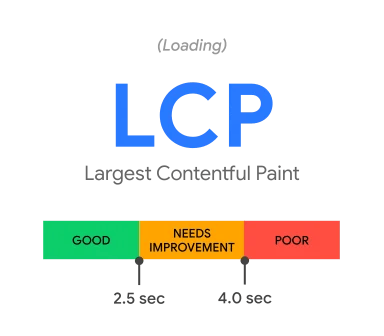
A quick update on those other acronyms: FID (First Input Delay) used to be the Core Web Vital for how quickly a page responds to a click or tap, but on 12 March 2024 Google replaced it with INP (Interaction to Next Paint). If the tools you're using still show FID, they're running on older data. Either way, heavy tracking scripts hurt both, because the browser is busy running them instead of responding to your visitor.
Typically you want LCP to be fast (well, you want everything to be fast), but why would tracking codes slow this down? It comes down to how these snippets of code load. You basically get two ways: synchronously and asynchronously. In the first instance one thing loads after another and everything has to wait for the thing before it to load before it starts loading. So probably not great, right? You don't want your header image and text to wait for some tracking script to load first just because it's sitting in the head of your page. This is where asynchronous comes in. Here things load in parallel, so nothing is waiting for the thing before it. The problem is that while things can now load when they want to, it does increase the bandwidth required as you're loading a bunch of things at the same time, as well as increasing the load on the user's browser because it's rendering and doing a bunch of things at the same time.
So while Tag Manager is great, it's loading asynchronously, so the elements on your page and all the Tags you've added are loading at the same time and competing for resources, which isn't so great. But how do we fix that without just ripping out all the Tags? We delay what's not essential to load immediately, and that's what we're going to be doing. We fire what's important immediately using the good old All Pages trigger, and the rest, the stuff that's important to you but that you don't need right away, a little later so that the other important stuff on the page can load first. We're gonna do this by adding a Trigger, some custom code in a Tag and another custom Trigger to fire the "not so important to load first" Tags.
So let's dig in and get started:
Step 1: Decide what's most important and what's not
This is probably the head scratcher. What we usually do is take a gander at Tag Manager and see what we have in there, what really needs to load first and what we can 'delay'. We tend to still load our Google Analytics 4 tags first on a normal All Pages trigger. Stuff like Facebook Tags and Google Ads Remarketing Tags is important, but an extra second or two won't really break the bank, and if you have a whole bunch of those, they're usually the things that these tools, especially Google PageSpeed Insights and Lighthouse, moan about.
Step 2: Creating your Full Loaded Tag
Now we're going to create a custom code Tag and Trigger that will create an event, which will give the page time to load before we fire those Tags we decided could wait a bit in Step 1.
Open up Tag Manager, go to Tags and hit new.

Give the Tag a name, choose Custom HTML as the Tag Type and paste the code in. The code lives in our CodePen, so open the Delayed Triggers pen on CodePen (by Jakes van Eeden), copy the code from the JS tab and paste it into the Tag.
If you'd rather see it written out, this is all it does: wait 1.5 seconds, then push an event called afterLoad to the dataLayer.
<script>
  (function() {
    try {
      // Wait for 1.5 seconds and push an event to the data layer
      window.setTimeout(
        function() {
          dataLayer.push({'event': 'afterLoad'});
        },
        1500
      );
    } catch (err) {}
  })();
</script>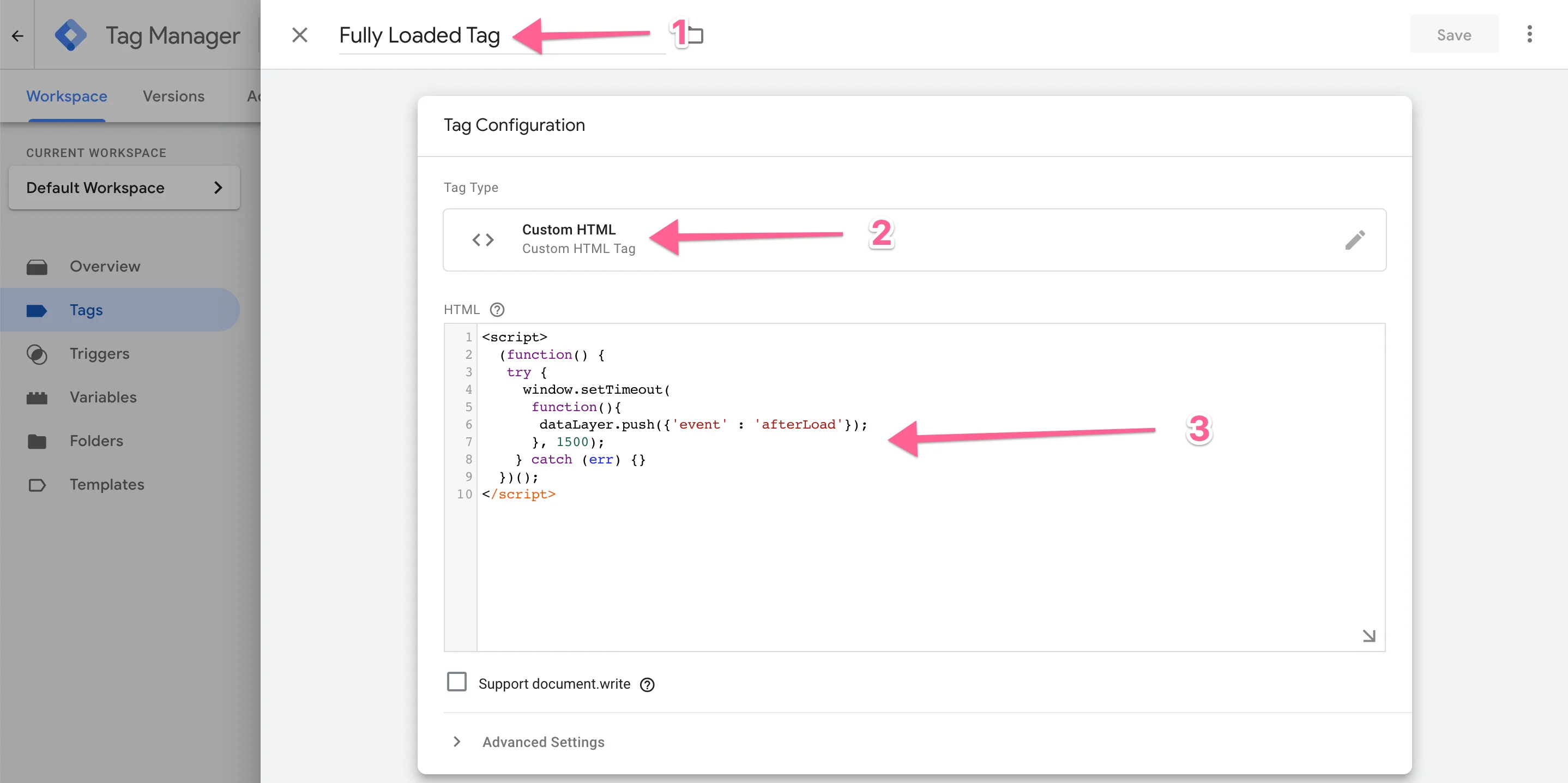
When you fire this Tag, the custom code you just pasted in will run and create an event in the page's dataLayer, which will wait for 1.5 seconds. You can make this more if you want, but 1.5 should be fine, and this Tag will only trigger once the Window Loaded trigger event fires.
Now select the Trigger. You want to create a new Trigger here instead of just using the usual All Pages Trigger, because we're trying to give the page time to load first. So choose Page View as the type, then Window Loaded. Then give your Trigger a name and save everything.
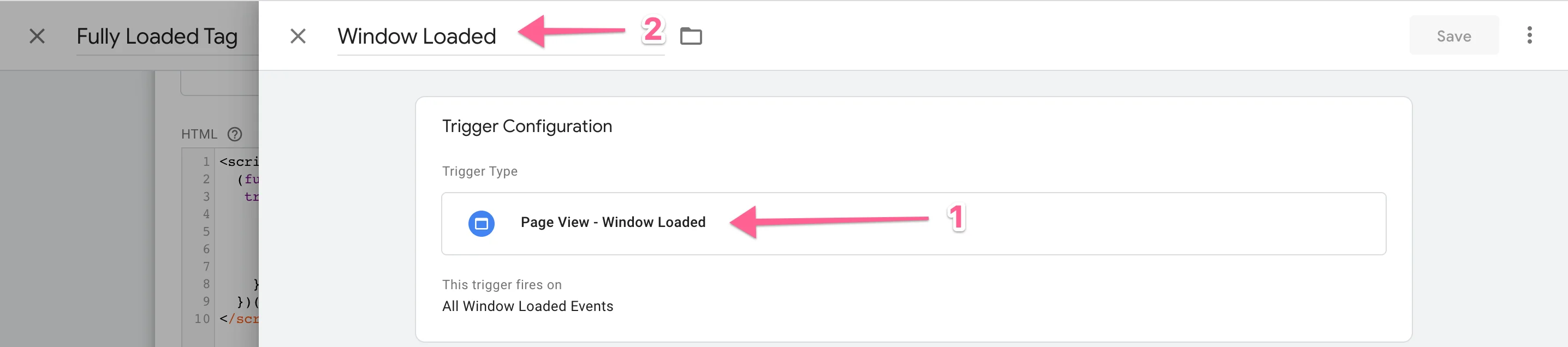
Now you'll have a Tag that will create a dataLayer event when fired and will only trigger on the Window Loaded event.
Step 3: Create the custom event Trigger that you'll use on all Tags you want to delay
Head to Triggers and hit new.

Give the Trigger a name, select Custom Event as the Trigger type and afterLoad as the Event Name. afterLoad is case-sensitive. Save and you're done.
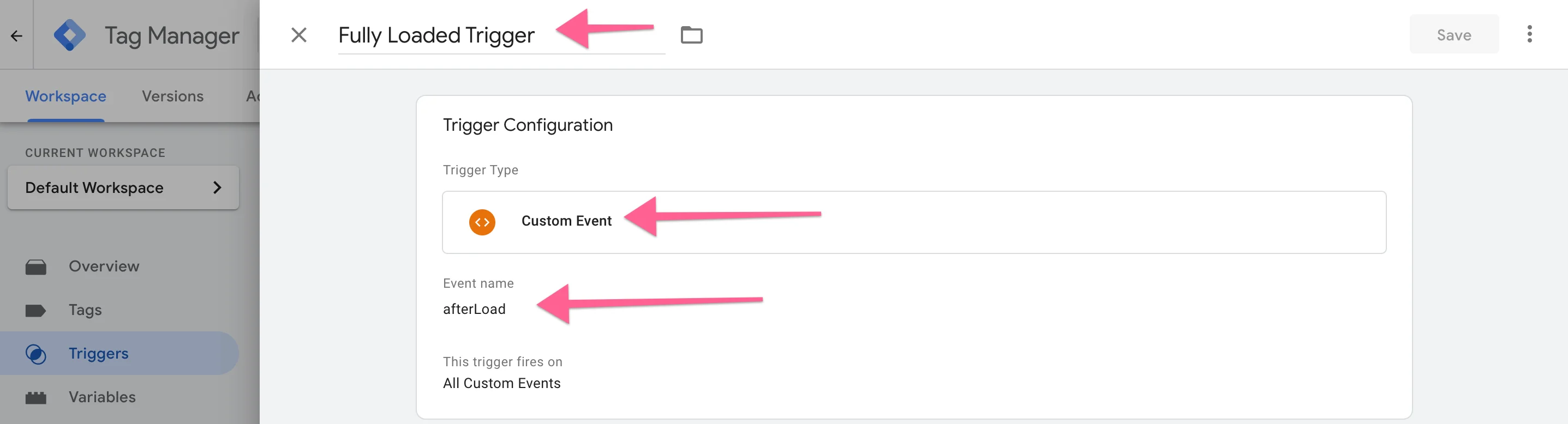
Now you can use this Custom Event trigger as the selected trigger for all the Tags that need to be delayed a bit.
But what's happening? Let's recap.
Unlike most All Pages triggers, the Tag you created at the beginning is now waiting for the Window Loaded trigger to fire. Once that happens, it waits 1.5 seconds before it pushes an event to the dataLayer called afterLoad. When this happens your Fully Loaded Trigger will fire and trigger all the Tags that you added it to. This gives everything else time to load and holds back a lot of the scripts Google PageSpeed usually moans about. So apart from helping to improve your scores, it also provides a better user experience and allows for less penalisation from tools that monitor this kind of thing.
You don't have to follow the route we take by letting our GA Tag fire on All Pages. This can be delayed too, it just depends on how accurate you want your analytics to be, and it's all up to you. For that matter, fire any Tag you don't need immediately using the custom event if you're happy with the delay.
Last bit: publish the container, check that everything's working fine by previewing the site in Tag Manager to make sure everything still fires, and then head over to the tabs you left open when you ran the tests. Run the tests again. There should now be a tiny improvement, depending on how many Tags you delayed, but don't just do this because you want a better score. It's also good for your user experience, and remember www.experte.com for bulk testing.
Common questions about delaying tags in Google Tag Manager
Does Google Tag Manager slow down my website?
It can. Tag Manager itself loads asynchronously, so it doesn't block the page, but every Tag inside it is still a script that competes with your images, text and everything else for bandwidth and the browser's attention. A container stuffed with ad and heat map Tags is what makes Google PageSpeed Insights complain. Delaying the non-essential ones, as above, is the fix.
How do I delay a tag in Google Tag Manager?
Create a Custom HTML Tag that pushes an afterLoad event to the dataLayer after the Window Loaded trigger fires (Step 2), create a Custom Event Trigger called afterLoad (Step 3), and swap that Trigger onto every Tag you want to hold back. Preview the container, then publish.
Will delaying tags hurt my analytics?
Only a little, and only for the Tags you delay. Anyone who leaves the page before the window has loaded and the 1.5 seconds have passed won't fire the delayed Tags. That's why we keep Google Analytics 4 on the normal All Pages trigger and delay things like remarketing Tags, where a second or two makes no real difference.
Will this fix my Google PageSpeed score?
It should help, particularly where PageSpeed is flagging third-party scripts, but expect a tiny improvement rather than a miracle. Test on both Mobile and Desktop, more than once, and treat the score as a guide. Faster pages are the real prize.
Have any questions or comments about how to improve page speed? Hit us up in the comments, and remember, when you run the tests, especially in Lighthouse, run both Mobile and Desktop more than once to check if there's a difference.
Remember to check out the How-To section of our blog for more tutorials. If you'd rather skip Tag Manager for analytics altogether, we've also written about adding Google Analytics 4 with Cloudflare Zaraz, and if you want to track clicks once your tags are sorted, here's how to track button clicks in Google Analytics using Tag Manager. We've also recently done a post on increasing site speed by using Webflow with Cloudflare to cache and speed up your Webflow Project, and the newest version of that advice is in optimising Webflow with Cloudflare images, assets and caching in 2026, so check those out.