

How to track a button click as an event in Google Analytics 4 using Tag Manager, plus how we did the same with Universal Analytics events and Goals before it was retired.
Update, October 2026: Google switched off Universal Analytics in 2023 (and retired Google Optimize the same year), so the Universal Analytics parts of this post, including the intro and Steps 2 and 3, no longer work and are kept as a record of how we did it at the time. Step 1, tracking an event in Google Analytics 4 with Tag Manager, still applies. Tag Manager has also replaced the GA4 Configuration tag with the Google tag (since September 2023), and the GA4 Event tag now asks for your Measurement ID instead, so where Step 1 says to select your Configuration Tag, enter your GA4 Measurement ID (it starts with G-). Google has also renamed GA4 conversions to key events, so where we say Conversions in GA4, look for Key events.
So first you might have some questions, like what's GA4 & 3? Google did a nice little comparison between Google Analytics 4 Events and Google Universal Analytics Hit types here. Let's just say that eventually Universal Analytics will be deprecated by Google, and if you're setting up a new GA account you want to go with Google Analytics 4. If you've already got a Universal Analytics account, now is probably the time to set up a GA4 account so it can start gathering data. If you're setting up a new GA account you can still set up a Universal Analytics account and track that in parallel, which is probably a good idea. More on how to do that here. You're probably going to want to use Tag Manager as well so help on setting that up here for our Webflow fans. We are a Webflow studio, but this is applicable whether you're a Webflow expert or not, as long as you use Tag Manager.
So why still use Google Universal Analytics? Well a lot of other tools, including a lot of Google's own platforms, still only work with Universal Analytics. Google Optimize, Google Ads' Smart Ads, and other tools like Microsoft Clarity etc. to name but a few. So why not just use UA instead of GA4? Like we said, UA is going to be dropped in favour of GA4 and you can't migrate your data to GA4, so best to start gathering GA4 data now. Apart from that GA4 is just better in almost every way (including the ability to dump all your data in Google BigQuery, more on that in this post), but when it comes to custom tracking this is really important, as there's a big UA limitation: you can only create 20 Goals in a Universal Analytics Profile! So for example, track the clicks on 20 buttons and forms and you're out of space if you're using Goals. But if you're going to be running Smart Ads in Google Ads, you're going to need an old style Goal in your UA Profile. So what do we do? We set up both, of course.
So in summary, in this post we'll create a Google Analytics 4 Event and a Universal Analytics Event and a Goal in your UA Profile. We've already done a post on setting up a form submit event and trigger for GA4. You can use that trigger to fire both the events we'll be creating today, and here's a post on creating a button click trigger. The best part about using Google Tag Manager to do this is that you only create one trigger and fire both the GA4 and GA3 Universal Analytics events using the same trigger. Remember, as with most things on our blog this can easily be implemented in Webflow, our website development platform of choice.
Let's get started.
Step 1: Create a Google Analytics 4 event
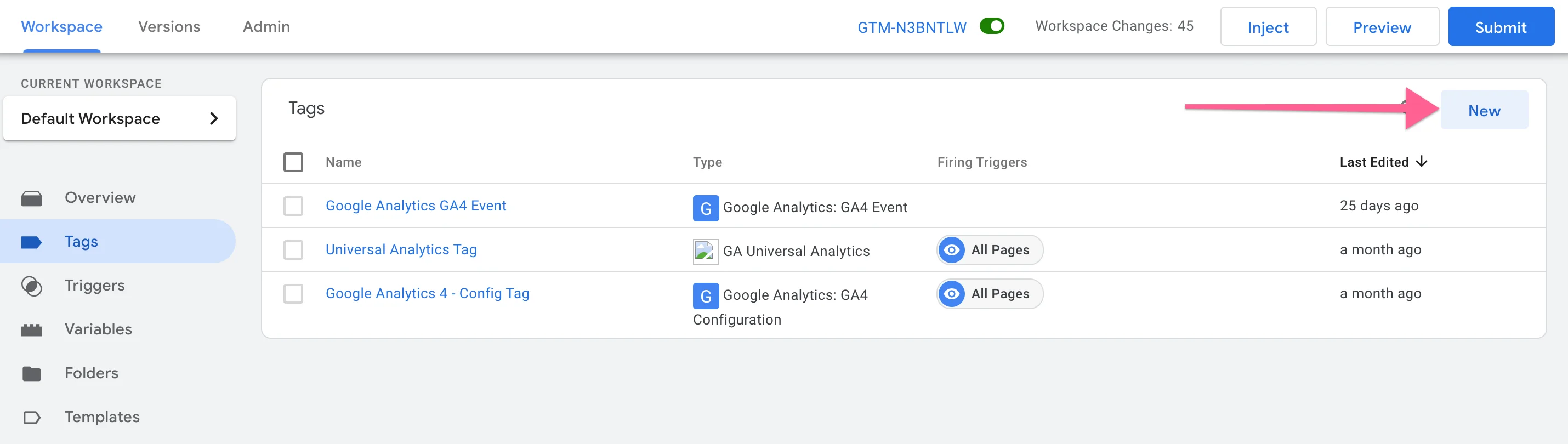
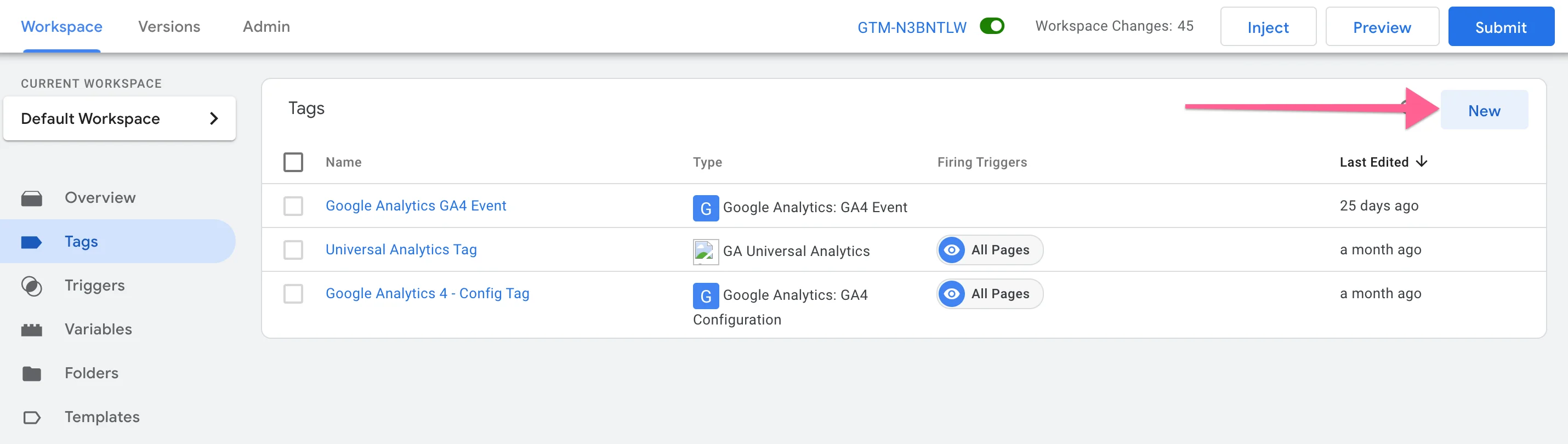
Open up your Tag Manager Container, head to Tags and hit New.
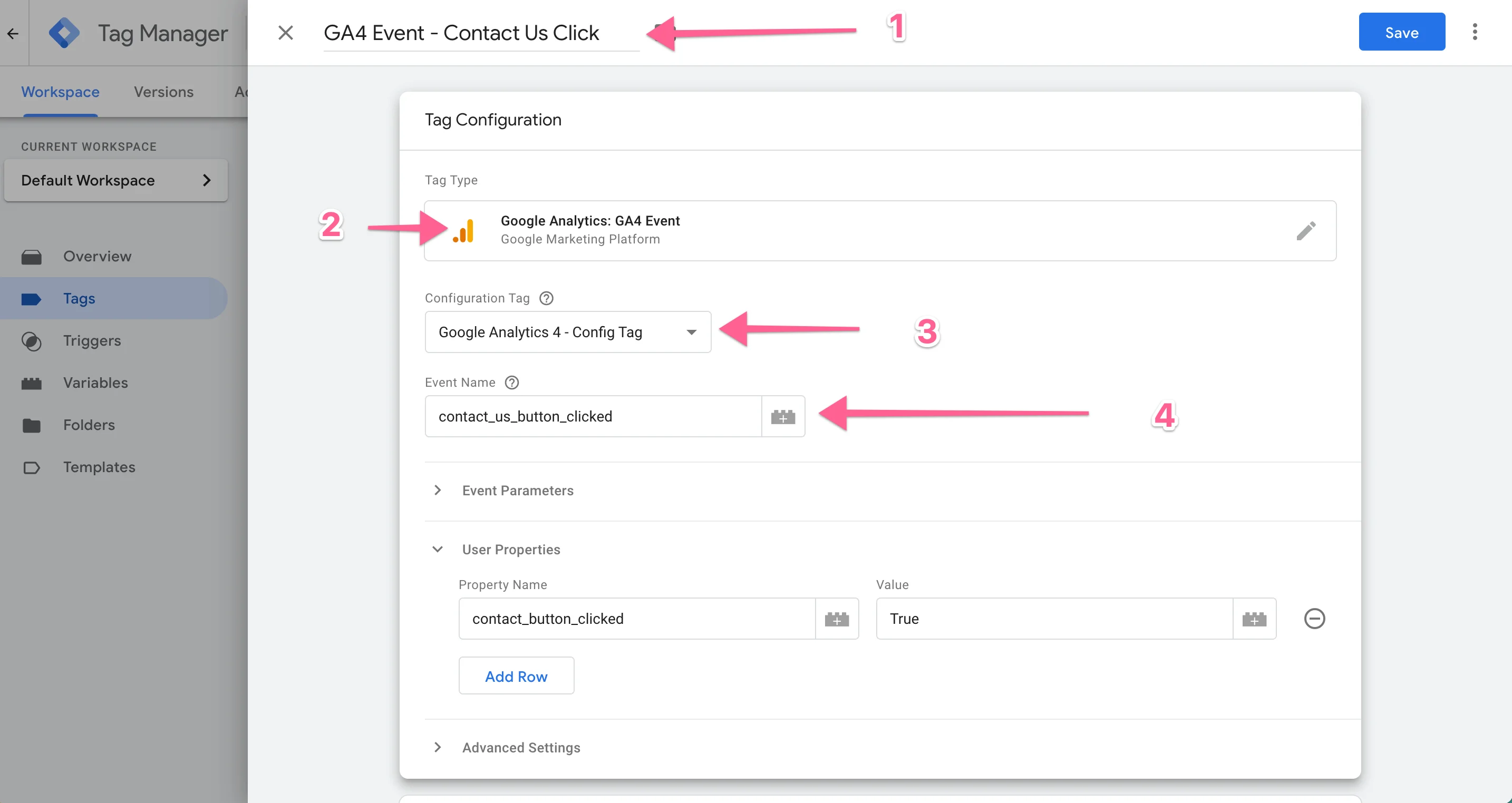
Give your Tag a name, we're going to be tracking our Contact Us button. Select Google Analytics: GA4 Event as the Tag Type and select your Configuration Tag (if you don't have that, it's the one you set up here). Give the event a name, we're going with contact_us_button_clicked.
Feel free to set other values. You might consider giving the User Properties a value of True for contact_button_clicked if you'd like to create audiences later or whatever.
Then add your Trigger, we'll be using the button click trigger we set up in this post.
Hit Save.
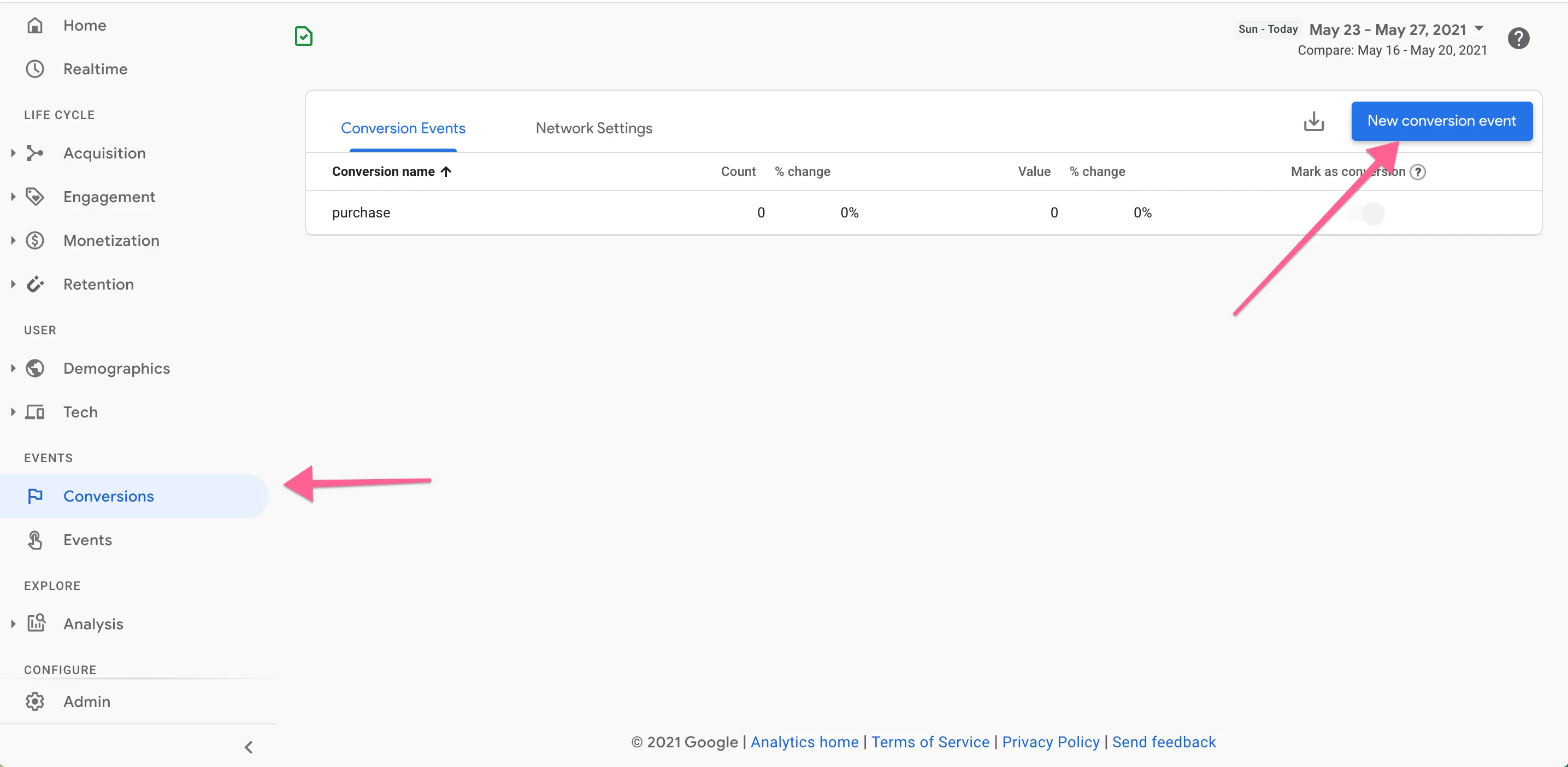
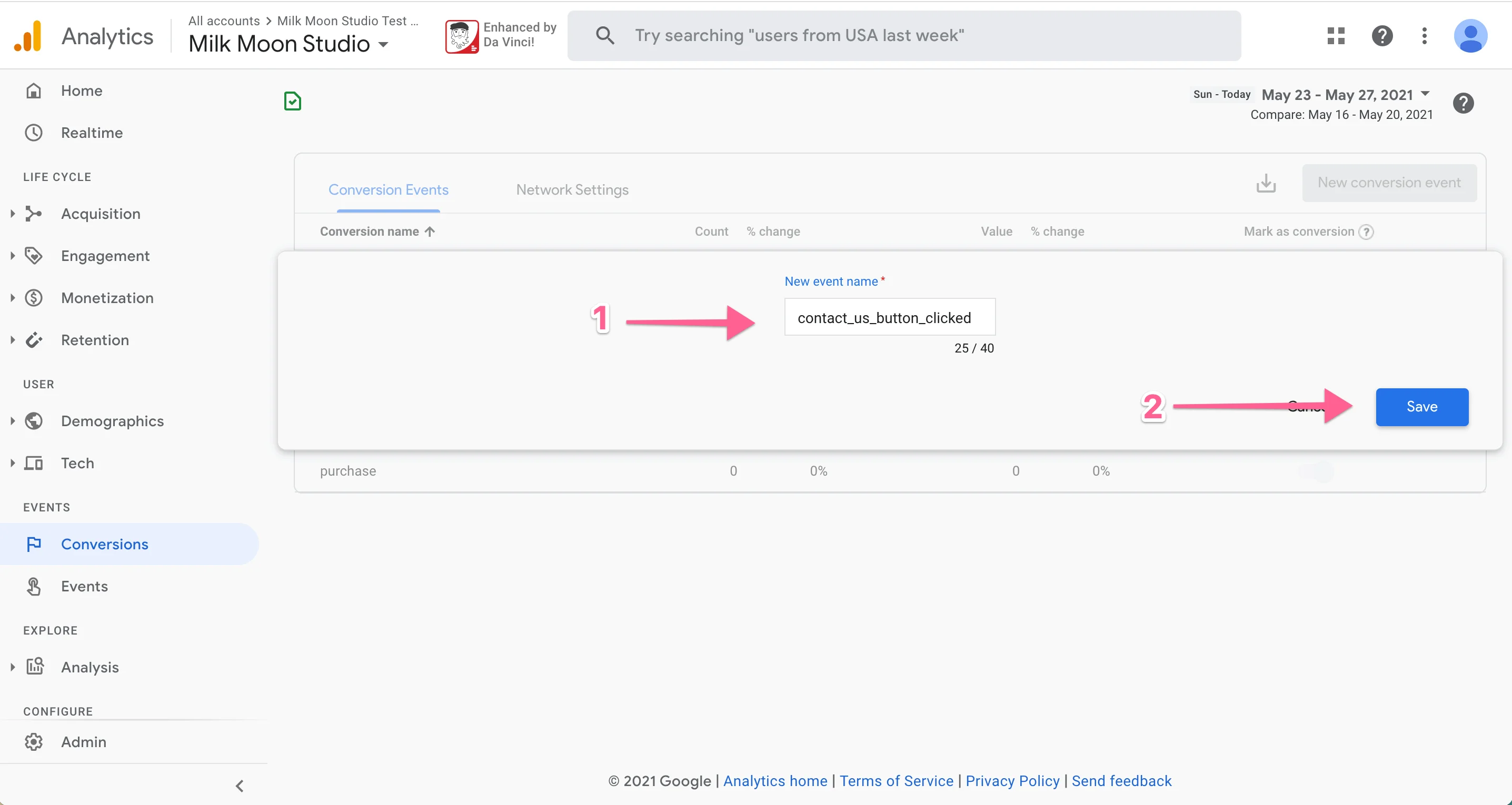
You've set up a GA4 Event! Sorted! Submit and Publish the container. Then head to GA4. The events won't start showing till tomorrow, but you can test and it'll show under realtime events. If you'd like to make this a Conversion in the meantime, head to Conversions in GA4, hit New Conversion Event, enter the event name exactly as it was in Tag Manager and Save.
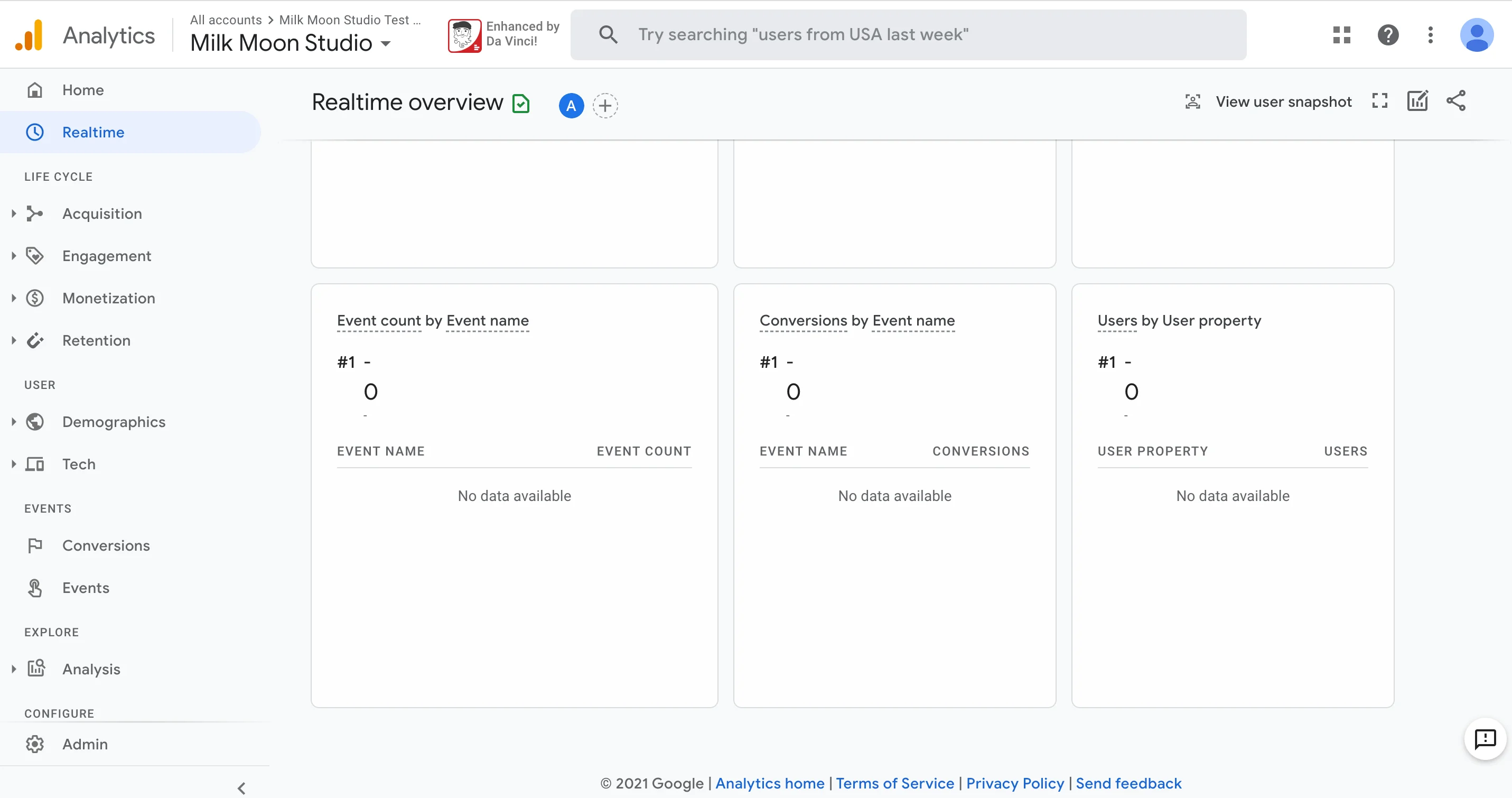
As people click on the button events will start showing under events (and conversions if you added one) in the next day. You can test under Realtime in Analytics or use Preview in Tag Manager to see the Tag is firing properly.
If you're only setting up GA4 stop here, if you're creating a UA Event and Goal continue to steps 2 and 3.
Step 2: Create a Google Universal Analytics event
First things first, if you don't have GA UA set up or it's not in Tag Manager do this first.
Once that's done and you have UA in Tag Manager with a UA ID variable head to your Tag Manager Container and hit New under Tags.
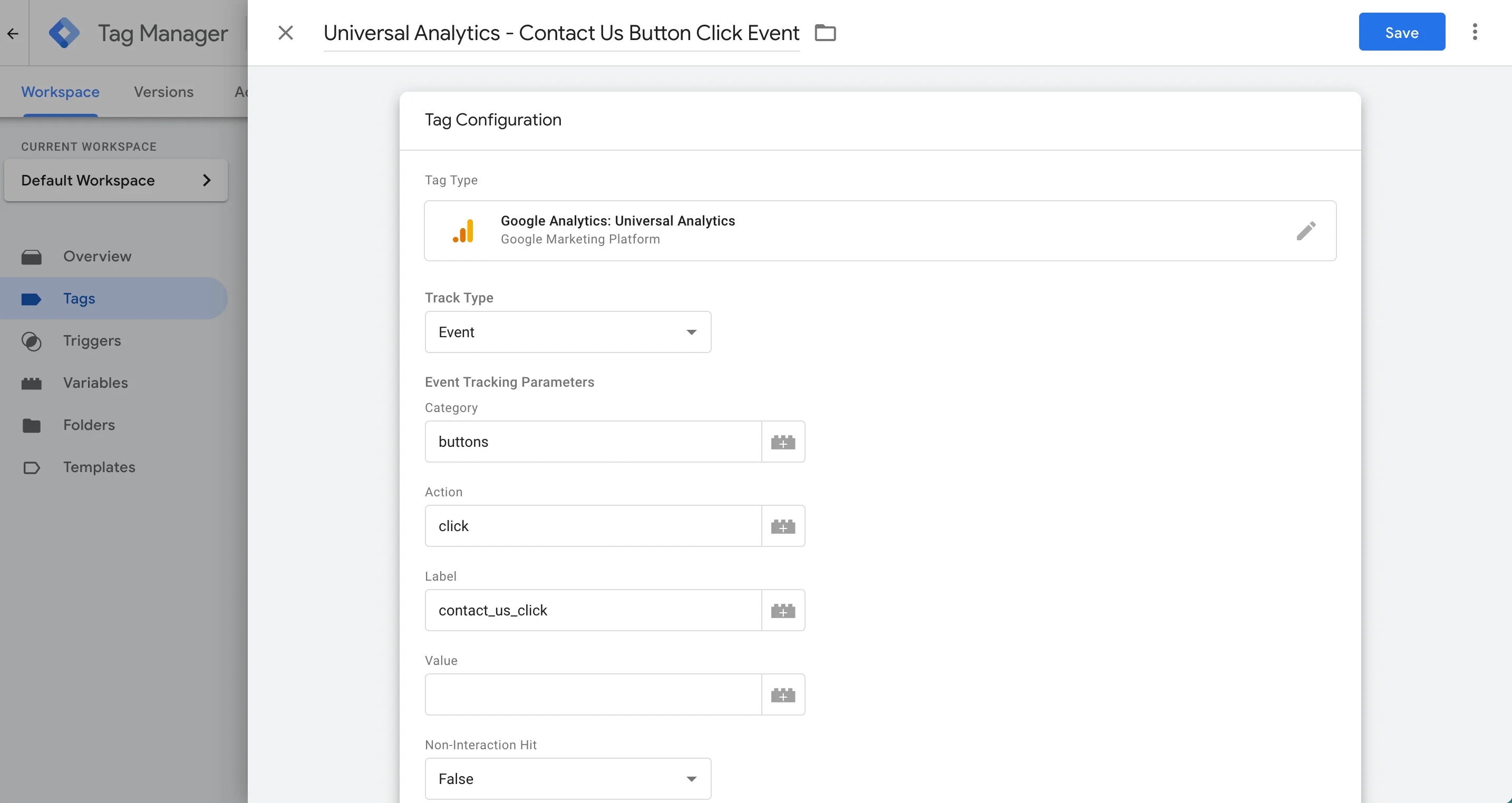
Give the Tag a name (we're tracking the Contact Us button again like we did before). Now select Google Analytics: Universal Analytics as the Tag Type. Select Event from the Track Type dropdown and give it a Category (we're going with buttons), for Action we're going with click, and for Label we're saying contact_us_click. Let's say your click is worth $10 to you, then you can add 10 as a value.
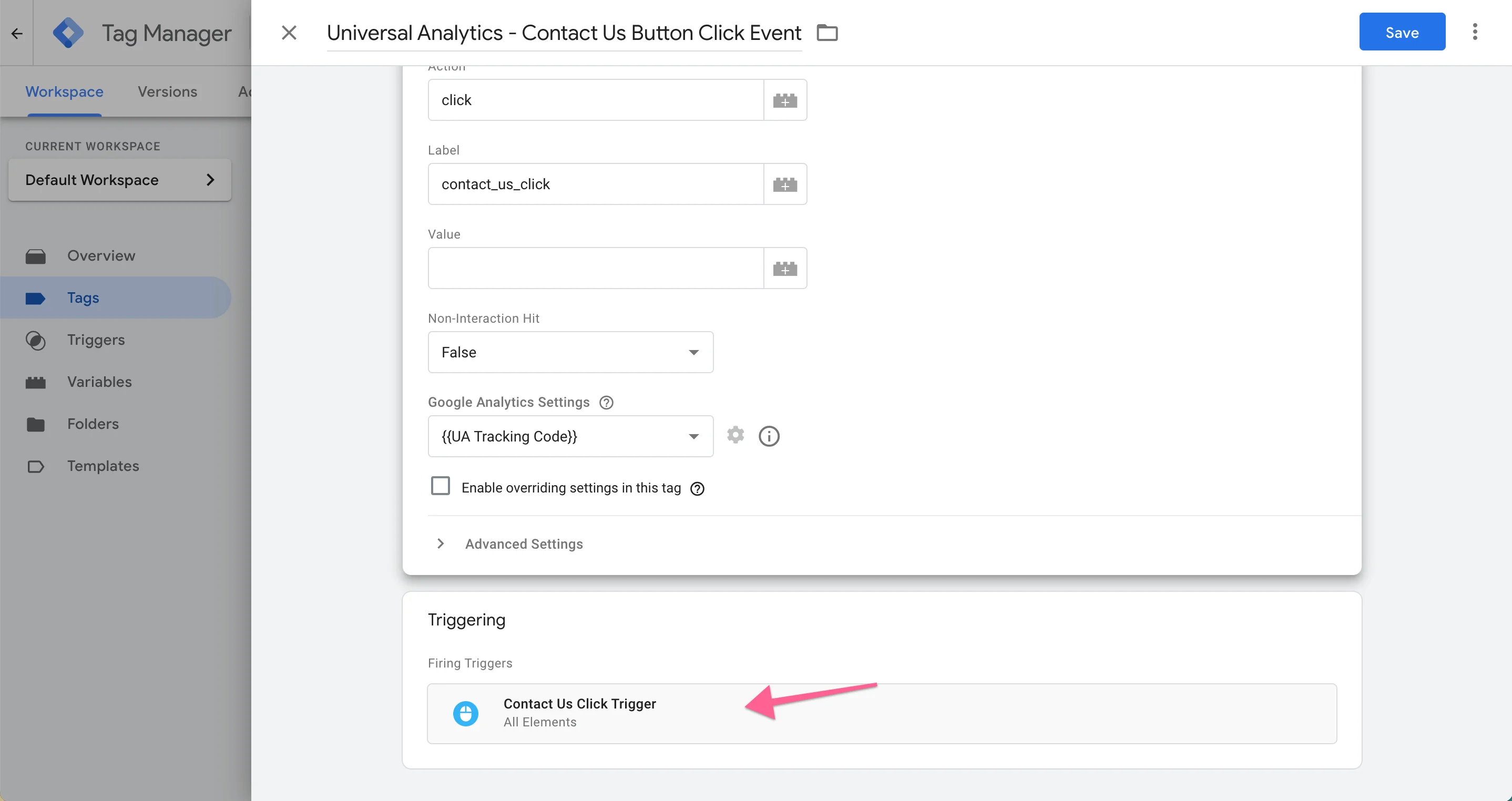
Now for Google Analytics Settings select your UA ID Variable. Then for Trigger select the button click trigger we set up here or whatever trigger you set up. Hit Save, then Submit and Publish the Container.
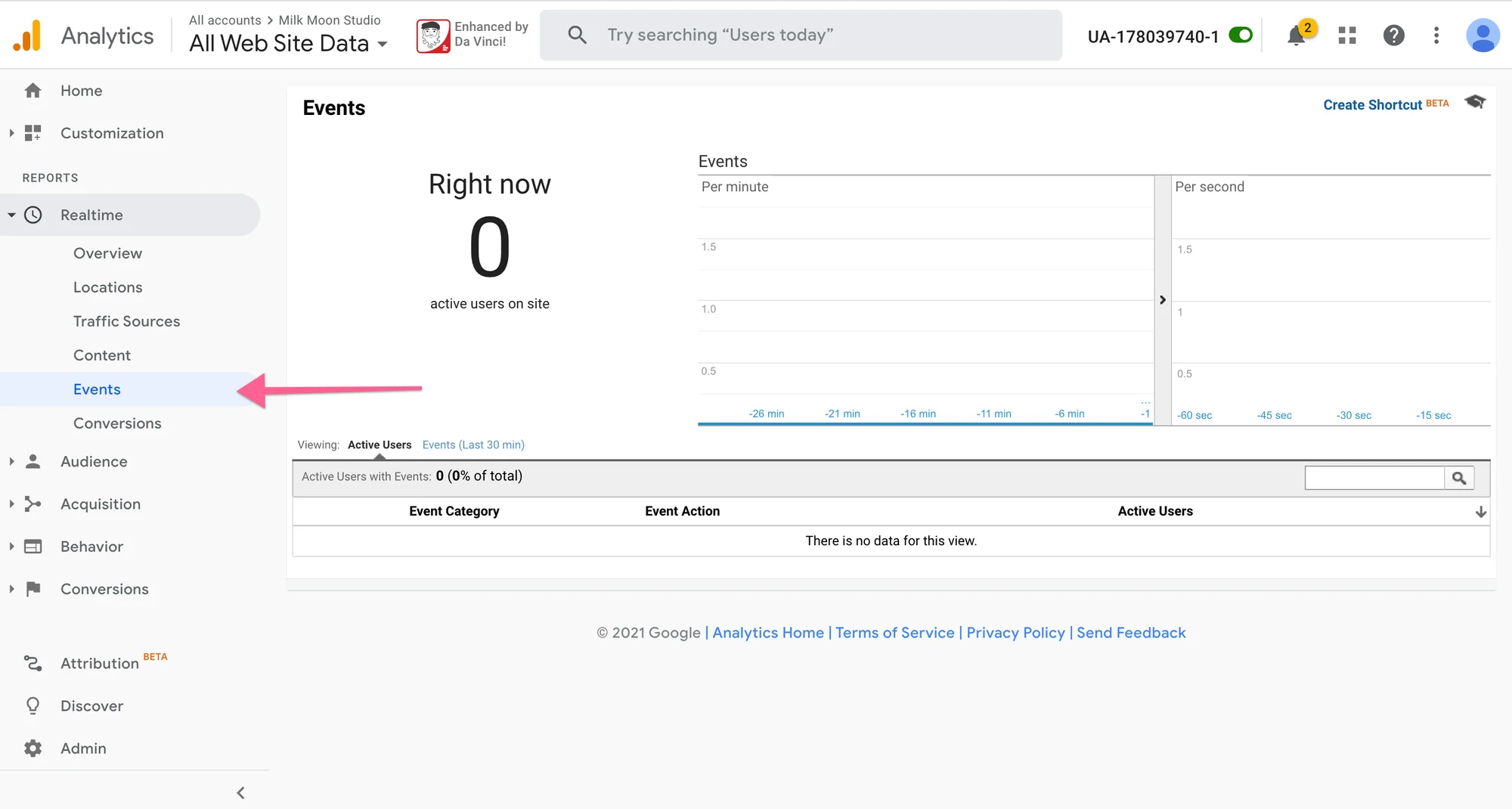
Now you have an Event firing when the button is clicked that'll show on Google Universal Analytics. You can test by using Preview in Tag Manager to see if the Tag is firing properly when you click on the button, and/or head to Google Analytics, open up the UA profile you're using, head to Realtime, select Events and click the button to see if the Event is showing under Events in Realtime. It won't show under Behavior till the next day.
Step 3: Set up a conversion Goal in Google Universal Analytics
Now, let's set up that Conversion Goal. In GA UA, hit Admin in the footer. Select the View you'd like to set this Goal up for, top right. If you want it on your All Web Site Data View and, for example, your Google Ads View, you'll have to create the Goal twice, once for each View. We're just going to use our All Web Site Data View.
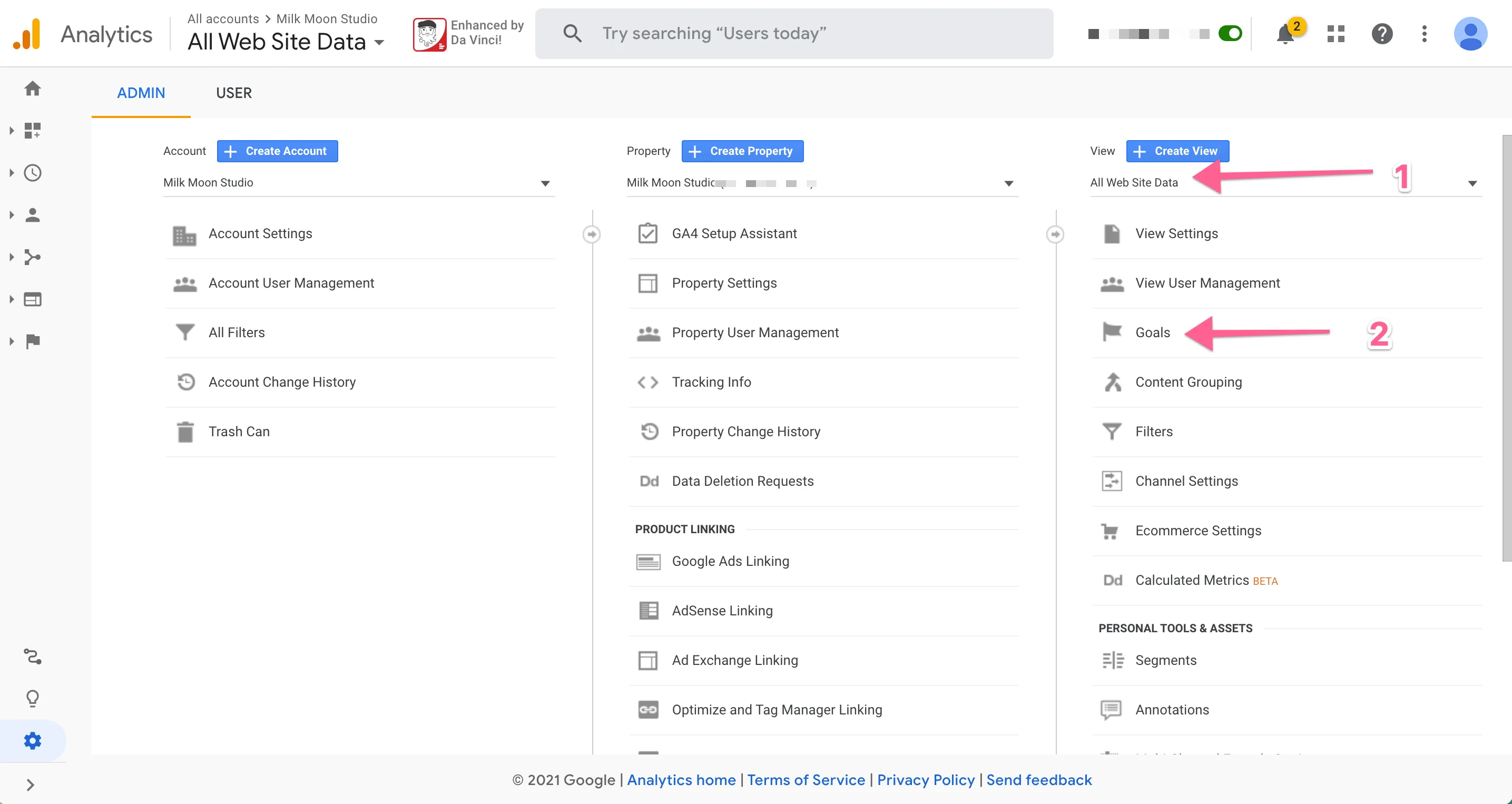
Click on Goals then New Goal.
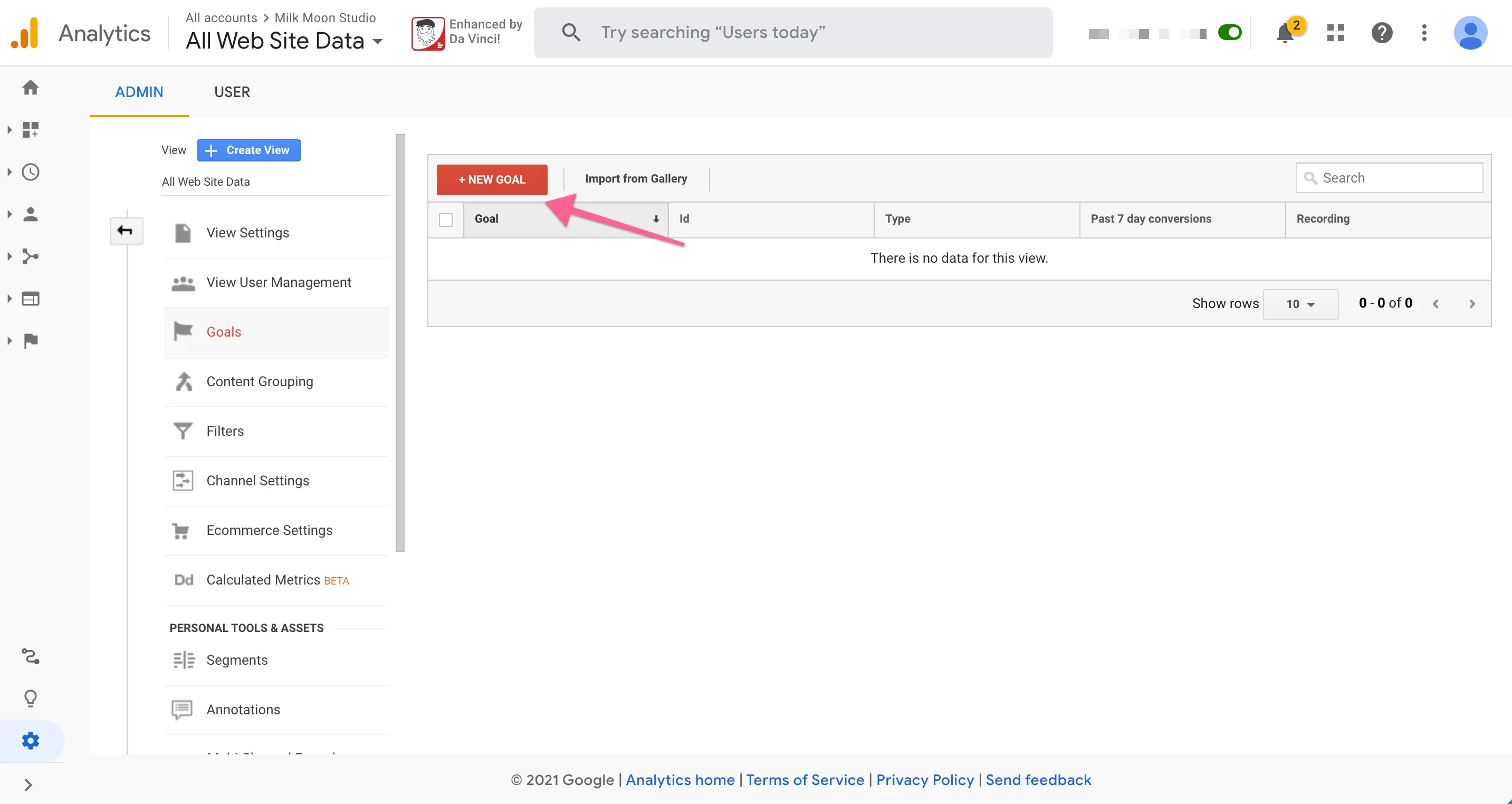
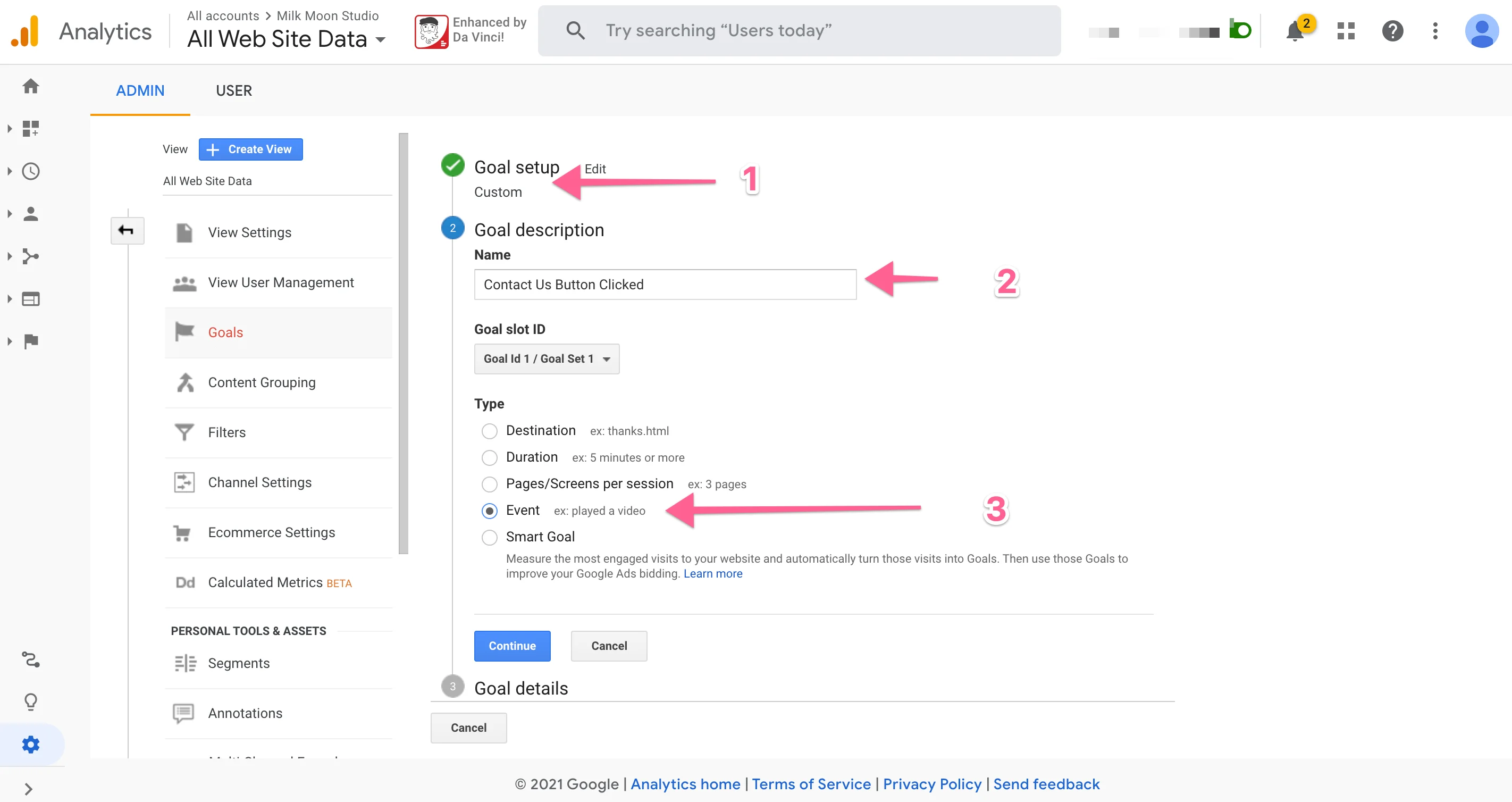
Select Custom as the Goal Type, give the Goal a name, then select Event and click Continue.
Now enter what you used when you created the Event in Tag Manager, but leave the Value blank unless you're filtering for a specific value you entered in Tag Manager. What you're doing here is matching up the event you created: GA is looking for an event with a Category of buttons, an Action of click and a Label of contact_us_click.
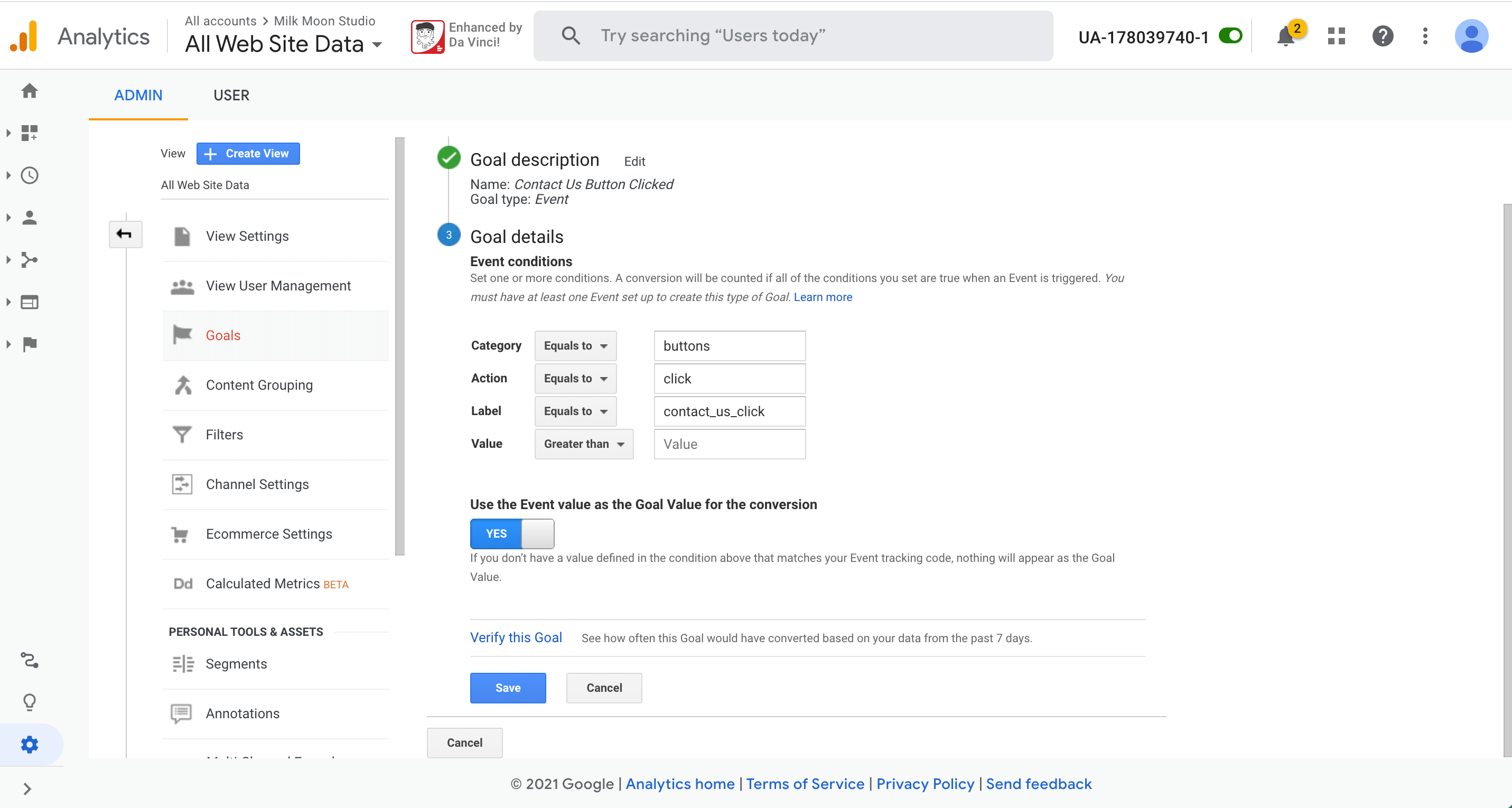
If you entered a Value in Tag Manager and want to use that in your Goal, leave YES on. Now save and you're done.
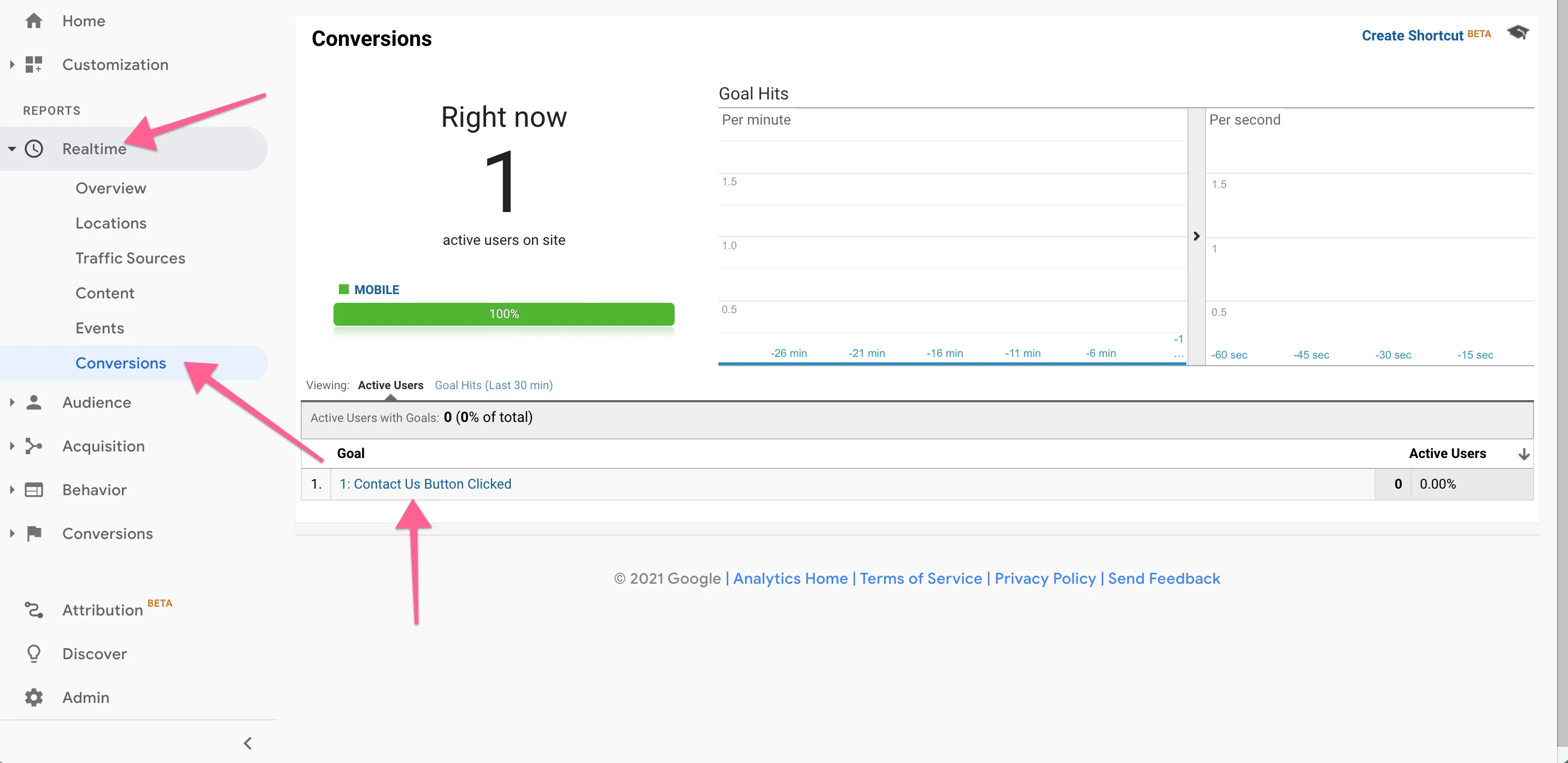
To test you can go to Realtime and Conversion, click the button on your site and wait and see if it shows under Goals. Remember it'll only start showing under Conversion in the left panel a day after you set it up, same as Events under Behavior.
You're done. If you followed all the steps you'll have an Event set up for GA4 and UA, and a Goal in UA.
Remember, if you're having issues, hit us up in the comments and test using Preview in Tag Manager.
Just a recap of stuff you might need for this tutorial if you're new to Webflow design and haven't set up the rest yet.
- Setting up Tag Manager
- Setting up Google Analytics in Tag Manager
- Creating a Click Trigger
- Creating a Form Submit Trigger
For more how-tos, head to our How-To section. If you'd rather keep tags off the page until it has loaded, we have a post on delaying Tag Manager triggers to keep your page speed up. Prefer to skip Tag Manager? We also cover adding Google Analytics 4 with Cloudflare Zaraz, and there's a case for using Google Tag Manager in Webflow in the first place.
Frequently asked questions
Does Universal Analytics event tracking still work?
No. Standard Universal Analytics properties stopped processing hits on 1 July 2023, so UA events and Goals no longer record anything, and access to old UA data ended in July 2024. Steps 2 and 3 are kept here as a record of how it worked. Step 1 (GA4 event tracking) is the part to follow today.
How do I track an event in Google Analytics 4 with Google Tag Manager?
Create a GA4 Event tag in Tag Manager, give the event a name, attach a trigger such as a button click, then publish the container. Test it with Preview in Tag Manager and under Realtime in GA4. Step 1 above walks through it click by click.
What is the difference between a Universal Analytics event and a GA4 event?
A UA event was made of a Category, an Action and a Label, and you needed a Goal on top to count it as a conversion. A GA4 event is just a name with optional parameters, and it can be marked as a key event (what GA4 used to call a conversion) without a separate Goal.