


How to show a three-line summary or excerpt for every post in your Webflow blog feed without adding a summary field to your CMS, using a snippet of custom CSS and a combo class.
We recently had to migrate a massive number of blog posts for a client from WordPress to Webflow, and we ran into a problem. The content on WordPress only had a title, the post and an image. Usually, if you're doing it the Webflow way, you'd need a field for a post summary, but neither we nor the client were going to write summaries for 500+ blog posts just so we could have a three-line excerpt on the blog page before someone clicked through to the post. So we thought, why not just display three lines of text from the rich text field as the summary? Unlike the multitude of WordPress plugins that'll give you a summary, there is no feature in Webflow to display X number of characters from your rich text field in a collection list. The solution: stick in a rich text element for the summary, connect it to the full blog post copy, and only display a few lines of text with an ellipsis at the end. You do that with some custom code and a combo class.
Turns out this is surprisingly simple, so here we go. Follow along and just copy and paste:
Step 1: add the custom CSS to your site header
Head to Site settings, Custom code, and paste the style into your Head code section:
<style>
/* Auto Post Summary Character Limit */
.textlimit {
  display: -webkit-box;
  overflow: hidden;
  -webkit-line-clamp: 3;
  -webkit-box-orient: vertical;
}
</style>
You can also see the code as a pen on CodePen: Create a Blog Summary or Excerpt in Webflow, by Jakes van Eeden.
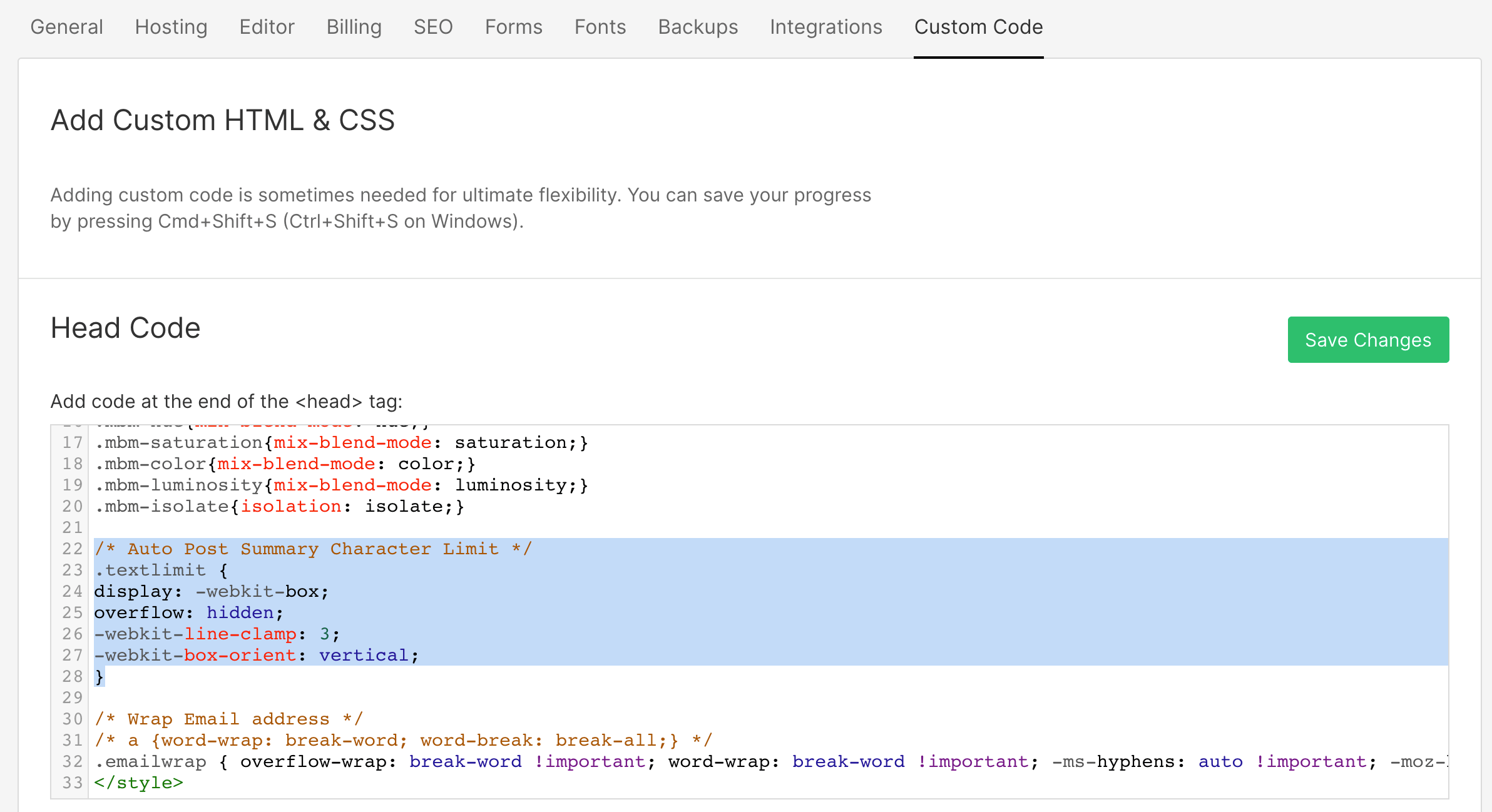
There are a few ways to do this, but character limits are a bit hard. The easiest way to do that is to measure the character width and set a limit, but that changes based on the font and whatnot, which becomes hard to control, so we've gone with three lines in this example. If you'd like a different number of lines, change the 3 in -webkit-line-clamp.
What will happen is that when you connect the rich text field in your collection list to the element in the Designer, it'll just display all the copy for that rich text field. You'll then apply the text limit combo class and it'll look the same in the Designer, but once you publish, it'll limit the text displayed on the published site to three lines. The -webkit- prefixes look dated, but this is still the way to do it: MDN says the three-property combination is fully specified and will continue to be supported, while the newer unprefixed line-clamp property isn't supported in all of the most widely used browsers yet. So, next step:
Step 2: apply the combo class
We're assuming you've already built the element for this step, but if you haven't, add a CMS collection list, stick a rich text element in the collection list item and bind it to the rich text field in your collection list item that contains the blog post. Style it in the Designer, and then just add the textlimit combo class and publish:
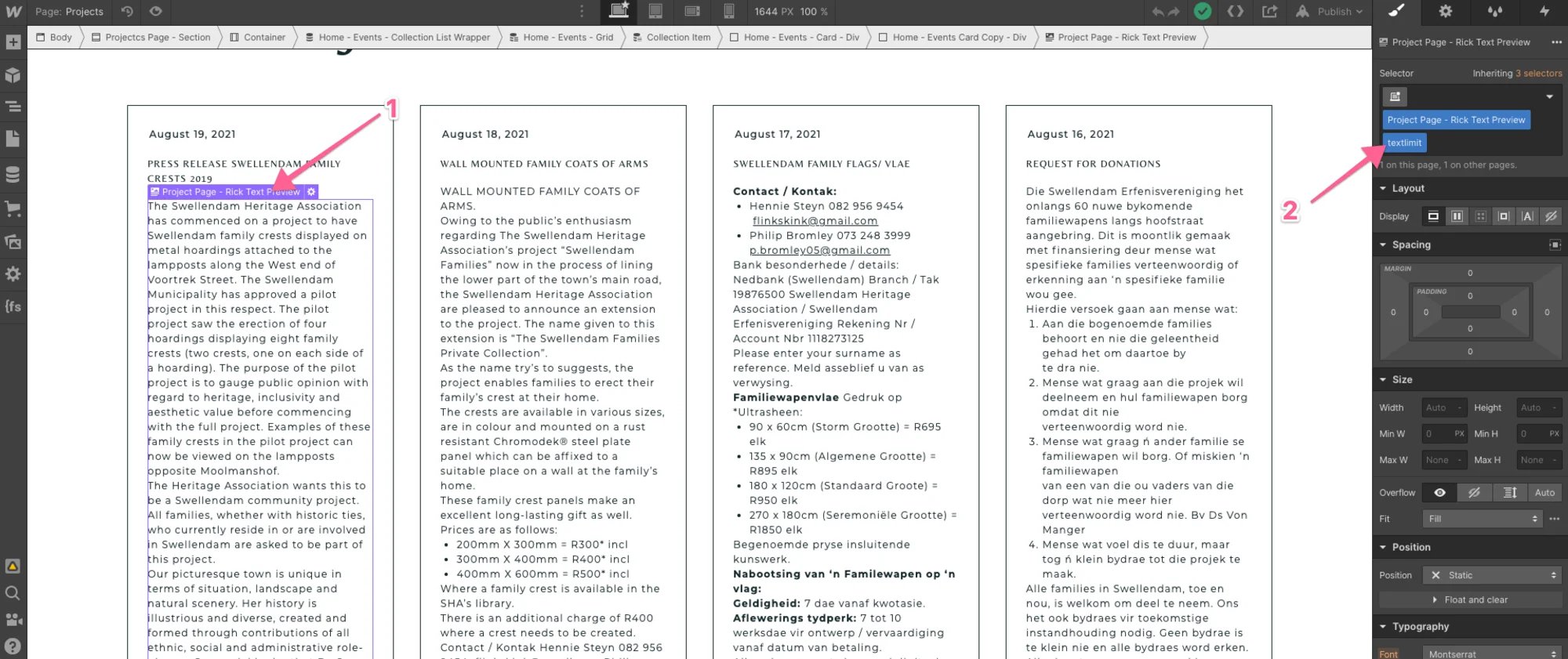
As we said before, in the Designer you'll see alllll the copy for that field, so it won't look great, but don't worry, it'll look great once you publish.
Here's the live site after we publish:
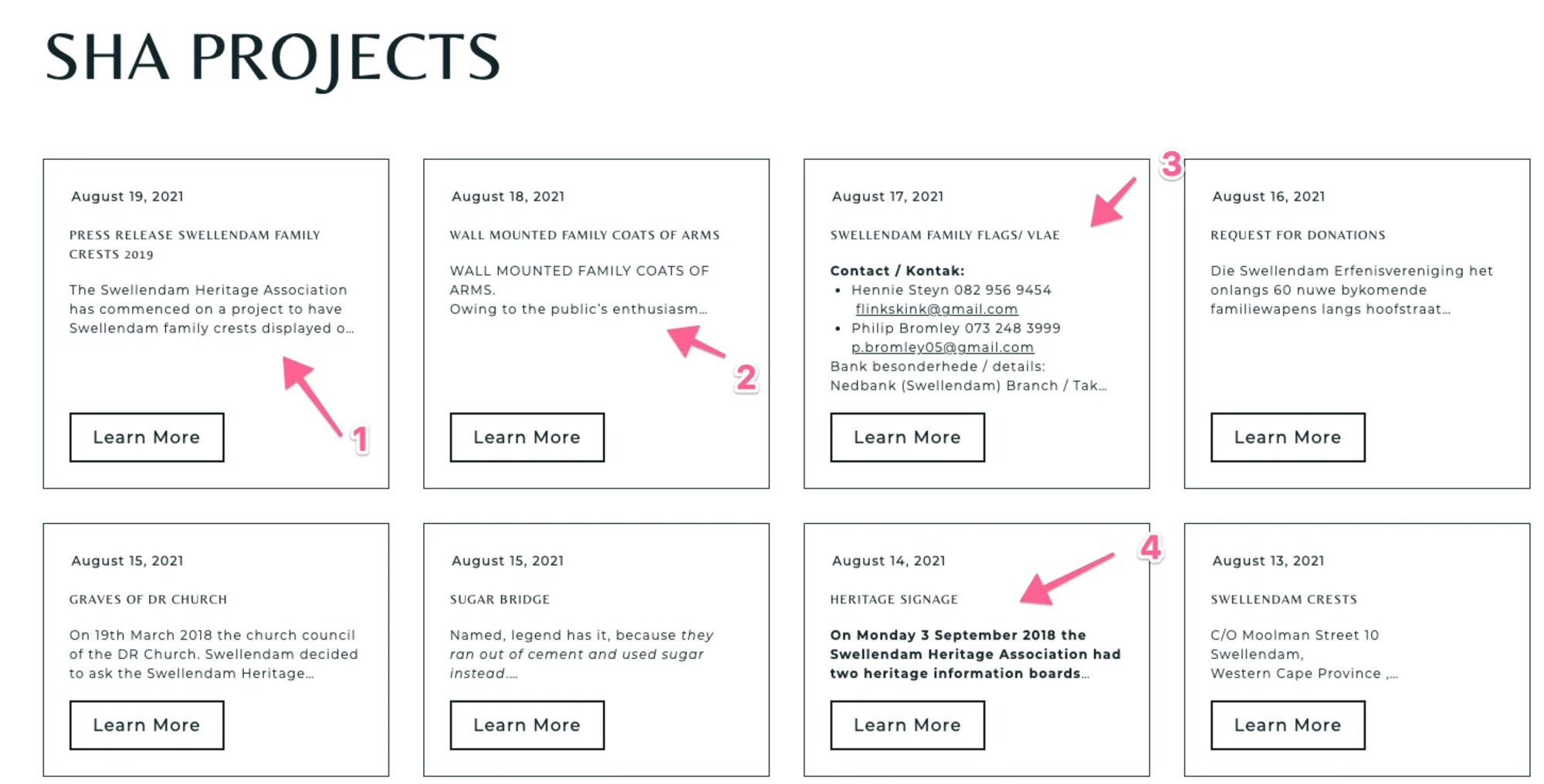
And there you go. Check out no 1: three lines of text, then an ellipsis, and that's it. Just remember to go and style that rich text element properly in the Designer. If you look at no 2, 3 and 4 you can see that I haven't done that yet. You basically want to give the headings, and just about every other element in that rich text field, the same styling as the default paragraph style you want to display.
We'll admit, this isn't perfect and it doesn't always come out 100% correct, just look at the unstyled no 3, but when you have 500 legacy blog posts it'll do.
How do you solve the problem going forward?
A quick note on how to solve the problem going forward. For this client we did create a summary field and made it a required field, so that from now on they have to fill it in. Then we added conditional visibility and stuck the summary paragraph under the rich text summary element. The conditional visibility on the paragraph linked to the summary field in the CMS collection list was set to show if the summary was set, and the rich text element's conditional visibility was set to show if the summary was not set. So it only displays the rich text summary on the legacy posts where the summary was not set, and hides it and shows the actual summary on newer posts where the summary was set.
Will this hurt performance or SEO?
Jef S raised an interesting point on the Webflow forum that you'll take a performance and SEO hit, which I didn't explain above. To combat that as far as possible, the elements were styled to not load images, we only paginate 6 items (we use seamless pagination for that), and in terms of SEO I used a meta tag on the site: <!-- fs-richtext-ignore --><META NAME="ROBOTS" CONTENT="NOINDEX, FOLLOW"> that, in our experience, lets Google crawl the links on the page while ignoring the content. So for Google the page is pretty much invisible, but it allows it to follow the links and crawl the actual blog posts. It worked for us at the time. Google has since said that a page left on noindex for a long time is eventually treated as nofollow too, so check your own results rather than treating this as a guarantee.
FAQ
How do you show a blog excerpt in Webflow without a summary field?
Bind a rich text element in your collection list to the full post body, add a combo class with -webkit-line-clamp set to the number of lines you want, and publish. The limit only applies on the published site, so the Designer still shows all of the copy.
Can you limit a Webflow rich text field to a number of characters?
Not natively. Webflow has no setting for it, and a character limit is hard to control in CSS because the width of each character changes with the font. Limiting by lines, as we do here, is the easiest reliable option.
Why does the excerpt look different in the Designer?
The Designer shows all the copy in the bound rich text field, so it looks long and unstyled. Once you publish, the combo class limits it to the number of lines you chose. Style the rich text element like a normal paragraph so the excerpt matches the rest of your design.
Should you still add a proper summary field?
Yes, for new content. Use this trick for legacy posts, then add a required summary field and use conditional visibility to show it in place of the automatic excerpt, as described above.
Pop a comment below if you have any questions, and don't forget to check out our other Webflow and analytics how-tos here. If you're building CMS-powered layouts, you might also like our posts on styling text spans in dynamic CMS text, breaking the CMS grid and adding blend modes with combo classes, or grab something from our Webflow cloneables.