
Our free Cloudflare Worker for Webflow sites: AVIF and WebP images, files cached on your own domain, less Webflow bandwidth, and the whole O2O setup, step by step.
UPDATED (2 October 2026): this post has been completely rewritten for version 6 of our Worker, which is now free, open source and on GitHub. If you followed the January version of this guide (the one with /cdn-cgi/image/ links, a DOMAIN variable and a CodePen you pasted into the dashboard), skip down to the "Upgrading from the old Worker" section. Everything else below is new.
We've been trying to get Webflow and Cloudflare to play nicely together for about four years now. First it was a hack with the SSL settings and the Cassette app to cache and optimise images. Then Cloudflare killed off apps and we wrote a Worker of our own to proxy and cache Webflow images. Then Webflow moved its hosting onto Cloudflare, Orange-to-Orange (O2O) started working properly, and in January we published the first version of this guide, with a bigger, better Worker that handled CSS, JS and fonts too.
And now, honestly, we've gone a bit overboard. The Worker has been rebuilt from scratch, it's been running on our own site since the end of September and on a second site since 1 October, it's been tested against five real pages from four different Webflow sites, and we've put the whole thing on GitHub, free, with a Deploy button. No more copying a script out of a CodePen. You click a button, paste one secret, add one line, and you're done.
We're calling it the Milk Moon Webflow Optimizer. Here's what it does, why it's within Webflow's rules, how the caching works, what it saves, every setting, the whole setup from DNS to done, and all the stuff that can go wrong. It's a long one, so grab a coffee.

The short version
The Milk Moon Webflow Optimizer is a Cloudflare Worker that sits in front of your Webflow site (effectively a Webflow reverse proxy for your files). As each page streams past, it swaps every Webflow image, stylesheet, script and font address for an address on your own domain. When the browser asks for those files, the Worker fetches them from Webflow once, shrinks the images to AVIF or WebP (whichever that visitor's browser can open), and keeps everything in Cloudflare's cache, close to your visitors, for up to a year. Everyone after that gets the cached copy.
What you get:
- Every PNG, JPG, GIF and WebP image converted on the fly to AVIF or WebP. Nobody re-exports anything in Webflow.
- Images, CSS, JS and fonts served from your domain and cached at Cloudflare's edge.
- Far less data coming out of Webflow, which is what Webflow bills you for.
- Pages that still update the moment you hit publish.
- Social preview images that always work (converted to JPEG for LinkedIn, Facebook, WhatsApp and X), plus the
og:urltag Webflow never adds. - Optionally, images that download at the size they're actually shown, not the size Webflow guessed.
- Your site looks exactly the same. Same design, same interactions, same content.
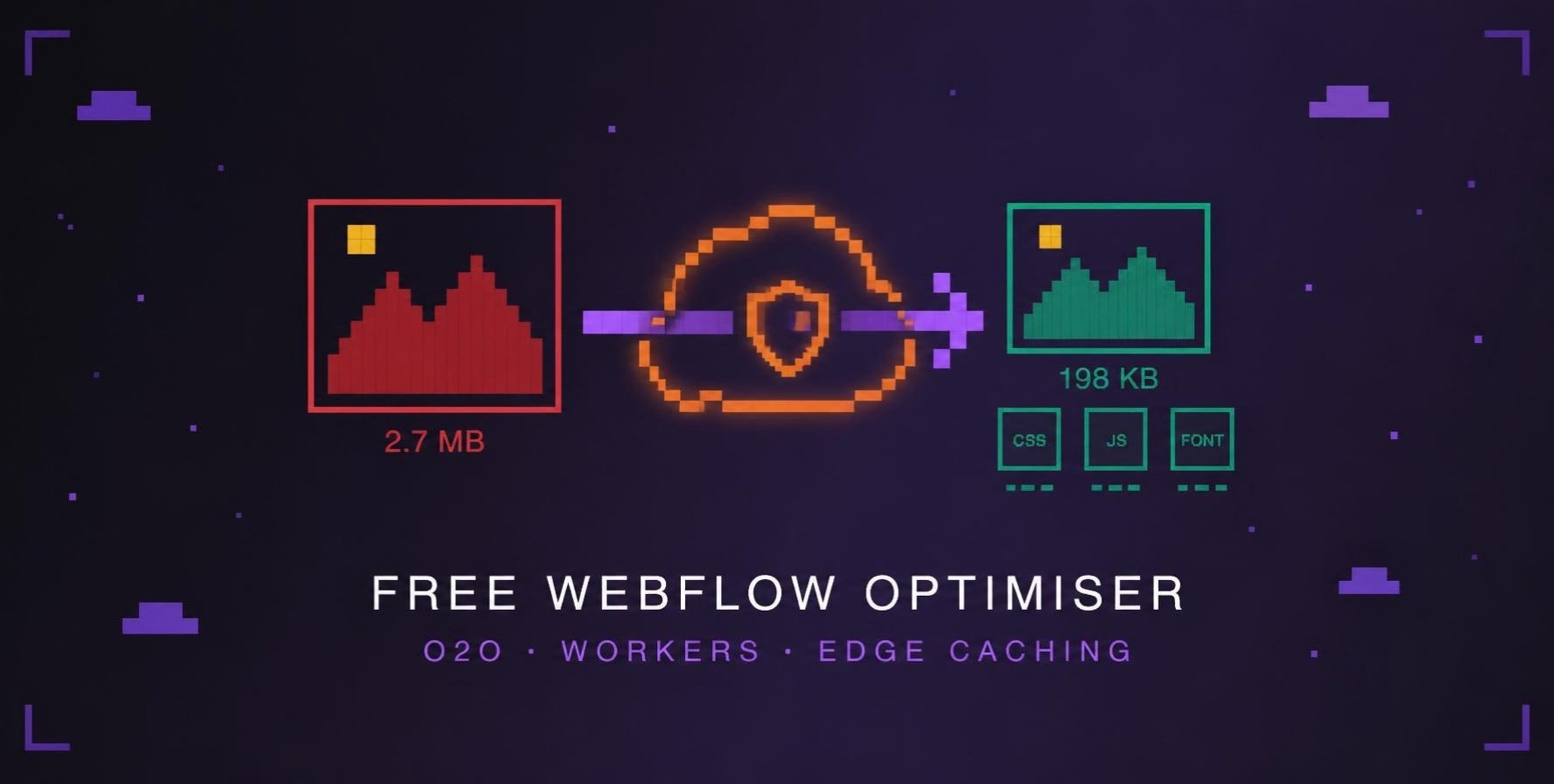
On our homepage today, the 38 main image files weigh 8,762 KB straight from Webflow and 1,755 KB through the Worker. That's 80% less, and not a single image came out bigger than the original. The worst offender, a 2.7 MB PNG project screenshot, now arrives as a 198 KB WebP. Same picture.

Why bother? The problem with Webflow's file servers
Webflow is brilliant at building and hosting sites, we wouldn't be a Webflow studio otherwise. But the way it delivers your files has three catches, and they all cost you money or speed.
1. Your images go out as you uploaded them. Webflow does make a few smaller copies of each image for different screen sizes (the -p-500, -p-800 files you've probably seen), and it has a Compress tool in the Assets panel that converts images to AVIF or WebP. But that's a manual job, it replaces your originals, and anything you haven't converted still goes out exactly as you uploaded it. A PNG screenshot you uploaded is still a PNG, and it goes to every phone as a PNG. Modern formats like AVIF and WebP can make that same picture a fraction of the size with no difference you'd ever see.
2. Webflow charges for bandwidth. Every site plan has a monthly bandwidth allowance, and Webflow's own definition is that total bandwidth is "every byte Webflow's CDN delivers for your site, including HTML, CSS, JavaScript, and assets". Bots count. 404s count. Go over two months in a row and your plan gets bumped up a tier automatically. Heavy images and repeat downloads are what push that number up.
3. Your files don't live on your domain. Even with O2O switched on, your images, CSS and fonts sit on cdn.prod.website-files.com (and a few older Webflow hosts). That isn't your domain, so your Cloudflare zone can't touch them. No Cloudflare caching rules, no image optimisation, nothing. The orange cloud only covers your pages.
The Worker fixes all three, and it does it without changing a thing in your Webflow project.
Is this allowed? Webflow, O2O and the rules
Short answer: yes, and this is the bit we're happiest about, because the old ways genuinely weren't great. The Cassette app, the grey-cloud SSL tricks, asset subdomains, all of that was us fighting the platform. This isn't.
Here's where it stands, in Webflow's own words:
- Webflow's help centre says "O2O is the supported way to run Cloudflare features in front of Webflow", and that O2O is available on any Cloudflare plan, including Free.
- Cloudflare's own O2O product compatibility table lists Workers as supported, with one sensible warning: a Worker on your O2O host can interfere with your visitors if it's badly behaved. Which is exactly why ours has the safety locks you'll read about below. The same table also says caching on your side is generally discouraged, especially for HTML, because Webflow already caches your pages. That's why the Worker leaves pages to Webflow by default and only caches Webflow's files, which never change at the same address.
- The one thing Webflow's help centre calls out by name is reverse proxying your
*.webflow.iostaging domain, which it says breaks their terms. We never touch it. The Worker only runs on your custom domain, which is where Webflow says you should proxy. - Webflow's reverse proxy guide also asks you to pass the full path and query string through and to avoid HTML rewriting that changes internal links. The Worker passes every page request through untouched and only ever rewrites the addresses of Webflow's own files. Your links, your forms, your CMS pages, your search and filters all stay exactly as Webflow made them.
Two honest caveats. First, Webflow's support team won't troubleshoot a Worker for you; they say as much ("You manage your proxy"). That's fair, and it's also why switching it off is a one-line change (more on that in rollback). Second, we're not saying Webflow has approved our Worker. What we are saying is that it's built entirely on the setup Webflow officially supports, using a Cloudflare feature Cloudflare says works with it. No hacks.
How it works, in plain English
Picture Webflow as a factory that makes everything for your shop. Without the Worker, every customer's order ships straight from the factory, in the original bulky packaging, every single time.
The Worker is a local warehouse manager. The first time something is ordered, they get it from the factory, repack it into the smallest box that fits (a different box depending on what the customer can open), and put a copy on the shelf. After that, customers get served from the local shelf. It's quicker for them, and the factory hardly ships anything. The manager also follows strict rules: they only handle orders they wrote the labels for themselves, they never touch certain deliveries (the security checks, the analytics), and if anything goes wrong they step aside and let the order go straight through from the factory, exactly as it always did.
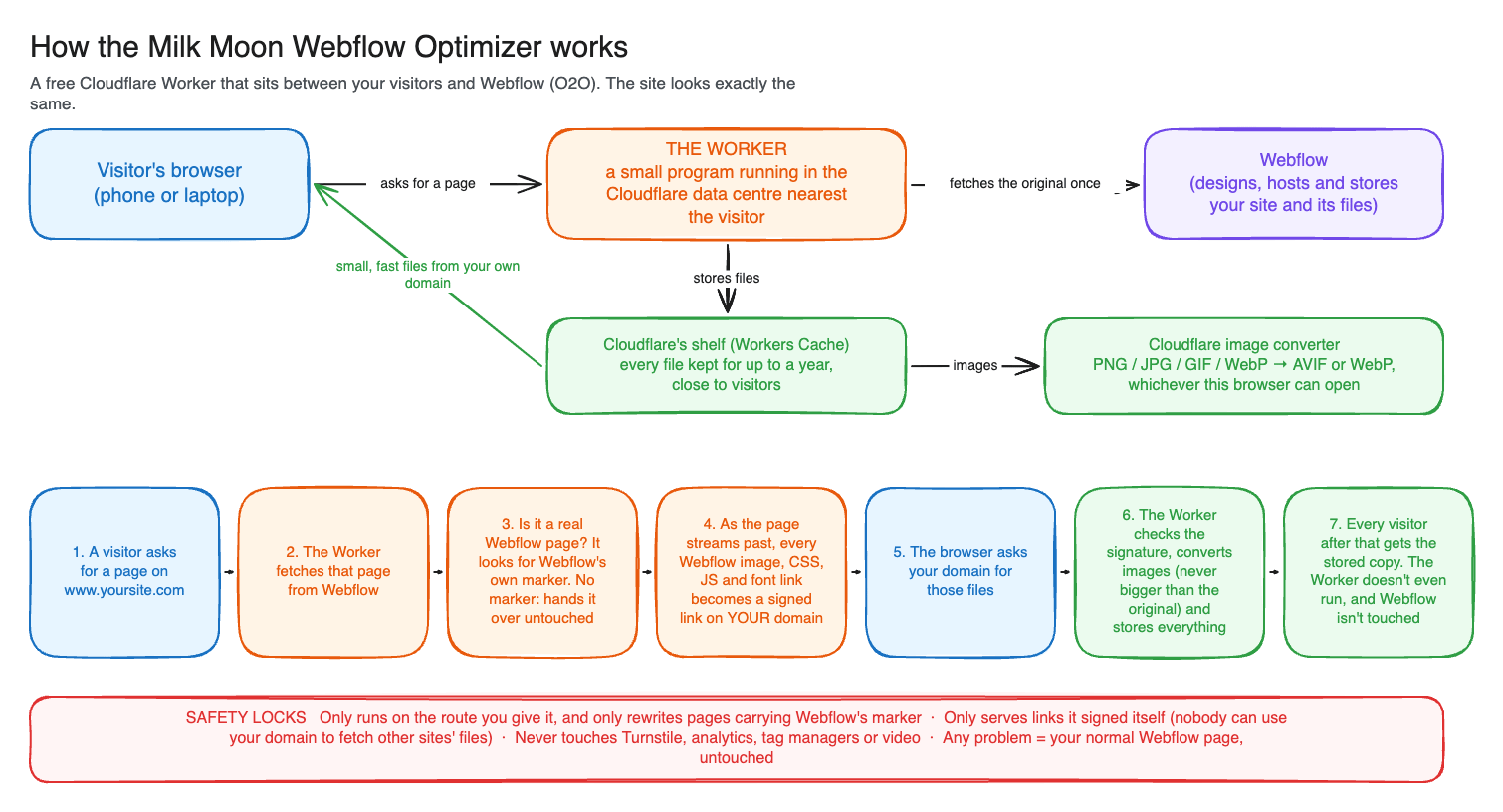
Here's that as an actual picture.
Step by step
- A visitor asks for a page. Someone opens your site. Thanks to O2O, the request hits the Cloudflare data centre nearest them first.
- The Worker fetches the page from Webflow. Exactly as Webflow serves it.
- It checks it's really a Webflow page. Every Webflow page carries a little marker in the
<html>tag (data-wf-site). No marker (an app, an API, a login page) and the Worker hands the response over byte for byte and does nothing else. - It rewrites the file addresses as the page streams past. Every Webflow image, stylesheet, script and font address becomes a signed address on your domain. This happens while the page is still arriving, so the browser starts drawing straight away. The Worker never sits on the whole page first.
- The browser asks your domain for those files.
- The Worker checks the signature, converts images and stores everything. Images go through Cloudflare's image converter, and if the converted version would be bigger than the original (it happens with already-compressed photos), you get the original instead.
- Everyone after that gets the stored copy. From Cloudflare's cache, without the Worker even running and without Webflow being asked for anything.
The signed links (and why nobody can abuse your Worker)
This is the bit that makes version 6 different from everything we've done before, so bear with me.
Webflow's file servers are shared. Every Webflow customer's images live on the same cdn.prod.website-files.com host, just in different folders. So a Worker that says "I'll fetch and optimise anything from Webflow's file server" is, without meaning to, offering to fetch and optimise anyone's Webflow files, through your domain, on your Cloudflare bill. Our old Worker had exactly that hole, and we found it ourselves in September (we locked it to our own site's IDs the same day, and then went looking for a better fix).
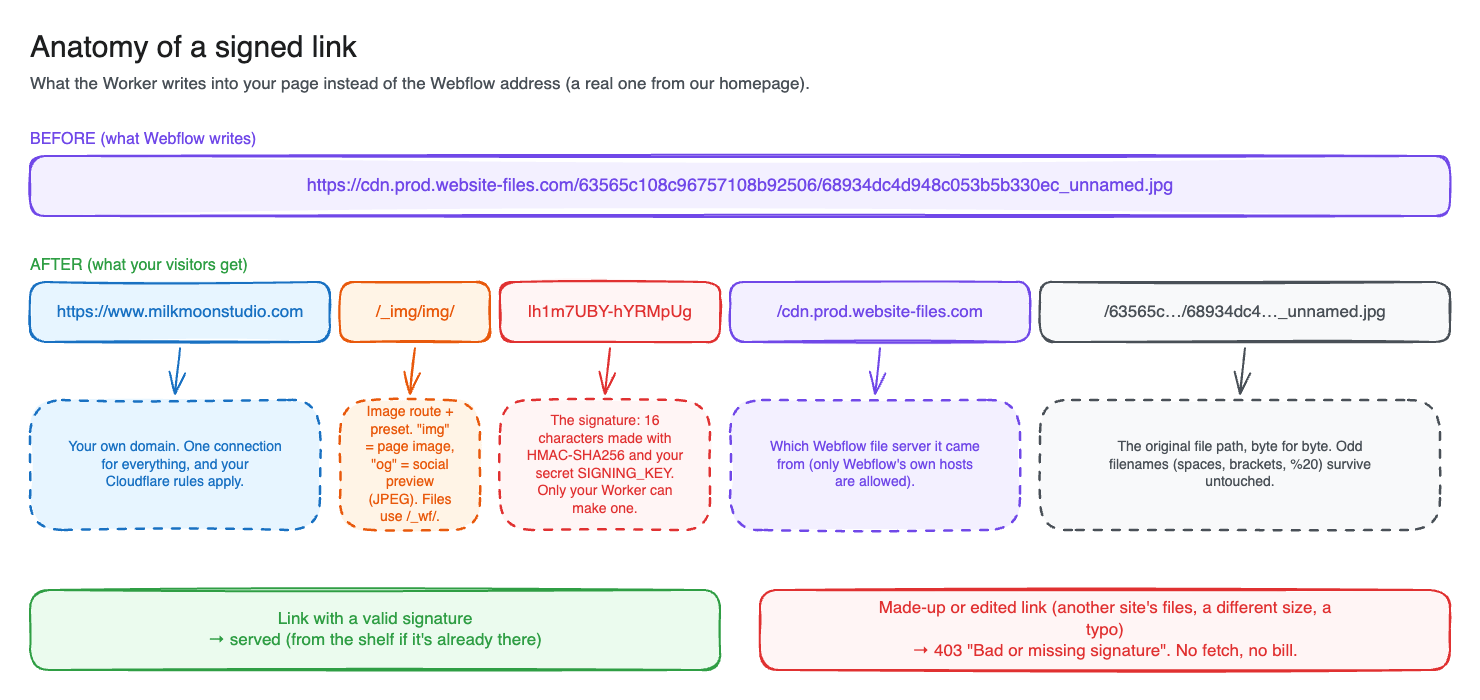
Version 6 does it properly. Every address the Worker writes into your page gets a short signature: 16 characters made with HMAC-SHA256 and a secret key that only your Worker knows (the SIGNING_KEY you'll set during install). When a request comes in for a file, the Worker recalculates the signature for that exact address. If it matches, great. If it doesn't, because someone made the link up, changed the file path, pointed it at another site's files or just has a typo, they get a 403 and nothing is fetched. Nothing fetched means nothing for Webflow or the image converter to bill you for.
The nice side effect: there's nothing to configure per site. No list of Webflow site IDs, no allowed domains. The Worker only serves what it wrote, full stop.

How the caching works
Caching is where the speed and the bandwidth savings come from, and it's also where people get nervous ("what if my visitors see an old version?"). So here's exactly what gets stored where, and for how long.
Files: one year, and that's safe
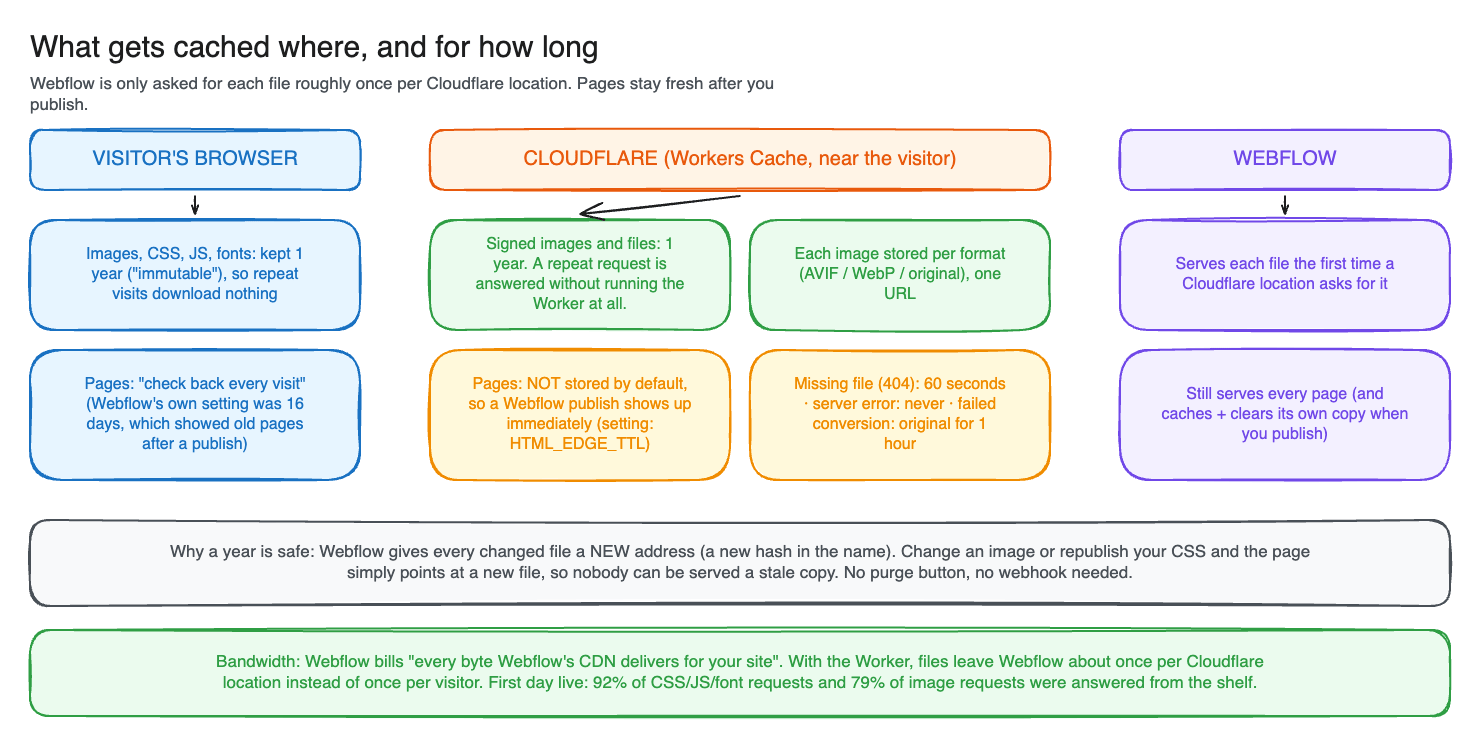
Images, CSS, JS and fonts are stored for a year, in Cloudflare's cache and in the visitor's browser. The reason that's safe is a Webflow habit that works massively in our favour: whenever a file changes, Webflow gives it a new address. Swap an image and it gets a new ID in its filename. Publish a style change and your CSS file gets a new hash. Your page simply points at the new file, so nobody can ever be served a stale copy of a changed file. No purge button, no webhook.
The cache we use is Workers Cache. A repeat request for a file is answered by Cloudflare without the Worker's code running at all. You can see it for yourself: open DevTools on our site, click any image or stylesheet, and you'll see cf-cache-status: HIT and cache-control: public, max-age=31536000, immutable. The CSS file I just checked had been sitting in the cache for two days.
Images get one more trick: one address, several versions. The same image URL is stored once for each kind of browser (AVIF for the ones that can open it, WebP for the rest, the original for the odd old one), and each browser gets the copy it asked for (that's what the Vary: Accept header is doing). You don't have to manage any of that.
Pages: fresh every time you publish
Pages are a different story, because pages change without changing their address. Webflow itself tells browsers to keep pages for 16 days (max-age=1382400, have a look in your own response headers). That's the reason a returning visitor sometimes sees your old homepage after a publish. The Worker overrides that with max-age=0, must-revalidate, so browsers check back on every visit.
And by default the Worker doesn't store pages in your zone at all. Webflow already caches your pages on its own Cloudflare setup and clears that cache when you publish, so letting it do its thing means a publish shows up immediately. If you want to squeeze out a bit more, there's a setting (HTML_EDGE_TTL, below) to keep pages in your zone for a few minutes. We run ours at 10 minutes, because we learnt the hard way that Webflow doesn't clear your zone's cache when you publish (we watched a publish sit behind a 47-minute-old copy). Ten minutes is a good trade for us. For most sites, leave it at 0.
What never gets cached
- Server errors from Webflow: never stored, so an outage at Webflow is never "remembered".
- Missing files (404): stored for 60 seconds only, so a file that's briefly missing doesn't get pinned as missing for a year.
- A failed image conversion: the original image is served instead and stored for an hour, so the optimised version takes over again once conversion works.
- Anything that isn't a Webflow page or a signed file: passed through with
no-store.
Does it really save Webflow bandwidth?
Yes. Webflow counts every byte its CDN delivers for your site. Without the Worker, every visitor pulls every file from Webflow. With the Worker, a file leaves Webflow roughly once per Cloudflare location, the first time someone near that location needs it, and is then served from Cloudflare's cache to everyone else in the area for a year.
On our first full day live, 92% of CSS, JS and font requests and 79% of image requests were answered straight from the cache, and that was while every Cloudflare location around the world was still filling up for the first time. It should climb once every location has its copy. We're measuring a normal day next and we'll update this when we have the number.
Two things to know, though. Your pages still come from Webflow (that's what keeps publishing instant), so the saving is on files, which is where the weight is anyway. And because Webflow's usage dashboard measures what its CDN sends, the number you'll see drop is the files part of your bandwidth, not the pages part.
Right-sized images (new in 6.1)
This one's subtle and it's my favourite, because it fixes something nobody notices but everyone pays for.
Webflow makes several sizes of every image you upload and tells the browser how wide the image will be displayed, using the sizes attribute. The browser then picks a copy. Trouble is, Webflow works that number out from the Designer canvas, not from how the image really ends up on the page, and very often it says 100vw ("this image fills the whole screen"). So your blog image, which actually sits in an 840 pixel column, gets downloaded as the 3,200 pixel copy on a desktop. The browser trusted Webflow. Most of those bytes are never seen.
Turn on SIZES_AUTO and the Worker adds sizes="auto, …" to lazy-loaded images. Lazy images only load once the layout is known, so the browser can measure the real space and pick the copy that actually fits. Browsers that don't understand auto yet simply skip it and use Webflow's value as before, so nothing can break.
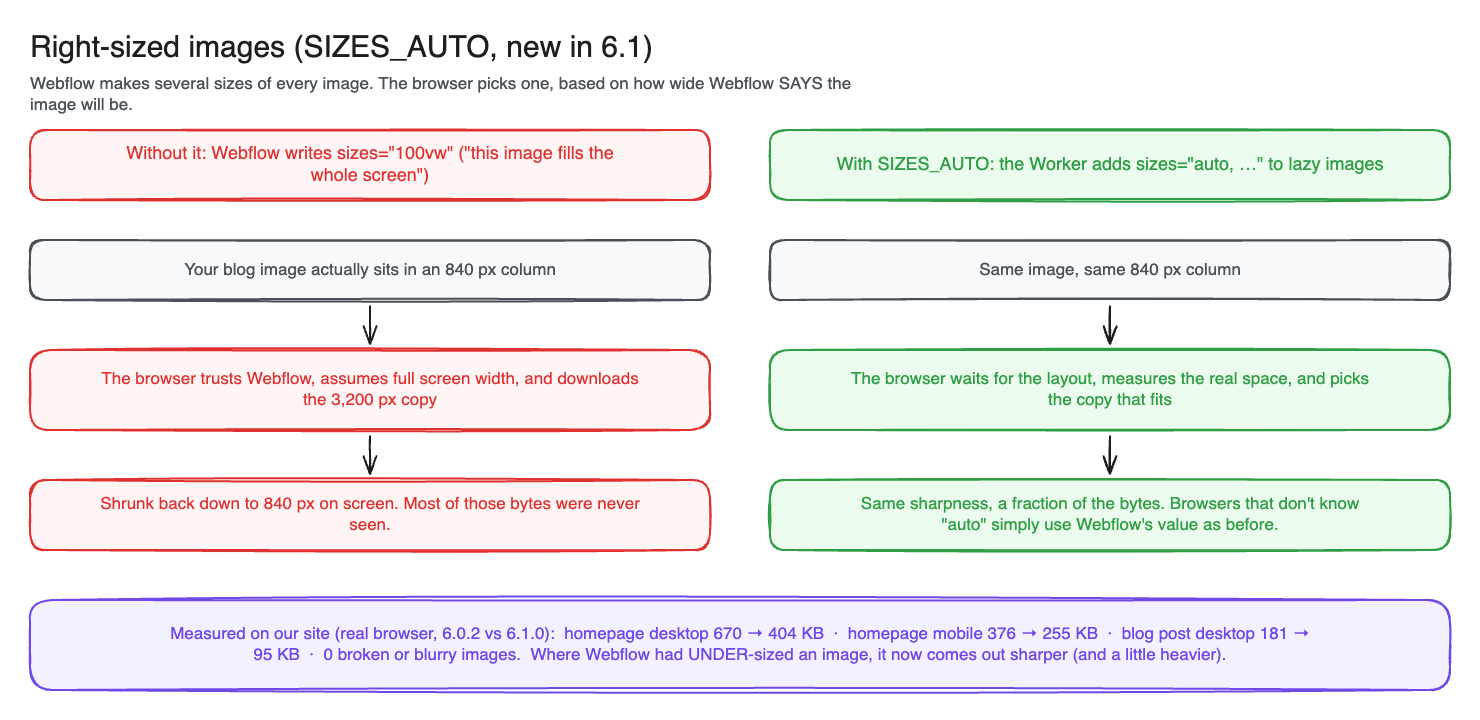
Measured in a real browser on our site: the homepage on desktop went from 670 KB of lazy images to 404 KB, on mobile from 376 KB to 255 KB, and a blog post from 181 KB to 95 KB. Zero broken or blurry images. Funny thing, it works both ways: on another site we tested, Webflow had under-sized a few images, and those now come out sharper (and a little heavier). That's the browser getting it right, which is the point. It's off by default, because it changes which file the browser picks, but we run it on.
Everything else it does
The headline stuff is images and caching, but there's a pile of smaller things in there that we've added after tripping over them on real sites.
- Animated GIFs stay animated. GIFs only ever become WebP (which can animate), never AVIF (which, from the converter, doesn't).
- Never bigger than the original. A big, already-compressed camera JPEG can actually grow when you re-encode it. We saw a 1.9 MB photo come back at 3.6 MB on one site. So on a cache miss the Worker compares the converted image with the original and sends whichever is smaller. That one change took a test site from 17% heavier to 10% lighter.
- No double downloads. Webflow tells browsers to start fetching your CSS early, using a
Linkheader (which Cloudflare turns into Early Hints). The Worker points those early fetches at the same address the page uses, so nothing downloads twice. Font preloads are left alone on purpose, because fonts load from inside the CSS and rewriting them would cause exactly the double download we're avoiding. - Social previews that work.
og:imageandtwitter:imagego out as compressed JPEG (configurable), the one format every platform shows reliably. - The missing
og:url. Webflow never outputs it, even though it's one of the four basic Open Graph tags. The Worker adds it, using the page's own canonical address, so shares of the same page with tracking codes or with and without www get counted as one. - Favicons, app icons, video posters, inline background images and
<style>blocks all get the same treatment. - Weird filenames. Figma exports love spaces, brackets and commas, and Webflow sometimes stores a literal
%20as%2520. The Worker keeps the path byte for byte, so these all work (they didn't, at one point, which is how we know). - The 404 page gets optimised too. Webflow's "page not found" page is a full page of Webflow files, billed like any other.
- Your sitemap gets the right label. Webflow serves
/sitemap.xmlas an RSS feed type; the Worker corrects it toapplication/xml. - Fixes for the browser's strictness. Some older Webflow hosts send scripts and stylesheets as a generic file type, which a browser with
nosniffwill refuse to run. The Worker sends the right type. SVGs served from your domain get a locked-down security policy so nothing inside them can run.
What it deliberately leaves alone
- Cloudflare Turnstile (the "are you human" check), Google Tag Manager, Google Analytics, Google Fonts, Webflow Optimize and marketplace app scripts. These rotate or are personalised per visitor, and caching them for a year would break them. We know this one painfully well: an early version proxied Turnstile and broke the Turnstile check on our own scanner in July.
- Webflow's runtime chunks and Finsweet Attributes scripts, which need to load from their own home to find their sibling files.
- Video, which needs range requests.
- Your links, canonical tags, preconnects and anything that isn't a Webflow file. CodePen, HubSpot, YouTube embeds all load exactly as normal.
The safety net
This Worker sits in front of a live site, ours included, so it's built to fail boring. Here's every lock, and the thing it's there to stop:
- It only runs on the route you give it. Point it at
www.yoursite.com/*and that's all it sees. (Our July outage was a wildcard route that reached our app subdomains. Don't use*.yoursite.com/*.) - It only rewrites real Webflow pages. No
data-wf-sitemarker, no changes, no caching. So even if the route reached an app by mistake, the app would be untouched. - It only serves links it signed. No open relay, nobody running up your bill.
- It only fetches from Webflow's own file servers. And only
/js/jquery…from Webflow's jQuery host. - A bad setting means it steps aside. Missing or short
SIGNING_KEY? Every request passes through untouched, and the error is logged. - An error means the original page. If anything goes wrong before the page starts streaming, you get Webflow's response, untouched. The worst case is "as fast as plain Webflow", never "the site is down".
- It won't store broken files. A font that comes back as an HTML error page is refused rather than cached as a font for a year.
The whole setup, start to finish
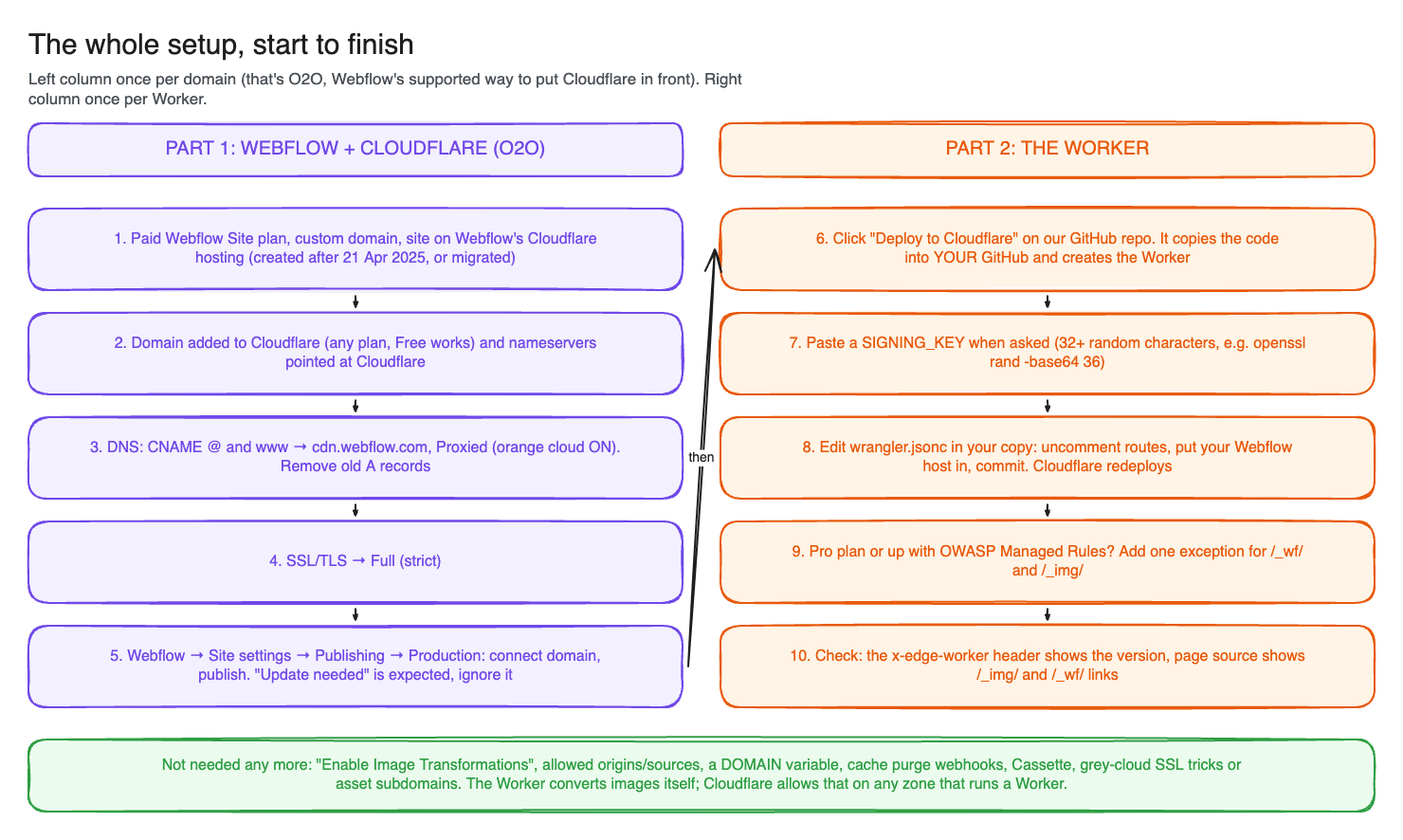
Right, here's the setup. Two parts: get your domain onto Cloudflare with O2O (once per domain), then install the Worker (once per site). If you're already on O2O, skip to part 2.
What you need
- A paid Webflow Site plan with a custom domain (O2O needs one).
- A site on Webflow's Cloudflare hosting. Sites created after 21 April 2025 already are; older sites need to have done Webflow's DNS migration (check Workspace settings → Domain updates).
- A Cloudflare account. Any plan, the Free plan works. Our second install runs on Free.
- A GitHub account, for the Deploy button (or the command line, if you prefer).
Part 1, step 1: Add your domain to Cloudflare
In the Cloudflare dashboard, hit Onboard a domain, enter your root domain (yoursite.com) and follow the steps. Then change your nameservers at your registrar to the two Cloudflare gives you. This can take a while to go through everywhere (Webflow says up to 48 hours, usually it's much quicker). whatsmydns.net with the NS option shows you when it's done. If DNS is dragging its feet, we've got a post on speeding up DNS resolution when publishing your Webflow site.
Part 1, step 2: DNS records with the orange cloud on
This is the O2O bit. In DNS → Records, create proxied CNAME records:
- Type
CNAME, name@, targetcdn.webflow.com, proxy status Proxied (orange cloud ON) - Type
CNAME, namewww, targetcdn.webflow.com, proxy status Proxied (orange cloud ON)
Delete any old A records pointing at 198.202.211.1 (or the really old Webflow IPs, or proxy-ssl.webflow.com). You can't have both. If you use other subdomains on Webflow, add a proxied CNAME for each. And if your domain has CAA records, make sure they allow Let's Encrypt and Google Trust Services or your certificates won't renew.

Part 1, step 3: SSL/TLS to Full (strict)
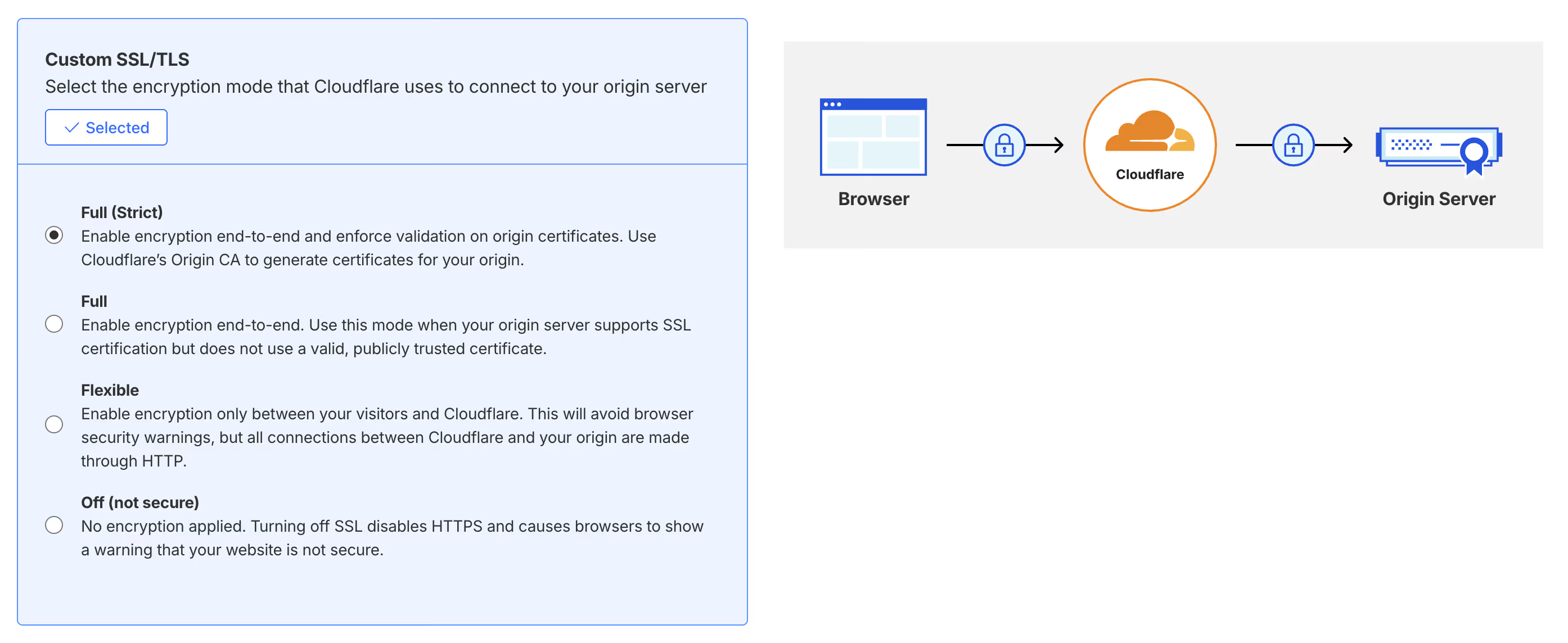
Head to SSL/TLS in Cloudflare and set the encryption mode to Full (strict). Anything else and you'll be chasing 525 errors.
Part 1, step 4: Connect and publish in Webflow
Over in Webflow, go to Site settings → Publishing → Production, connect your domain (root and www), set your default domain and publish.
You'll probably see "Update needed" next to your domain. Ignore it. Once the orange cloud is on, Webflow's check can't see your DNS records through the proxy, and Webflow's own help article says this is expected. If the site loads, you're fine. I've had the warning hang around for ages on some sites and vanish on others.
To check O2O is working: the site loads, your records in Cloudflare show the orange cloud, and after a few minutes your domain's Analytics in the Cloudflare dashboard starts showing traffic. (Don't go by the cf-ray header, every Webflow site has that now, O2O or not.) Right, that's the platform sorted. Now the fun part.
Part 2, step 5: Click Deploy to Cloudflare
Head to our repo, github.com/J8kesVanEeden/milkmoon-webflow-optimizer, and hit the orange Deploy to Cloudflare button in the README. Here's what happens, because it's not obvious the first time:
- Cloudflare asks you to log in and connect GitHub.
- It makes a copy of our repository in your own GitHub account. That copy is yours: your settings live in it, and it's what Cloudflare builds from.
- It creates the Worker in your Cloudflare account and connects it to your copy, so every time you commit a change to it, Cloudflare redeploys automatically (that's Workers Builds).
Part 2, step 6: Paste a SIGNING_KEY
During the deploy it'll ask for SIGNING_KEY. This is the secret your Worker uses to sign its links. Paste in a random value of at least 32 characters. On a Mac or Linux, openssl rand -base64 36 in Terminal gives you one, or use your password manager's generator. Keep it somewhere safe, but you'll never need to type it again. It's stored as a Cloudflare secret, not in your code, and the Worker won't deploy without it.
Part 2, step 7: Put it on your site
At this point the Worker exists but isn't on your site yet (on purpose, so nothing happens by surprise). In your copy of the repo on GitHub, open wrangler.jsonc, find the commented-out routes bit (three lines starting with //), take the // off all three and put your Webflow host in:
"routes": [{ "pattern": "www.yoursite.com/*", "zone_name": "yoursite.com" }],
Commit. Cloudflare picks it up and redeploys in a minute or so. Use only the host that serves your Webflow site. Not *.yoursite.com/*, especially if you've got apps on other subdomains (trust us). And do the route here, in the file, rather than in the dashboard, because the file is what gets deployed and it'll overwrite dashboard changes.
Part 2, step 8: The OWASP exception (Pro plan and up)
If your zone is on Pro or higher and you run Cloudflare's OWASP Core Ruleset in Managed Rules, add one exception, otherwise some visitors (and Google's renderers) will get a challenge page instead of your images. OWASP rule 949110 sees a Webflow host name inside the file path and gets suspicious. It's safe to skip OWASP on these paths because every request on them is already checked by the Worker's signature. This one bit us on our own site: about 11% of file requests were being challenged until we added it.
- Cloudflare dashboard → your domain → Security rules → Create → Managed rules.
- Name it something like
Skip OWASP on Webflow Optimizer paths. - Edit the expression and paste:
starts_with(http.request.uri.path, "/_wf/") or starts_with(http.request.uri.path, "/_img/") - Then: Skip specific rules from a Managed Ruleset → select the Cloudflare OWASP Core Ruleset → Select rules → select all → Next → Deploy.
- Make sure the exception sits above the rule that deploys the OWASP ruleset. Exceptions only skip rules listed after them.
On the Free plan you don't have the OWASP ruleset, so you can skip this step.
Part 2, step 9: Check it's working
Run this in Terminal (or look at the response headers in DevTools):
curl -s -o /dev/null -D - https://www.yoursite.com/ | grep -i x-edge-worker
(Use this exact command. The shorter curl -I sends a HEAD request, which the Worker leaves alone on purpose, so it never shows the header.)
You should get back x-edge-worker: webflow-o2o/6.1.0 (or whatever the latest version is). Then:
- View the page source. Image addresses should start with
https://www.yoursite.com/_img/and stylesheets withhttps://www.yoursite.com/_wf/. - Open the Network tab in DevTools, filter by Img and reload. Images should come from your domain, with
content-type: image/aviforimage/webp. - Reload again and check an image's headers for
cf-cache-status: HIT. - Check a page with a form or Turnstile still works, and your social previews in opengraph.xyz or Facebook's Sharing Debugger.
The easiest visual check is still the DrFlare extension for Chrome. It was deprecated but has been brought back as DrFlare Reloaded, get it here. Open it from DevTools, refresh the page, and hover over images for the before and after. Remember to refresh once DrFlare is open.
And that's the install. No "Enable Image Transformations" toggle, no allowed origins list, no DOMAIN variable, no cache purge webhook. The old guide had all of those, and none of them are needed any more: the Worker converts images itself, which Cloudflare allows on any zone that runs a Worker.
Prefer the command line?
Same thing, by hand: clone the repo, run npm ci, npx wrangler login, npx wrangler secret put SIGNING_KEY (paste your key), edit routes in wrangler.jsonc, then npm run deploy. You'll need Node installed. The README has the exact commands.
Every setting, explained
Everything is optional except the signing key. Settings go in the vars section of wrangler.jsonc in your copy of the repo (commit and it redeploys). An invalid number or format quietly falls back to the default, so you can't break anything by fat-fingering a quality setting. The two exceptions are the signing key and the legacy settings below: get those wrong and the Worker steps aside (your site keeps working, just without the Worker) until you fix them.
SIGNING_KEY(required, a secret, not a var). At least 32 random characters. Changing it later gives every file a new address, which means a one-off refill of the cache. Not a disaster, just don't do it for fun.IMAGE_QUALITY(default85, 1 to 100). Quality for page images. 85 looks great. Drop to 75 if you're really squeezing bytes, we wouldn't go much lower for photography.OG_FORMAT(defaultjpeg;pngandwebpalso allowed). Format for social preview images. Leave it on JPEG, some platforms still won't show anything else.OG_QUALITY(default80). Quality for social preview images.EDGE_TTLandBROWSER_TTL(default31536000, one year, in seconds). How long files stay in Cloudflare's cache and in browsers. One year is safe because Webflow renames changed files. We've never had a reason to change these.SIZES_AUTO(defaultfalse). Set it to"true"for the right-sized images feature above. We run it on, on both our installs.HTML_EDGE_TTL(default0, up to 86400). Seconds to keep pages in your zone. Leave it at 0 unless your route covers nothing but your Webflow site, because a positive value caches every response on the route before the Worker can check it's a Webflow page. If you do set it, a publish can take up to that long to show (we use 600, ten minutes).LEGACY_ROUTES,WEBFLOW_SITE_IDS,LEGACY_DOMAIN. Only for people who ran our old Worker. See upgrading, below. New installs don't need them.
A few things in wrangler.jsonc that aren't settings but are worth knowing about:
"cache": { "enabled": true, … }switches on Workers Cache, which is what lets repeat requests skip the Worker entirely. Leave it on."secrets": { "required": ["SIGNING_KEY"] }is why a deploy without a key fails, rather than going live half-configured."observability"keeps logs for 10% of requests, which is plenty to spot a problem and cheap."workers_dev": false, because this Worker only makes sense on your own domain.
What it costs
The Worker is free and MIT licensed. What you pay for, if anything, is Cloudflare:
- Workers requests. Every request on your route counts: pages, and each image, CSS, JS and font file, including cached ones (a cache hit skips the Worker's processing time, not the request count). Workers Free covers 100,000 requests a day. Workers Paid is $5 a month with 10 million included, then $0.30 per million (Cloudflare's pricing). Rough maths: a page with 40 files is about 41 requests, so the free plan covers roughly 2,400 page views a day. Plenty of small sites fit in that; a busy site will want the $5 plan. Go over 100,000 on Workers Free and Cloudflare doesn't charge you, it stops running the Worker for the rest of the day. Set your route to fail open (your Worker → Settings → Domains & Routes) so visitors just get plain Webflow instead of an error page.
- Image conversions. Cloudflare includes 5,000 unique transformations a month free. A unique transformation is one image at one setting in one format, per month, and repeat views are free. Cloudflare says one image served in different formats counts once, but we ask for each format separately, so to be safe budget for an image counting up to three times (AVIF, WebP and the original). After 5,000, new conversions fail and the Worker quietly serves the original image until the month resets, unless you're on Images Paid at $0.50 per 1,000 extra (pricing). For scale: our site, all 600-odd pages of it, used 732 in the whole of September.
Compare that with a Webflow bandwidth tier bump and it's not a hard sell.
Does it make the site faster? Real numbers
We're careful with speed claims, because PageSpeed scores jump around by 10 to 20 points between identical runs, and a lot of what slows a site down (scripts, animations, third-party tags) has nothing to do with images. So we tested it the fair way: the same 8 pages on our live site (with the Worker) and on Webflow's own staging copy (no Worker), same tool, same devices, side by side.
- The Worker never made a score worse.
- PageSpeed's "image delivery" and "page weight" warnings were smaller with the Worker on every page. A project page weighed 3,196 KB with it and 4,195 KB without.
- Pages arrive just as fast as before: median time to first byte was 95 ms on version 6 against 94 ms on the version before it (20 pages, 5 runs each). The streaming rewrite really doesn't add a wait.
- Homepage images, measured today on 6.1.0: 38 files, 8,762 KB direct from Webflow, 1,755 KB through the Worker (80% less), none bigger than the original. AVIF for 20 of them, WebP for 17, and one PNG that was already as small as it gets.
- First 24 hours of version 6 live: zero Worker errors, and once the OWASP exception from step 8 was in, 0.3% of file requests refused (almost all bots asking for addresses the Worker never wrote, refused on purpose). A full check of every page and file on the site passed (628 pages, 1,255 files).
And to keep ourselves honest: the big wins come from big, unoptimised uploads like PNG screenshots. If your images are already small WebPs, some of them won't change at all, because Cloudflare keeps the original when it's already the smallest. That's the system working, not failing.
Under the hood (for the curious)
This bit's for the developers, and for when something goes wrong and you want to know where to look. Here's every decision the Worker makes for a request.
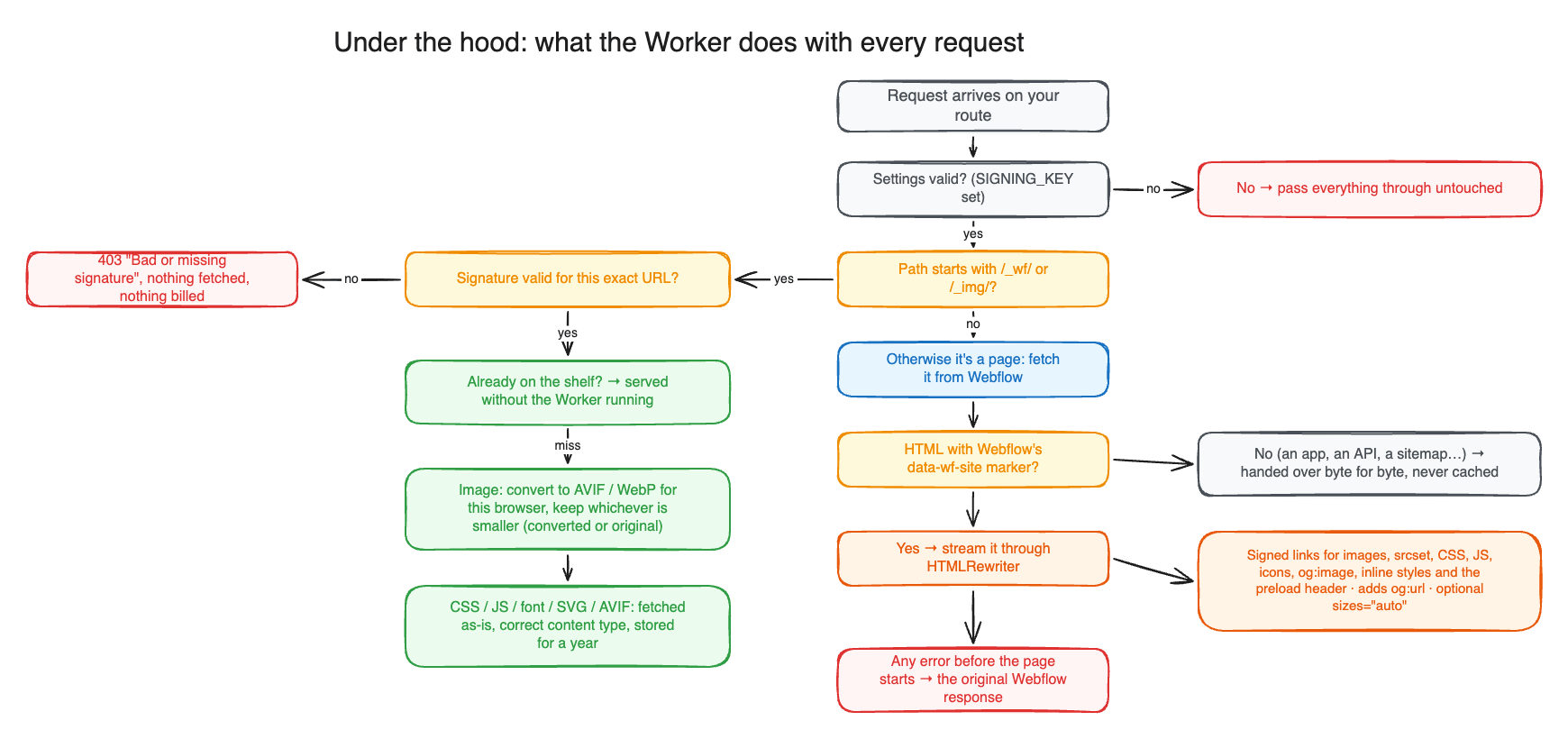
A few details worth knowing:
- The page is rewritten with Cloudflare's HTMLRewriter, which parses real HTML attributes as the page streams (the January version used eight regex passes over a fully buffered page, which is how it missed social images and favicons for months: Webflow writes
content=beforeproperty=, and the regex only looked one way). - Signed addresses look like
/_img/img/<signature>/<webflow host>/<path>for images and/_wf/<signature>/<webflow host>/<path>for everything else. There are only two image presets,imgandog. A visitor can never ask for a different size or quality, which is what stops people minting conversions on your account. - Image conversion happens inside the Worker with a
cf.imagefetch, picking AVIF or WebP from the browser'sAcceptheader. - The code is plain JavaScript in ten small files (the README has a map), with 146 automated tests that run in the same runtime Cloudflare uses, including five real pages from four different Webflow sites (and a whole second install on top). It's all on GitHub, have a poke around.
Optional: it can watch itself
Webflow can change its markup or file hosts on any publish, on their side, with no warning. The Worker's safety nets stop it from breaking your site, but they don't tell you if a change quietly leaves your images unoptimised. So your copy of the repo includes an optional monitor that runs on GitHub Actions: hourly it checks your pages load and your files come through the Worker, daily it checks every page in your sitemap and every file on them, and if anything's off it opens a GitHub issue (GitHub emails you), then closes it again when things are fine. (GitHub runs schedules when it gets round to it, so "hourly" can be a bit loose on a busy day.) It does nothing until you set it up; the README explains the two-minute setup. It never changes your site.
Upgrading from the old Worker
If you followed the January version of this post, here's the move:
- Install version 6 as above (it's a new Worker from the Deploy button).
- Keep your old links working. Google Images, old social shares and cached pages will still ask for the old
/img-original/,/img-cache/,/asset-cache/and/cdn-cgi/image/addresses for a while. SetLEGACY_ROUTESto"true",WEBFLOW_SITE_IDSto your Webflow site and CMS IDs (comma separated, the 24-character IDs in your Webflow file addresses) andLEGACY_DOMAINto the exact host your site runs on, likewww.yoursite.com(not the bare domain if you're on www). Set all three together: ifLEGACY_ROUTESis on and the IDs or the domain are missing, the Worker steps aside completely until you fix it, and thex-edge-workerheader disappears. With all three set, the new Worker answers the old address shapes too, locked to your own files. - Move the route. Remove the route from the old Worker and add it to the new one. Then you can delete the old Worker.
- Leave Image Transformations on for now. The old
/cdn-cgi/image/links are served by Cloudflare directly, not the Worker, so keep transformations (and your allowed origins) on while old traffic still trickles in, and lock that endpoint down with a WAF rule so nobody else can use it. Once your logs show the old links have died off, you can switch it all off.
Updating version 6 itself later is simple: pull our latest version into your copy of the repo (add our repo as a remote and merge it in) and commit, and Cloudflare redeploys. Your settings and secret stay put. Don't use the Deploy button for updates, it makes a brand new copy and a brand new Worker instead of updating yours. The x-edge-worker header tells you which version you're running.
Troubleshooting
Nothing changed, image addresses still point at Webflow
- Check the route is uncommented in
wrangler.jsoncand matches your host exactly (www.yoursite.com/*, not the apex if your site lives on www). - Check the deploy actually ran: Cloudflare dashboard → your Worker → Deployments (or the Builds tab).
- Check the
x-edge-workerheader. No header means the Worker isn't on that route, or theSIGNING_KEYis missing (in which case it passes everything through untouched and logs why). - Hard refresh (Cmd/Ctrl + Shift + R). Your browser may still have a copy of the page from before.
Some images show a challenge or a 403
- A challenge page, or images only failing for some visitors: that's the OWASP ruleset. Add the exception in step 8 and make sure it sits above the OWASP rule.
- A plain 403 "Bad or missing signature": the link wasn't written by your Worker. Usually an old copy of a page from before you changed your
SIGNING_KEY, or someone (or a bot) editing a link. Reload the page to get fresh links.
Images aren't AVIF or WebP
- Check the address contains
/_img/. SVGs and images you uploaded as AVIF are served as they are, on purpose (Cloudflare can't convert AVIF, and SVGs don't need it). Upload JPG or PNG to Webflow and let the Worker do the converting; Webflow doesn't even make responsive sizes for AVIF uploads. - If you've used your 5,000 free conversions for the month, new images come through as originals until the month resets. The Cloudflare dashboard (Images → Transformations) shows your count.
My publish isn't showing
- With the default
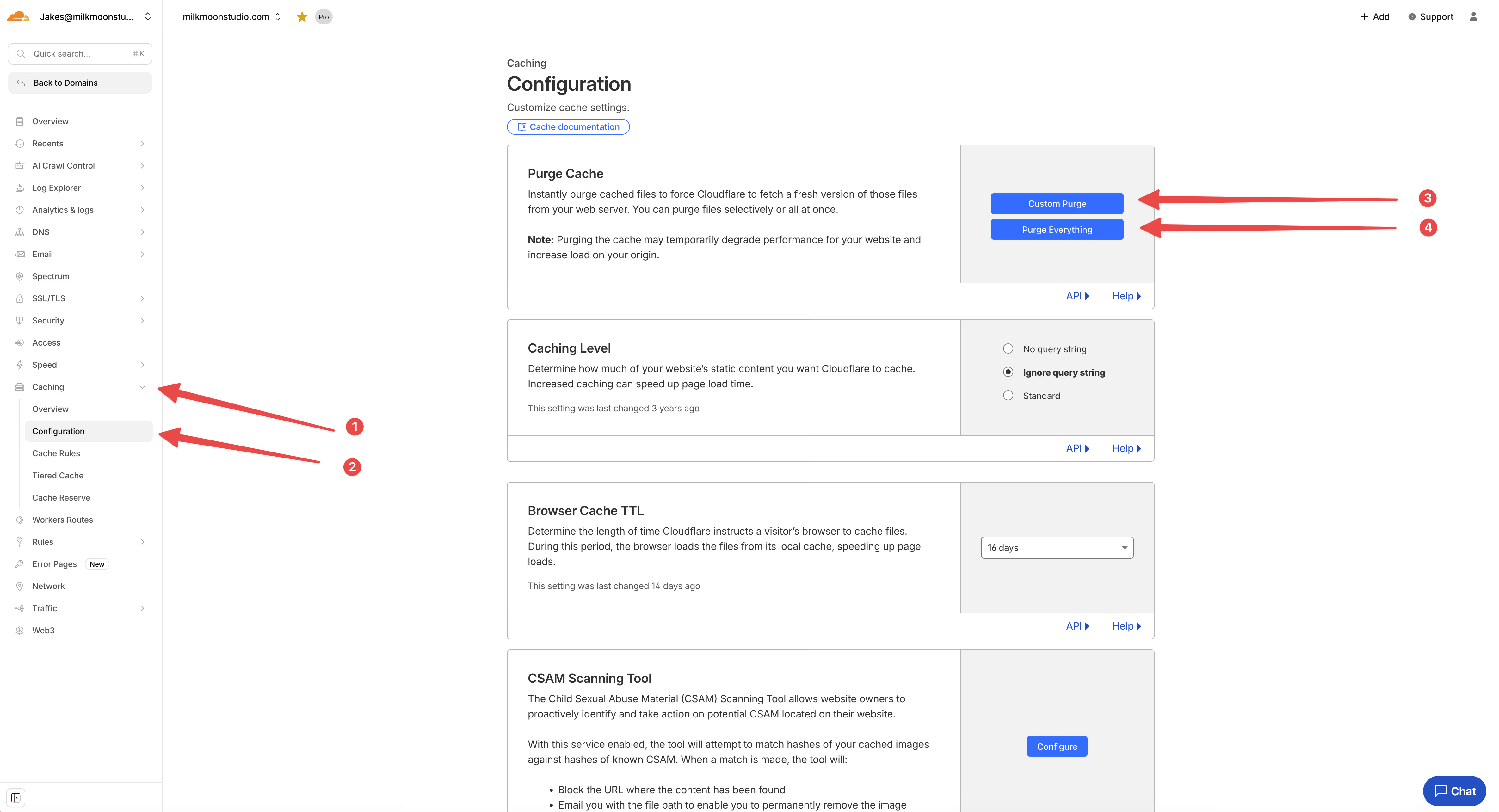
HTML_EDGE_TTLof 0 it should be instant. If you've set it higher, wait that long, or purge the page in Cloudflare (Caching → Configuration → Custom Purge). - Try a private window, to rule out your own browser.
Social previews look wrong
- Run the page through Facebook's Sharing Debugger or opengraph.xyz. The
og:imageshould be a/_img/og/address on your domain and come back as JPEG. Platforms cache previews for a while, so use the debugger's "scrape again". - Social images you uploaded as AVIF are left on Webflow's address on purpose, because social scrapers handle AVIF badly. Upload a JPG for your Open Graph image.
Webflow says "Update needed" on my domain
Expected with O2O. Webflow can't see your DNS through the orange cloud. If the site loads, ignore it.
525 Handshake error
That's SSL, not the Worker. Set SSL/TLS to Full (strict). If your zone uses Zone Hold, Webflow's docs say to release it while the certificate is issued.
Limits (nothing's perfect)
- It only sees what's in the page HTML. Images added later by JavaScript, and background images referenced from inside Webflow's stylesheet, still load from Webflow. So do Lottie animation files and fonts referenced inside CSS.
- Pages still come from Webflow on every visit (by default), which is what keeps publishing instant. The savings are on files.
- Cache Reserve doesn't apply. Cloudflare's docs say Cache Reserve is bypassed under O2O, so files live in the normal edge cache, which can drop rarely used files early. They're simply fetched again.
- It doesn't make your JavaScript faster. If your site is slow because of heavy interactions or third-party scripts, that's the site, not the images.
- It can't shrink an image that's already as small as it gets.
Rollback
If something goes horribly wrong (it shouldn't, but you know): in the Cloudflare dashboard open your Worker, go to Settings → Domains & Routes and delete the route. That works straight away. Then comment the routes line out again in wrangler.jsonc and commit, so the next build doesn't put it back. Your site immediately goes back to loading everything from Webflow, O2O and all your other Cloudflare features stay exactly as they were. The cached files simply aren't used any more. To remove it completely, delete the Worker too.
A short history of fighting the platform
For the nostalgic, and so you can see why version 6 looks the way it does:
- 2022: the Cassette app and the SSL hack. It worked until it didn't.
- 2023: our first image Worker, images only.
- January 2026: O2O arrives properly, and the first version of this guide, with CSS, JS and fonts. The work-in-progress video from back then is below.
- July 2026: rebuilt to stream pages instead of buffering them, which also fixed social images and favicons that had silently never worked. Also the month our own wildcard route broke our scanner's Turnstile check. Lesson learnt, route locked down.
- September 2026: found and fixed the shared-file-server hole. Then rebuilt the whole thing as version 6, generic for any Webflow site, with signed links, and put it on GitHub.
- October 2026: version 6.1 with right-sized images, a second site installed straight from the public template, and automatic monitoring.
Don't fancy doing it yourself?
Fair enough. DNS changes on a live site are nerve-wracking, and not everyone wants a GitHub account. Webflow performance is kind of our thing (we're a small Webflow studio that spends a frankly unhealthy amount of time in Cloudflare dashboards), so drop us a message and we'll set the whole thing up for you: O2O, the Worker, the OWASP exception, the checks. And if you need to convince a client (or your boss) why any of this matters, our post on how page speed drives business success makes the case.
Frequently asked questions
Is the Milk Moon Webflow Optimizer free?
Yes. It's open source under the MIT licence on GitHub. You only pay Cloudflare if you choose to upgrade. Go past the free allowances (100,000 Worker requests a day, 5,000 unique image conversions a month) and nothing is charged: images go out unconverted until the month resets, and the Worker stops running until the next day (set your route to fail open so visitors get plain Webflow).
Is using a Cloudflare Worker with Webflow allowed?
Yes, on your custom domain. Webflow calls O2O "the supported way to run Cloudflare features in front of Webflow", and Cloudflare lists Workers as O2O compatible. What Webflow's terms rule out is proxying your *.webflow.io staging domain, which this never does. Webflow support won't troubleshoot the Worker for you, so switching it off is one line.
Does Webflow use Cloudflare?
Yes. Webflow moved its hosting onto Cloudflare in 2025. Sites created after 21 April 2025 are already on it, and older sites switched to the new DNS records (cdn.webflow.com). That move is exactly what makes O2O, and this Worker, possible.
Does it reduce my Webflow bandwidth?
Yes, for files. Webflow counts every byte its CDN delivers. With the Worker, each image, stylesheet, script and font leaves Webflow roughly once per Cloudflare location and is then served from Cloudflare's cache for up to a year. Pages still come from Webflow.
What is cdn.prod.website-files.com?
It's Webflow's file server, where your images, CSS, JavaScript and fonts actually live. Because it isn't your domain, your Cloudflare zone can't cache or optimise anything on it, even with O2O. The Worker rewrites those addresses so the files are optimised and cached through your own domain.
Do I still need to enable Image Transformations in Cloudflare?
Not for version 6. The Worker converts images itself, which Cloudflare allows on any zone that runs a Worker. You only need transformations switched on if you're still serving old /cdn-cgi/image/ links from the previous version.
How do I clear the cache after publishing in Webflow?
You don't need to. Pages aren't cached by the Worker by default, so a publish shows up straight away, and changed files get new addresses from Webflow automatically. If you've set HTML_EDGE_TTL above 0, either wait that long or purge the page under Caching → Configuration in Cloudflare.
Will it break my forms, Turnstile or analytics?
It shouldn't. Turnstile, Tag Manager, Google Analytics, Google Fonts, Webflow Optimize and marketplace app scripts are never touched, and pages without Webflow's marker pass through untouched. Do test a form after installing anyway, it takes a minute.
That's it
That's the long and short of it. One button, one secret, one line, and your Webflow site serves smaller images from your own domain, out of Cloudflare's cache, with Webflow sending a fraction of what it used to. If you install it, I'd genuinely love to hear how it goes (and what it saved you). Hit us up, and check out the How-To section of our blog for more tutorials.