
Every Webflow role, seat, Workspace plan and Site plan explained in plain English, updated for the May 2026 pricing changes, so you only pay for what you need.
Update, October 2026: Webflow changed its Site plans in May 2026 (the CMS and Business plans are now one Premium plan) and retired the legacy Editor in August, so we've updated the prices and permissions below. The old plan details are still in here for anyone who's on them until their next renewal.
If there's one thing that makes new Webflow users' eyes glaze over faster than you can say "workspace plan", it's the roles and pricing structure. We've had this conversation with clients more times than we can count, and honestly? Webflow doesn't make it easy on itself. The documentation exists, but it's scattered, the terminology isn't always consistent, and by the time you've cross-referenced three help articles you've forgotten what you were trying to figure out in the first place. (If it's the general web jargon that's tripping you up, our website and web design glossary covers that side of things.)
So we wrote this. Consider it the guide we wish existed when we started.
Fair warning: this is a long one. Grab a coffee. We've structured it so you can jump to the section you need, but if you're new to Webflow or setting up a client workspace for the first time, we'd recommend reading the whole thing. It'll save you a headache later.
First, the thing that trips everyone up
Webflow has two completely separate billing layers, and confusing them is the number one source of "why am I being charged this?" emails we get from clients.
Workspace Plan: this controls who can access your workspace, how many staging sites you can have, and what collaboration features you get. Think of it as your studio. The monthly fee you pay here is about your team and your tools, not your website being live on the internet. Usually, a Free one is fine for small teams.
Site Plan: this controls hosting. Your custom domain, your bandwidth, your CMS item limits. This is billed per site, separately from your Workspace Plan. It's the rent on each individual property you manage.
A Workspace Plan alone does not put your site live on a custom domain. You need both. We can't tell you how many times a client has upgraded their workspace thinking it would fix their site not going live on their domain. It won't. You still need a Site Plan.
Right. Now that's out of the way, let's get into it properly.
The two types of roles (yes, two)
Every person you add to Webflow gets two roles simultaneously: one at the Workspace level and one at the Site level. They're related but separate, which is where a lot of confusion creeps in.
Your Workspace Role applies to the entire account. It determines what someone can do in the workspace itself, things like managing billing, inviting team members, and accessing workspace settings.
Your Site Role applies to a specific site. The same person can have a Designer role on one site and a Content Editor role on another. This is actually really useful once you know it's there.
When you assign someone a Workspace Role, Webflow automatically gives them a matching default Site Role. On Growth, Agency, and Enterprise plans, Admins and Site Managers can then override that Site Role per site. On lower plans, it's more rigid.
The seven workspace roles, explained like humans
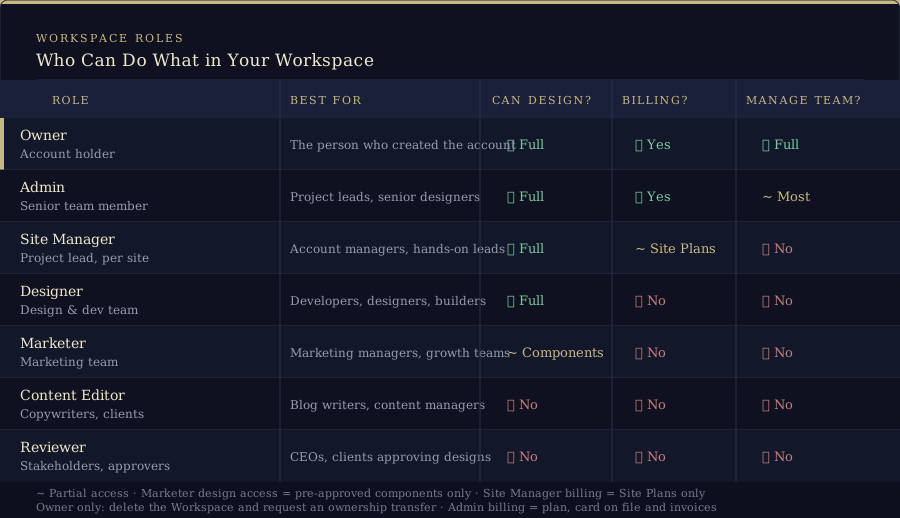
Owner
The account holder. Full control of absolutely everything: design, billing, team management, the lot. There's only one Owner per workspace, and transferring ownership is possible but involves a bit of back-and-forth with Webflow. Use a proper business email when you create the account. Not your personal Gmail. We've seen this cause problems at handoff time and it's entirely avoidable.
Admin
Basically the Owner minus the nuclear options. An Admin can design, manage team members, control site settings across the workspace, and yes, manage billing too (the plan, the card on file and the invoices). What they can't do is delete the workspace or request an ownership transfer. Your senior designer or project lead would typically sit here. If you're an agency and you want a client to have real control, Admin is a good fit, just know that it comes with the billing. If you'd rather keep the client away from the Workspace billing, look at Site Manager instead.
Site Manager
Full design access, but scoped to only the sites they're assigned to. Can manage settings for those sites (including buying and managing their Site Plans), but can't touch anything workspace-wide or mess with the Workspace billing. Good for a project lead or account manager who needs to be hands-on with specific sites but doesn't need the whole workspace.
Designer
Full design and dev access. Can build, publish (with a toggle on higher plans) and add custom code. No backups and no workspace management. This is the standard role for anyone building in the Designer: developers, designers, the works. It's also the level Milk Moon Studio works at in client workspaces, although as a guest team we actually get the Site Manager role by default, which adds the site settings on top.
Marketer
Can build using pre-approved components and edit content. Can't touch the design system, can't add custom code. Ideal for a marketing team member who needs to create landing pages or update content but who you don't want anywhere near the underlying structure of the site. They can publish with the toggle enabled, which is either great or terrifying depending on your setup.
Content Editor
Text, images, links. That's it. No design changes, no structural changes, and no publishing the full site unless someone switches on the publish toggle for them (they can always publish individual CMS items). Perfect for the client's copywriter, their blog manager, or the person who's going to be updating products. This is the most common role we set up for clients themselves.
Reviewer
Comment-only. They can view the site in the Designer and leave feedback, but can't change anything. No account required if you share a comment link, which means the CEO who just needs to approve the homepage doesn't need to create a Webflow login. This is genuinely one of the most underused features in Webflow. Share a link, get feedback, done.
Enterprise note: Enterprise plans get up to 20 custom roles with granular permission toggles. Want a junior designer who can push to staging but needs approval before going live? That's a custom role. This replaces the old "Limited Designer" and "Designer (needs approval)" roles that used to exist.
Site roles and what they actually let you do
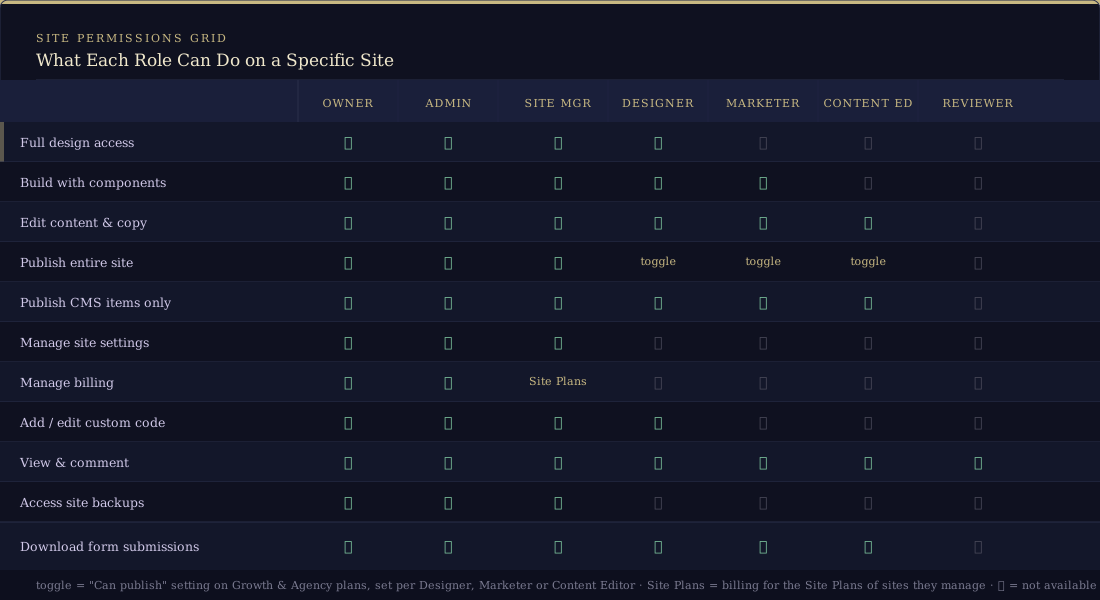
Here's the practical breakdown of what each role can and can't do on a given site. We've written this out instead of using a table because tables don't paste into Webflow rich text without turning into a mess.
Full design access (build freely in the Designer): Owner, Admin, Site Manager, Designer. Not available to Marketer, Content Editor, or Reviewer.
Build using components (use pre-approved components to create pages): Owner, Admin, Site Manager, Designer, and Marketer. Not Content Editor or Reviewer.
Edit content and copy (change text, swap images, update links): Everyone except Reviewer.
Publish the entire site: Owner, Admin, and Site Manager always can. Designer, Marketer and Content Editor can, but only if the "Can publish" toggle is enabled for them on Growth and Agency plans. Reviewers can't publish the full site.
Publish CMS items individually (update a blog post, add a product without doing a full publish): Owner, Admin, Site Manager, Designer, Marketer, and Content Editor. Not Reviewer.
Manage site settings and backups: Owner, Admin, and Site Manager. Designers can get into the custom code section too, but not the backups. No one else.
Manage billing: Owner and Admin for the Workspace (the plan, the card on file, invoices), plus Site Managers for the Site Plans of the sites they manage. Nobody else, full stop.
Download form submissions: Everyone except Reviewer.
Worth knowing: Even if a Designer or Marketer doesn't have full publish permissions, they can still publish individual CMS items. So your content editor can keep the blog updated without accidentally pushing a broken homepage redesign live. That's the feature you actually want.
Seats: the bit that costs money
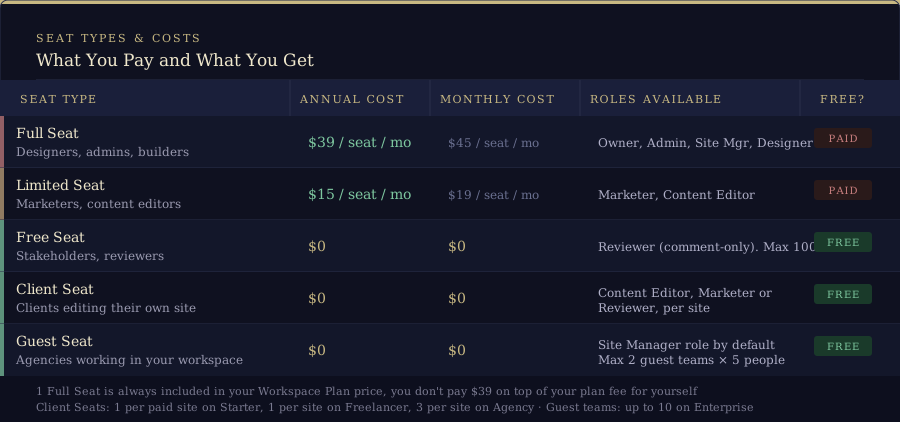
Every team member needs a seat to access your workspace. The seat type determines what roles they can be given and how much you pay. This is where a lot of people get surprised by their Webflow bill, so here's Webflow seat pricing in plain numbers.
Full Seat: $39/month (annual)
Required for Owner, Admin, Site Manager, and Designer roles. Anyone who's actually building in the Designer needs one of these. You get one Full Seat included in your Workspace Plan price, so if you're a solo operator, you're not paying $39 on top of your plan fee for yourself. That's already included. It also means there's no minimum seat count to buy: every workspace, even the free Starter one, comes with that one Full Seat for the owner, and you only buy more when you add people.
Limited Seat: $15/month (annual)
For Marketer and Content Editor roles. The right seat for your client's marketing manager or the person who'll be writing blog posts. They get meaningful access without getting near anything design-related, and it costs less than half a Full Seat.
Free Seat (Reviewer): $0
Comment-only access. Free. Up to 100 Reviewer seats per workspace. If your client's CEO, legal team, and entire board of directors need to review the site, you can add all of them as Reviewers and it won't cost a cent. Again, massively underused.
Client Seat: $0
Site-specific content editing access. Free and included in the freelancer and agency Workspace plans (Starter, Freelancer and Agency). The person with a Client Seat can only see and edit the specific site they're assigned to, as a Content Editor, Marketer or Reviewer (you choose). They can't see other sites in your workspace, can't touch workspace settings, nothing. This is the cleanest way to give a client content editing access without creating any risk. More on this below.
Guest Seat: $0
This is how agencies like Milk Moon access client workspaces. We get invited as a guest team: free, doesn't count against your seat limits, and gives us the Site Manager role by default so we can build your site. We can't see billing, can't manage your team, can't touch anything outside the sites we're working on. Most plans allow up to 2 guest teams (5 people per team). Enterprise bumps that to 10 guest teams. (Still deciding whether to bring in a studio at all? Here's our take on why you should choose a Webflow studio for your next website project.)
One thing that catches people out: removing a team member doesn't automatically reduce your seat count. You need to go into workspace settings and manually remove the seat. Otherwise you'll keep paying for it.
Workspace plans: which one do you actually need?
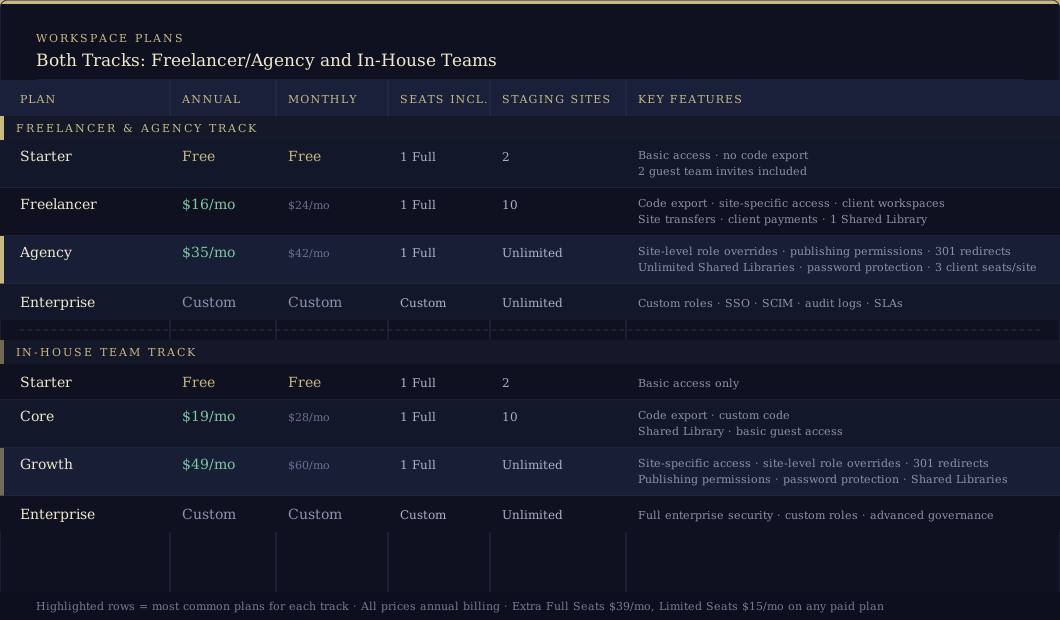
Workspace Plans split into two tracks, one for agencies and freelancers and one for in-house teams. Here's how they break down.
For freelancers and agencies
Starter: Free
Two staging sites, one Full Seat, basic access. No code export. You can invite up to 2 guest teams, which is how your clients can give you access at no cost to them. Enough to get started and test things out. Most clients who just need a website live don't need anything more than this.
Freelancer: $16/month (annual)
Ten staging sites, code export, site-specific access, guest access to client workspaces, site transfers, client payments and one Shared Library. If you're working across multiple client projects and need to transfer sites when they're done, this is the minimum viable agency plan.
Agency: $35/month (annual)
Unlimited staging sites, everything in Freelancer plus site-level role overrides, publishing permission toggles per Designer, unlimited Shared Libraries, site password protection, 301 redirects, and 3 client seats per site. If you're running a proper agency operation, this is where you want to be. The jump from Freelancer to Agency for $19/month more is very much worth it once you're dealing with multiple clients and want that granular control.
Enterprise: Custom pricing
Custom roles, SSO, SCIM provisioning, audit logs, SLAs, dedicated support. If you need to ask what this costs, you probably don't need it yet.
For in-house teams
Starter: Free
Same as above: two staging sites, basic access. Fine for a small team just getting started.
Core: $19/month (annual)
Ten staging sites, code export, custom code, a Shared Library, and basic guest access. The right plan for a small internal team managing one or two sites.
Growth: $49/month (annual)
Unlimited staging, site-specific access, site-level role overrides, publishing permissions, Shared Libraries, site password protection and 301 redirects. The equivalent of Agency for in-house teams. If your company has a proper marketing team managing Webflow, this is where you'll end up.
Enterprise: Custom pricing
Everything, plus advanced security and governance features.
Which track do you use? If you're building sites for clients and transferring them when done, use Freelancer/Agency. If a company is managing its own Webflow site with an internal team, they use Core/Growth. The features are very similar. The tracks exist mostly because the billing model and handoff workflows are different.
Site plans: what your client actually pays for hosting
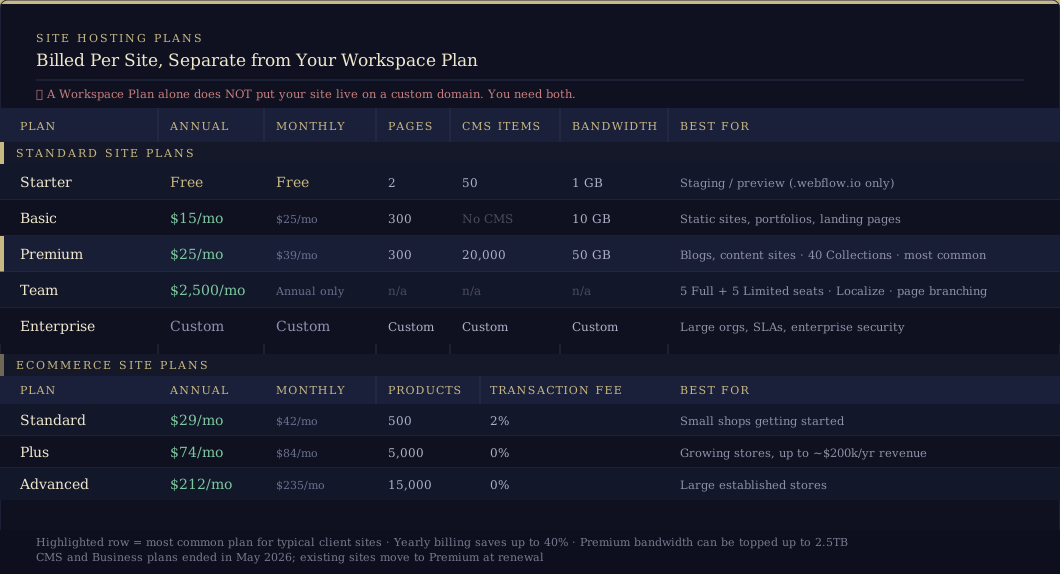
These are billed per site, separate from your Workspace Plan. You need one for every site that goes live on a custom domain.
Heads up, these changed in May 2026. Webflow merged the CMS and Business plans into one new Premium plan and put the Basic price up. New Site plans have been on the new pricing since 13 May 2026. Existing sites move over at their next renewal (or billable change) on or after 29 June 2026, or on or after 16 November 2026 if the site sits in a Freelancer or Agency Workspace, which gives agencies time to talk to their clients. If a site is on monthly billing, switching it to yearly before then locks in the current plan for another year.
Starter: Free
Two static pages, 50 CMS items, 1GB bandwidth. Webflow subdomain only (yoursitename.webflow.io). Useful for staging and internal previews. Not for live client sites.
Basic: $15/month (annual)
300 pages, no CMS, 10GB bandwidth, custom domain. For static sites: landing pages, portfolios, brochure sites with no dynamic content. If there's no blog and the content doesn't change often, this is all you need. (Before May 2026 it was $14/month with a 150-page limit.)
Premium: $25/month (annual)
300 pages, 20,000 CMS items, 40 CMS Collections, 50GB bandwidth, and you can buy more bandwidth in steps all the way up to 2.5TB. This is now the plan we set most clients up on. Blog, case studies, team pages, service listings: if any of it is CMS-powered, this is your minimum.
The old CMS and Business plans
CMS was $23/month (annual) for 150 pages, 2,000 CMS items and 50GB bandwidth, and it was the most common plan we set clients up on. Business was $39/month (annual) for 300 pages, 10,000 CMS items and 100GB bandwidth, for high-traffic sites or anything with a lot of content. You'd typically only have needed it if you were hitting CMS or bandwidth limits on the CMS plan. Both now roll into Premium at renewal. Business sites lose half their included bandwidth in the move (100GB down to 50GB), so if yours is a busy one, check whether you'll need a bandwidth add-on. And if it's speed you're after rather than bandwidth, we've written up how we put Cloudflare in front of Webflow for image optimisation and caching.
Team: $2,500/month (annual contract only)
New in May 2026, and it sits between Premium and Enterprise. It bundles a site, 10 seats (five Full, five Limited), Webflow Localize and a few things that used to be Enterprise-only, like page branching, single-page publishing and publishing workflows. It's for big marketing teams; most small businesses will never need it.
Enterprise: Custom
Everything, plus SLAs, enterprise security, and support. For large organisations with specific compliance or uptime requirements.
Ecommerce site plans
Standard: $29/month (annual)
500 products, 2% transaction fee. For small shops just getting going.
Plus: $74/month (annual)
5,000 products, no transaction fee. The right plan once you're past early-stage and moving real volume.
Advanced: $212/month (annual)
15,000 products, no transaction fee. Large established stores with high SKU counts.
Annual vs. monthly: Annual billing is a lot cheaper across the board (Webflow says up to 40%). A Premium plan is $39/month on monthly billing and $25/month on annual, so that's $168 saved per year, per site. (On the old CMS plan it was $29 vs $23, or $72 a year.) If a client is committing to more than a few months, always push them towards annual.
How to give clients access without giving them the keys
This is the question we get asked most often in one form or another: "How do I let my client update their own content without breaking everything?"
Here are your options, from simplest to most involved.
Client Seat (our default recommendation)
Free. Site-specific. The client can only see and edit the one site they're assigned to. They can update text, swap images, manage CMS items. They can't publish the full site unless you switch on Can publish when you invite them (on plans that offer it), though they can always publish individual CMS items. They can't see other sites in your workspace, and they can't touch anything structural. This is included in your Workspace Plan: 1 per paid site on Starter, 1 per site on Freelancer, and 3 per site on Agency. For most clients, this is all they need.
Reviewer link
Share a staging link and anyone with it can leave comments on the site without creating a Webflow account. Great for approval rounds, great for getting feedback from stakeholders who don't need ongoing access. Zero cost, zero friction.
Limited Seat: $15/month
For a client-side marketing person who needs to do more than just edit content: someone who's going to be building landing pages using pre-approved components, or who needs access across multiple sites in their workspace. This gives them the Marketer or Content Editor role workspace-wide.
Guest team access
If another agency or developer needs to work on the site alongside you, this is the way. Free, up to 5 people per guest team, up to 2 guest teams on most plans. They get the Site Manager role by default on the sites you grant them, nothing else.
Real-time collaboration: it's live now
As of February 2026, Webflow's multiplayer collaboration has finished rolling out and runs on every site by default (the toggle to switch it off is gone). It works like Figma: multiple people in the Designer simultaneously, on the same or different pages, seeing each other's changes in real time. Colour-coded avatars, element highlights, the works.
Everything auto-saves. No more manual saving, no more "I published over your work." If two people edit the same element at the same time, last-write-wins: whichever change hit Webflow's servers last is the one that sticks. In our experience Webflow usually gives you a heads-up when you're both on the same element, but don't bank on it: if you're working in the same section as someone, give them a shout first.
You can also edit CMS content directly in the Designer context now, without needing to switch to the legacy Editor (which Webflow switched off for good on 4 August 2026 anyway). That's a genuine quality-of-life improvement.
A few gotchas worth knowing:
- Real-time collaboration is not compatible with legacy interactions (the old IX system). If your site uses classic interactions, you'll need to keep that in mind.
- Page branches, approval workflows and the legacy Editor were single-user only when we first wrote this. Since July 2026, Enterprise teams can work in the same page branch together in real time, and the legacy Editor has since been retired, so this one's mostly history now.
- On slower connections (yes, we're looking at you, rural South Africa), syncing can lag, which increases the chance of a conflict. Work on a stable connection when you're collaborating live.
- If you restore from backup while someone else is in the Designer, the site locks for everyone until the restore is done. You'll get a confirmation email when it's finished.
What does it actually cost? A quick reference
Let's make it concrete. All prices are annual billing. (Webflow is only one line on the bill, mind you. For the rest, see our post on understanding the cost of a website.)
- Host one site with CMS: Premium Site Plan, $25/month per site
- Host one static site: Basic Site Plan, $15/month per site
- Run an agency operation: Agency Workspace, $35/month
- Add a second designer: +1 Full Seat, $39/month
- Add a content editor or marketer: +1 Limited Seat, $15/month
- Give a client content editing access: Client Seat, free (included in your plan)
- Let a stakeholder review and comment: Reviewer Seat, free
- Invite another agency to collaborate: Guest team, free (up to 2 teams)
A real-world example: what Milk Moon Studio's setup looks like
- Agency Workspace plan: $35/month (covers unlimited staging, Shared Libraries, site-level role controls)
- One Full Seat included in that $35, so that's the first person sorted
- Any additional designers: $39/month per Full Seat
- Client content editing: 3 free Client Seats per site, no extra cost
- Stakeholder approvals: share a Reviewer link, free, no account needed
- Client pays for their own hosting: we use Webflow's client payments feature so they add their card directly and Webflow invoices them for the Site Plan. We never touch their card details.
A real-world example: a client with an in-house marketing team
- Growth Workspace plan: $49/month (site-specific access, publishing permissions)
- Senior developer/designer: 1 Full Seat at $39/month
- Marketing manager building pages and updating content: 1 Limited Seat at $15/month
- CEO reviewing designs: free Reviewer seat, shares comment links, never logs in
- Site hosted on the Premium plan: $25/month
In reality, a very small team might only need a Site Plan if there's just one person who needs access. We join as a free agency guest, the client has the free Workspace seat, and everyone is happy for $25/mo. The setups above are examples for larger teams.
The most common mistake we see
Clients buying a paid Workspace Plan thinking it means their site is live.
It doesn't. A Workspace Plan is about your team and your tools. You still need a Site Plan to go live on a custom domain. They are completely independent. Always have been, always will be.
The second most common mistake: buying a Full Seat for someone who only needs to update blog posts. That's a $39/month seat where a $15/month Limited Seat would do the job just fine. Over a year, per person, that's $288 unnecessarily spent. Not the end of the world, but also entirely avoidable.
FAQ
What's the minimum number of seats you need to buy for Webflow?
None. Every workspace, including the free Starter one, comes with one Full Seat for the owner, and you only pay for extra Full or Limited Seats when you add people who need them. Reviewers are free (up to 100), and so are Client Seats and agency guest teams. To actually go live on your own domain you need a paid Site Plan, not a seat.
What's the difference between permissions, billing and site transfers in Webflow?
Permissions come from roles: your Workspace Role decides what you can do across the account, and your Site Role decides what you can do on each site. Billing sits with the Owner and Admins at Workspace level (the plan, the card, the invoices), while Site Managers can buy and manage the Site Plan for their own sites. Transferring a site out of a workspace needs the Site Manager role on that site, and only Freelancer and Agency workspaces can transfer a site with a paid Site Plan straight into a client's workspace. Only the Owner can delete the workspace or hand over ownership.
How much does a Webflow seat cost?
A Full Seat is $39/month and a Limited Seat is $15/month, both billed annually. Reviewer seats, Client Seats and agency guest teams are free, and your first Full Seat is included in every Workspace Plan.
How much does Webflow cost for an agency?
The Agency Workspace plan is $35/month (annual), or $16/month for the Freelancer plan if you've only got a handful of clients. Hosting comes on top, per site, and with client payments your clients can pay for their own Site Plans directly. Extra designers are $39/month each.
How do I invite someone to a Webflow workspace?
Owners and Admins head to Workspace Settings, then Team, hit Invite member, and pick a role (and whether they can publish). If there's no open seat, Webflow lets you buy one in the same flow. Clients are invited per site instead, from Site settings, then Site access, then Clients. Agencies join as a guest team, which the client sets up from their own workspace.
That's the whole picture. Roles, seats, plans, pricing, collaboration, all of it. Bookmark this one, you'll probably refer back to it.
If you've got questions about how any of this applies to your specific setup, drop us a message. We set up Webflow workspaces for clients regularly and we're happy to help you figure out the right configuration without buying more than you need.