

How we set up Vimeo background videos in Webflow and used object intersect code to lazy load hundreds of them, time animations and pause videos in modals.
We’ve recently been tasked with designing and building a new site for a video production company, and with that has come the large-scale use of background video. In the end we opted for Vimeo background videos over Webflow background video or external providers. External providers were out as they already had a service for this, but performance was… meh. Webflow background video was out because:
- Too hard for the client to change.
- Needed to be easy to manage, i.e. CMS, and Webflow background video & CMS don’t gel.
- They already had a Vimeo Pro account with a couple of hundred TVCs etc. on there that we could just import into the Webflow CMS with their meta data, all descriptions, titles etc.
Vimeo background video is surprisingly easy to implement in Webflow:
<iframe height="300" style="width: 100%;" scrolling="no" title="Vimeo Background Video Embed Code for Webflow CMS" src="https://codepen.io/milkmoonstudio/embed/OJoxPeo?default-tab=html&theme-id=light" frameborder="no" loading="lazy" allowtransparency="true" allowfullscreen="true">
See the Pen <a href="https://codepen.io/milkmoonstudio/pen/OJoxPeo">
Vimeo Background Video Embed Code for Webflow CMS</a> by Jakes van Eeden (<a href="https://codepen.io/milkmoonstudio">@milkmoonstudio</a>)
on <a href="https://codepen.io">CodePen</a>.
</iframe>
But all you really need to get going is the src: add the Vimeo ID and the query following it to make it play, loop and stay muted. Here’s more of an explanation of the rest if you’d like to know exactly what’s going on:
- The HTML code creates an iframe element with the ID "vimeo-video". This is where the Vimeo video will be embedded on the page. This is important as our first object intersect observer will be looking for “vimeo-video”.
- The "loading" attribute is set to "eager", which tells the browser to load the iframe and its contents as soon as possible, without waiting for the rest of the page to load. It’s above the fold so we want it quick.
- The "preload" attribute is set to "auto", which tells the browser to preload the video file so that it can start playing as soon as possible. Same as above.
- The "title" attribute sets the title of the iframe to "Name".
- The "src" attribute is set to the URL of the Vimeo video with additional parameters added. The "background=1" parameter sets the video to play as a background video, and the "loop=1" parameter sets the video to loop continuously. The "autopause=0" parameter stops the Vimeo player pausing this video when another Vimeo video on the same page starts playing (by default the player only plays one video at a time), and the "muted=1" parameter sets the video to play with the sound muted. The "quality=auto" parameter sets the video quality to automatically adjust based on the user's connection speed. The "responsive=1" parameter makes the video responsive to different screen sizes. The "dnt=1" parameter blocks the Vimeo player from collecting session data and analytics, so no analytics are tracked (Vimeo says some essential cookies stay active).
- The "style" attribute sets the background colour of the iframe to white.
- The "width" and "height" attributes are set to 100% to make the iframe fill the entire width and height of its container.
- The "frameborder" attribute is set to 0 to remove the border around the iframe.
- The "allow" attribute allows the iframe to autoplay and enter fullscreen mode.
- The "allowfullscreen" attribute allows the iframe to enter fullscreen mode.
You can also use a Video Element, and we’ve actually done a full post on CMS powered background video here if you’re interested in more detail about adding that to your collection lists. Iframes and the Video elements both have their pros and cons.
Iframe embeds are a common way to embed Vimeo videos on a website, and they offer some advantages. One of the main benefits is that iframes are loaded asynchronously, which means that the rest of the page can load independently of the video. This can help improve page load times, especially on slower connections. However, iframes can also be slower to render and can negatively impact website performance, especially if you're loading a lot of videos async and using interaction triggers like "page loaded", particularly on mobile devices with slower processors.
On the other hand, video element embeds can be more performant than iframes because they are part of the page's DOM and can be controlled more directly with JavaScript, they're also easy to cache. This means that video element embeds can be optimised for faster playback and better performance, especially on mobile devices. However, they can also be more complex to set up and require more code to control, and unlike a Vimeo iframe, you can’t just populate them with the Vimeo video ID.
In the end we opted for the iframe as their social media manager would be maintaining the site, and all he’d need was the Vimeo video ID and the Webflow CMS, but we needed more control to optimise the experience, firstly, because while we can make recommendations on size and quality there’s no guarantee anyone is going to follow that, and secondly because some of the pages for their directors contained hundreds of background videos that would easily tie up the browser on a low-end machine or smartphone.
The solution, Object Intersect Code. What is that you say, and rightly so. It’s used a lot, but not something folks dealing in no-code development need to worry about a lot. We always state that Milk Moon Studio is a Webflow Studio first, we like low or no code, and anyway, any Webflow expert likes to keep things simple.
Object intersect code is a technique used in web development to trigger actions when a specific object intersects or comes into view on the screen.
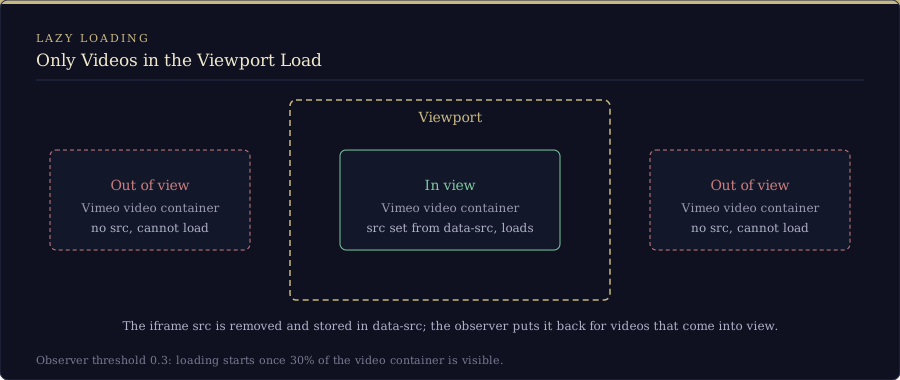
In the context of Vimeo background videos in Webflow, object intersect code can be used to control the playback of the video. For example, you might want the video to pause when it goes out of view, or to only start playing when it comes into view on the screen.
By using object intersect code, you can ensure that the video playback is optimised for your users and doesn't unnecessarily drain their device's resources. It can also enhance the overall user experience by making the video playback smoother and more responsive.
Object intersect code only tells you what is on screen, but combined with the Vimeo player API, which does know whether the video is currently playing or paused, you can trigger other events on the site based on the state of the Vimeo video player. For example, you could use the player API to detect if the video is currently playing or paused, and then trigger other actions based on that state, such as showing or hiding other elements on the page, or triggering animations.
We’re going to be showing you a few ways we used object intersect code in this project to help optimise the site, and control other elements to help optimise the general user experience.
Just remember you’re going to need to load the player API for all this to work:
<iframe height="300" style="width: 100%;" scrolling="no" title="Vimeo Player API " src="https://codepen.io/milkmoonstudio/embed/ExewjZW?default-tab=html&theme-id=light" frameborder="no" loading="lazy" allowtransparency="true" allowfullscreen="true">
See the Pen <a href="https://codepen.io/milkmoonstudio/pen/ExewjZW">
Vimeo Player API </a> by Jakes van Eeden (<a href="https://codepen.io/milkmoonstudio">@milkmoonstudio</a>)
on <a href="https://codepen.io">CodePen</a>.
</iframe>
Using the Vimeo player API as a trigger when a Vimeo video starts playing
We’ll kick off with what we did on the site’s homepage, using the Vimeo player API to control other elements to improve the user experience and time interactions with the video starting to play.
To set the scene, we’ve got a background showreel video playing behind a scrolling logo. Normally, it’s fairly easy to time this, trigger the interaction on page loaded and you’re done, but Webflow won’t know when the video has loaded, because the iframes load asynchronously, so we needed the Vimeo player API to watch for the video playing and then trigger the scrolling logo. The code sets up a scrolling marquee effect on a webpage using CSS animation, and triggers the animation when a Vimeo video is played. Here's a breakdown of what the code is doing:
- The CSS code sets up a "marquee-track" class that positions a text element absolutely and sets it to scroll horizontally using a CSS animation. The animation is set to play in reverse and last for 30 seconds. The class is initially set to have an opacity of 0 so that it is hidden on the page.
- The JavaScript code sets up an event listener that waits for the Vimeo player to be played. When the play event is triggered, the JavaScript adds the "start" class to the "marquee-track" element, which triggers the CSS animation and causes the text to scroll across the page.
Here are the full styles and script with markup to explain it a bit better, but the gist of all of this is how easy it is to use the Vimeo player events, alongside the object intersect observer, to trigger, hide or show other elements, like loaders etc.
<iframe height="300" style="width: 100%;" scrolling="no" title="Vimeo Object Intersect Observer to trigger events" src="https://codepen.io/milkmoonstudio/embed/yLxzNze?default-tab=html&theme-id=light" frameborder="no" loading="lazy" allowtransparency="true" allowfullscreen="true">
See the Pen <a href="https://codepen.io/milkmoonstudio/pen/yLxzNze">
Vimeo Object Intersect Observer to trigger events</a> by Jakes van Eeden (<a href="https://codepen.io/milkmoonstudio">@milkmoonstudio</a>)
on <a href="https://codepen.io">CodePen</a>.
</iframe>
Lazy load Vimeo background videos when they are in the viewport using the object intersect observer
As we said before, the above bit is more user experience, nice looking, but doesn’t do much in terms of performance, this next one is great at improving performance and this is what we used on the pages that had hundreds of videos to improve overall page performance and load times. One of the cons of iframes is the lack of direct control when just using the embed, so the code below gives you direct control over when the video even starts to load:
<iframe height="300" style="width: 100%;" scrolling="no" title="Lazy load Vimeo Background Videos using the Object Intersect Observer " src="https://codepen.io/milkmoonstudio/embed/GRXMJxz?default-tab=html&theme-id=light" frameborder="no" loading="lazy" allowtransparency="true" allowfullscreen="true">
See the Pen <a href="https://codepen.io/milkmoonstudio/pen/GRXMJxz">
Lazy load Vimeo Background Videos using the Object Intersect Observer </a> by Jakes van Eeden (<a href="https://codepen.io/milkmoonstudio">@milkmoonstudio</a>)
on <a href="https://codepen.io">CodePen</a>.
</iframe>
- The HTML code creates a video container with the ID "vimeo-video". This is where the Vimeo video will be loaded on the page. Basically the same as the iframe above, but with a different ID.
- The JavaScript code selects all the video containers on the page using the "querySelectorAll" method.
- The "options" object sets up the parameters for the IntersectionObserver API. The "root" property is set to "null" to use the viewport as the root element. The "rootMargin" property is set to "0px" to set the margin around the root element to 0. The "threshold" property is set to 0.3 to indicate the proportion (30%) of the video container that needs to be visible in the viewport before the video starts loading.
- The "videoObserver" variable creates a new IntersectionObserver instance with a callback function that runs when an intersection is observed. The function receives an array of "entries" and an "observer" object. For each entry, the function checks if the entry is intersecting with the viewport using the "isIntersecting" property. If it is, the function gets the Vimeo video iframe inside the container using the "querySelector" method, retrieves the video source URL from the "data-src" attribute using the "getAttribute" method, sets the iframe "src" attribute to the retrieved URL using the "setAttribute" method, and stops observing the container using the "unobserve" method.
- The "videoContainers" variable is iterated using the "forEach" method to access each container individually. For each container, the function gets the Vimeo video iframe inside the container using the "querySelector" method, retrieves the video source URL from the "src" attribute using the "getAttribute" method, sets the "data-src" attribute to the retrieved URL using the "setAttribute" method, removes the "src" attribute using the "removeAttribute" method, and starts observing the container using the "observe" method of the IntersectionObserver API.
The neat bit is that you’re basically removing and adding the src url, which means that videos that aren’t in the viewport cannot load at all freeing up resources for just the ones that are.
Using the Vimeo player to pause Vimeo videos when you close a modal
This last one I’m just going to chuck in here. It’s just a useful way of controlling the player API, not directly intersect observer related. The problem: what do you do when you have a Vimeo video in a modal? When you play it all is good, but if you just close the modal, the video keeps playing, right? It’s not a Webflow video element, just a regular Vimeo embed so Webflow has no control over it. And this is exactly what happened to us when we had a modal in a slider. You click on a slide, which opens the modal, but when you close the modal, the slider keeps going and so does the video, somewhere in the background. Nobody wants that.
All we needed was this to pause the video:
<iframe height="300" style="width: 100%;" scrolling="no" title="Pause Vimeo Video when Modal is closed" src="https://codepen.io/milkmoonstudio/embed/wvEraEw?default-tab=html&theme-id=light" frameborder="no" loading="lazy" allowtransparency="true" allowfullscreen="true">
See the Pen <a href="https://codepen.io/milkmoonstudio/pen/wvEraEw">
Pause Vimeo Video when Modal is closed</a> by Jakes van Eeden (<a href="https://codepen.io/milkmoonstudio">@milkmoonstudio</a>)
on <a href="https://codepen.io">CodePen</a>.
</iframe>
- The HTML code creates a video modal with a close button. This is where the Vimeo video will be played on the page.
- The JavaScript code selects all the close buttons on the page using the "querySelectorAll" method.
- The "closeButtons" variable is iterated using the "forEach" method to access each button individually. For each button, the function adds a click event listener using the "addEventListener" method.
- The event listener function gets all the video modals on the page using the "querySelectorAll" method and the ".modal-video" class selector.
- The "modalVideos" variable is iterated using the "forEach" method to access each video modal individually. For each video modal, the function gets the Vimeo video iframe inside the modal using the "contentWindow" property, which accesses the window object of the iframe, and the "postMessage" method. The "postMessage" method sends a message to the iframe, which in this case is a JSON object with a "method" property set to "pause". This pauses the Vimeo video when the modal is closed.
Overall, this code ensures that the Vimeo video inside the modal is paused when the modal is closed by using the "postMessage" method to send a message to the iframe with the "pause" method. This prevents the video from playing in the background and using up unnecessary resources on the page.
If you’d rather skip the iframe altogether, we’ve also written about CMS-powered background videos using the Custom Element, which gives you a native HTML5 video element. And if you’re chasing page speed more broadly, have a look at why page speed drives business success and our Cloudflare asset proxy and optimisation guide.
Questions people ask about Vimeo videos in Webflow
How do I add a Vimeo video to Webflow?
Drop an Embed element onto the page and paste in a Vimeo iframe with your video ID in the src, or use Webflow’s own Video element and give it the Vimeo link. For a background video we prefer the iframe, as you get to add parameters to the src, and that’s what the rest of this post is built on.
How do I make a Vimeo video play as a background video?
Add the "background=1" parameter to the end of the video’s src. According to Vimeo, that disables the player controls, loops the video, autoplays it and mutes it. Just note that Vimeo says the video must be hosted on a Starter account or higher, so a free account won’t do it.
How do I lazy load Vimeo background videos in Webflow?
Swap the iframe’s "src" for a "data-src" and let an Intersection Observer put the src back once the container is about 30% visible. Videos that are nowhere near the viewport never load at all, which is what saved us on the pages with hundreds of them.
How do I pause a Vimeo video when a modal is closed?
Send the Vimeo iframe a "pause" message with postMessage when your close button is clicked, exactly like the CodePen above. Webflow can’t stop a regular Vimeo embed for you, so you have to tell the player yourself.
So, all in all, some interesting ways to use the object intersect observer to optimise background video content in Webflow, plus how to pause a video when a modal is closed. We hope this gives you some inspiration on your next project, and for more on CMS powered background videos check out this post. You can also find our how-to section here with all the how-to posts and videos we've created, we try to keep it low-code, simple and Webflow related. There's also a nice guide to the object intersect observer here, complete with a nice video if you'd like to use it for things other than video.