

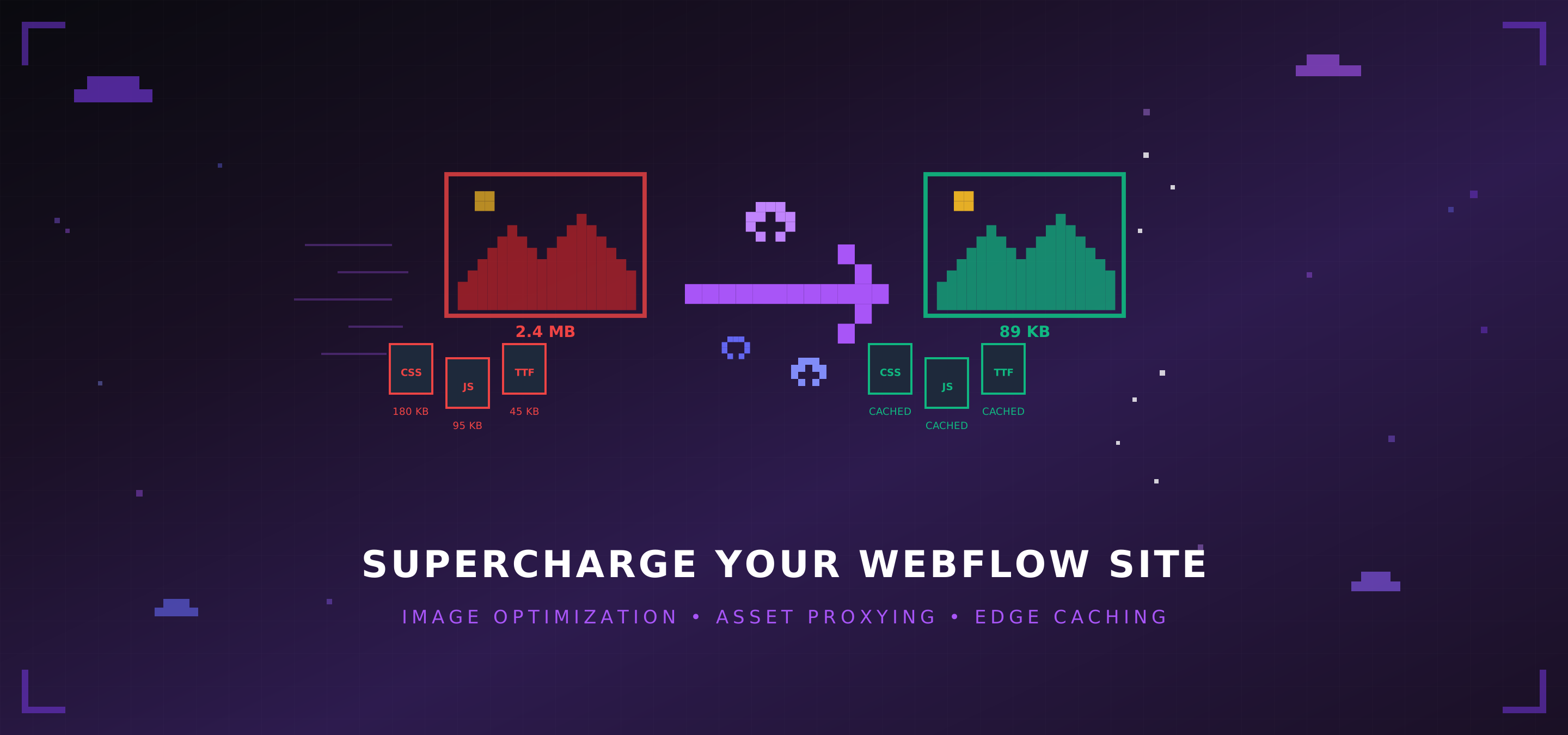
Notre guide 2026 pour faire passer Webflow par Cloudflare avec l'O2O et un Worker qui fait transiter, optimise et met en cache vos images, CSS, JS et polices sur votre propre domaine.
Webflow tournait autrefois sur AWS, puis a utilisé Fastly pendant un temps. C'est correct, mais nous avons constaté que sur les gros projets, surtout ceux qui regorgent d'images, Cloudflare nous a apporté des gains de vitesse significatifs, une meilleure disponibilité et tout un éventail d'options d'optimisation, sans oublier les Workers. Mais contrairement à d'autres plateformes, il n'était pas simple de basculer son DNS vers Cloudflare. Webflow et Cloudflare ne faisaient pas bon ménage dès qu'il s'agissait de passer votre site par le proxy et de l'optimiser via Cloudflare.
Il y a longtemps, nous avons imaginé une astuce reposant sur le réglage SSL et sur les paramètres de connexion non SSL, associée à l'app Cassette, pour mettre en cache et optimiser les images. Par la suite, les apps ont été retirées de Cloudflare et, à force d'essais et d'erreurs, nous avons conçu notre propre Worker pour faire transiter et mettre en cache les images de Webflow sur Cloudflare.
Eh bien, bonne nouvelle : tout cela a changé.
Webflow a migré vers Cloudflare, et pendant un moment, nous étions dans le flou.
La très bonne nouvelle, c'est que grâce à ce passage à Cloudflare, l'Orange-to-Orange (O2O) fonctionne désormais nativement. Fini les contournements bricolés, fini les apps Cassette, fini les sous-domaines compliqués pour vos assets. Si vous avez lu notre précédent article sur la mise en cache de Webflow avec Cloudflare, vous pouvez en gros en jeter la plus grande partie par la fenêtre (gardez seulement les passages qui expliquent pourquoi on veut faire cela au départ).
Alors, où en est-on aujourd'hui pour la mise en cache et le proxy via Cloudflare ? Maintenant que Webflow prend en charge l'O2O, le nuage orange est activé dans vos réglages DNS, avec la prise en charge complète de Webflow, et fini les soucis de SSL, etc. Cela signifie aussi que vous pouvez utiliser sans effort la vaste gamme d'outils de sécurité et de Workers proposée par Cloudflare.
MAIS, et c'est la grosse réserve, tous vos assets, des images au CSS, restent hébergés sur un domaine de CDN Webflow, et comme ce n'est pas sur VOTRE DOMAINE, vous n'avez toujours aucun contrôle dessus, à moins que...
Dans cet article, nous allons vous guider dans la mise en place d'un Worker Cloudflare (en pratique, un reverse proxy Webflow pour vos assets) qui transforme votre site Webflow de sorte que la quasi-totalité des assets passent par le proxy et soient mis en cache. Nous parlons d'optimisation automatique des images, de proxy d'assets et de mise en cache en périphérie, le tout servi depuis votre propre domaine. Ça donne envie, non ? Par le passé, nous ne nous concentrions que sur les images. Cette fois, nous allons plus loin, nous couvrons plus de cas et nous rendons le tout plus facile à utiliser que jamais.
Petit rappel : c'est du contenu avancé. Nous avons rendu le script plus intuitif, mais soyez attentif à la configuration. Lisez attentivement : une vidéo suivra plus tard. C'est parti !
Voici le guide de démarrage rapide. Pour en savoir plus sur le détail du script, consultez le fichier MD sur GitHub ici, qui va beaucoup plus dans le détail.
Ce que nous cherchons à obtenir
Voici le principe. Webflow héberge tous vos assets sur ses domaines de CDN (cdn.prod.website-files.com, assets.website-files.com, etc.). Comme ce ne sont pas vos domaines, votre zone Cloudflare ne peut pas y toucher, ce qui crée quelques limites :
- Aucune optimisation des images : les images sont servies telles quelles, sans conversion automatique en AVIF ou WebP. Vous faites cela dans Webflow et rien ne se passe à la volée.
- Restrictions CORS : les requêtes cross-origin peuvent parfois échouer
- Aucune mise en cache unifiée : vos assets sont dispersés sur différents domaines
- Casse-têtes sur les réseaux sociaux : les images OG ne sont pas optimisées pour le partage
Notre Worker Cloudflare s'attaque à une bonne partie de ces problèmes en interceptant le HTML de votre site et en réécrivant toutes ces URL du CDN Webflow pour qu'elles passent par votre domaine.
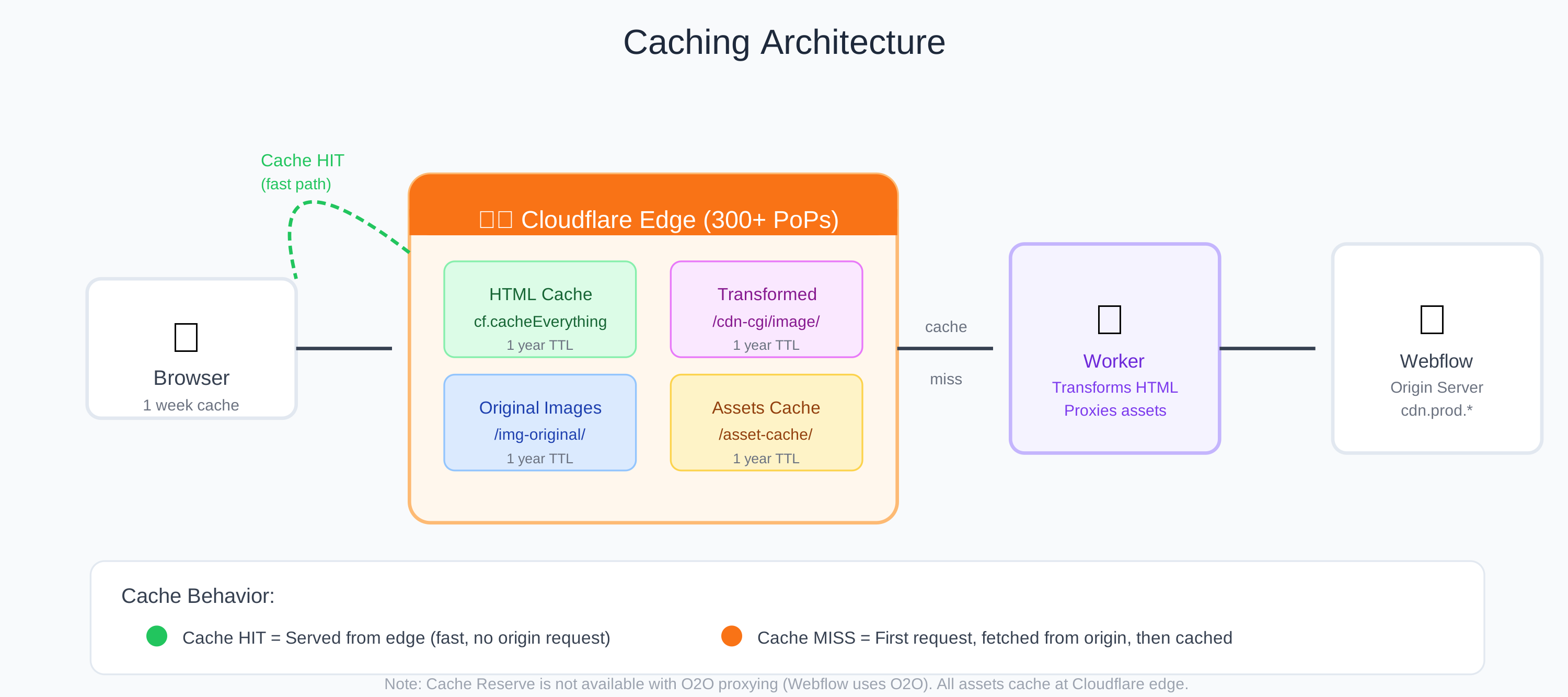
Une fois en place, vous obtenez :
- Conversion automatique des formats : AVIF pour les navigateurs récents, WebP pour les autres, ou le format de votre choix
- Optimisation de la qualité : compression configurable (nous utilisons 85 % par défaut, le rendu est superbe)
- Mise en cache en périphérie : tous les assets sont mis en cache dans plus de 300 centres de données Cloudflare dans le monde (n'oubliez pas qu'il n'y a pas de préchauffage du cache)
- Livraison sans CORS : tout est servi depuis votre domaine
- Optimisation pour les réseaux sociaux : les images OG et Twitter sont converties en JPEG pour la compatibilité (n'oubliez pas que Cloudflare peut convertir en AVIF, mais ne reconvertit pas dans l'autre sens)
Et voici le meilleur. Une fois que tout tourne, vous pouvez y superposer les autres fonctionnalités de Cloudflare : Page Rules, Cache Rules, WAF, protection contre les bots, tout le kit. C'est votre zone maintenant, lâchez-vous.
Mais il n'y a pas que les images.
Le Worker fait aussi transiter et met en cache tous vos fichiers CSS, JavaScript et de polices via votre domaine (ou du moins il essaie). Vos WOFF2, vos TTF, vos bundles JS minifiés : tout est récupéré depuis le CDN de Webflow, mis en cache à la périphérie de Cloudflare et servi depuis votre domaine avec les bons en-têtes de cache. Les images AVIF ? Elles sont déjà optimisées, donc le Worker saute la transformation et les fait simplement transiter telles quelles. Les favicons reçoivent le traitement complet des images. En gros, si Webflow le sert depuis son CDN, nous l'attrapons et nous le rendons vôtre.
Nous avons donc relevé le niveau. Vous trouverez ci-dessous des instructions générales. La vidéo se contente de montrer le système en fonctionnement, mais dès que j'aurai le temps, j'enregistrerai un guide complet. Pour l'instant, vous pouvez suivre le guide écrit.
Partie 1 : configurer votre domaine avec Cloudflare et Webflow
Il existe deux façons de connecter votre domaine géré par Cloudflare à Webflow :
- Configuration standard : Cloudflare ne gère que le DNS et Webflow sert tout le reste (proxy désactivé)
- Configuration O2O : le trafic passe d'abord par votre zone Cloudflare, puis par Webflow (proxy activé)
Nous voulons l'O2O, car c'est lui qui permet d'utiliser les Workers, les règles de cache, le WAF et tous les autres avantages de Cloudflare. Mais voyons les deux pour que vous compreniez la différence.
Prérequis
Votre site Webflow doit se trouver sur l'infrastructure de Cloudflare. Les sites créés après le 21 avril 2025 y sont déjà. Pour les sites plus anciens, vérifiez dans les paramètres de votre Workspace → Domain Updates si vous devez d'abord migrer.
Configuration DNS standard (sans O2O)
Si vous voulez simplement que Cloudflare gère votre DNS sans proxy (c'est ce que les instructions par défaut de Webflow vous demandent de faire) :
Pour votre domaine racine (@) :
- Type :
A - Nom :
@ - Valeur :
198.202.211.1 - Statut du proxy : DNS uniquement (nuage gris)
Pour www :
- Type :
CNAME - Nom :
www - Cible :
cdn.webflow.com - Statut du proxy : DNS uniquement (nuage gris)
Cela fonctionne très bien, mais vous n'obtenez aucune fonctionnalité Cloudflare au-delà du DNS. Le trafic va directement chez Webflow.
Configuration O2O (ce que nous voulons)
Pour activer l'Orange-to-Orange et utiliser réellement les fonctionnalités de Cloudflare, il vous faut des enregistrements CNAME avec proxy :
Pour votre domaine racine (@) :
- Type :
CNAME - Nom :
@ - Cible :
cdn.webflow.com - Statut du proxy : Proxy activé (nuage orange)
Pour www :
- Type :
CNAME - Nom :
www - Cible :
cdn.webflow.com - Statut du proxy : Proxy activé (nuage orange)
Important : supprimez tout enregistrement A existant qui pointe vers 198.202.211.1. Vous ne pouvez pas avoir les deux. Pour l'O2O, ce sont des enregistrements CNAME avec le proxy activé.
Si vous avez d'autres sous-domaines (comme blog.yourdomain.com), ajoutez aussi un CNAME avec proxy pour chacun d'eux.

Réglages SSL/TLS
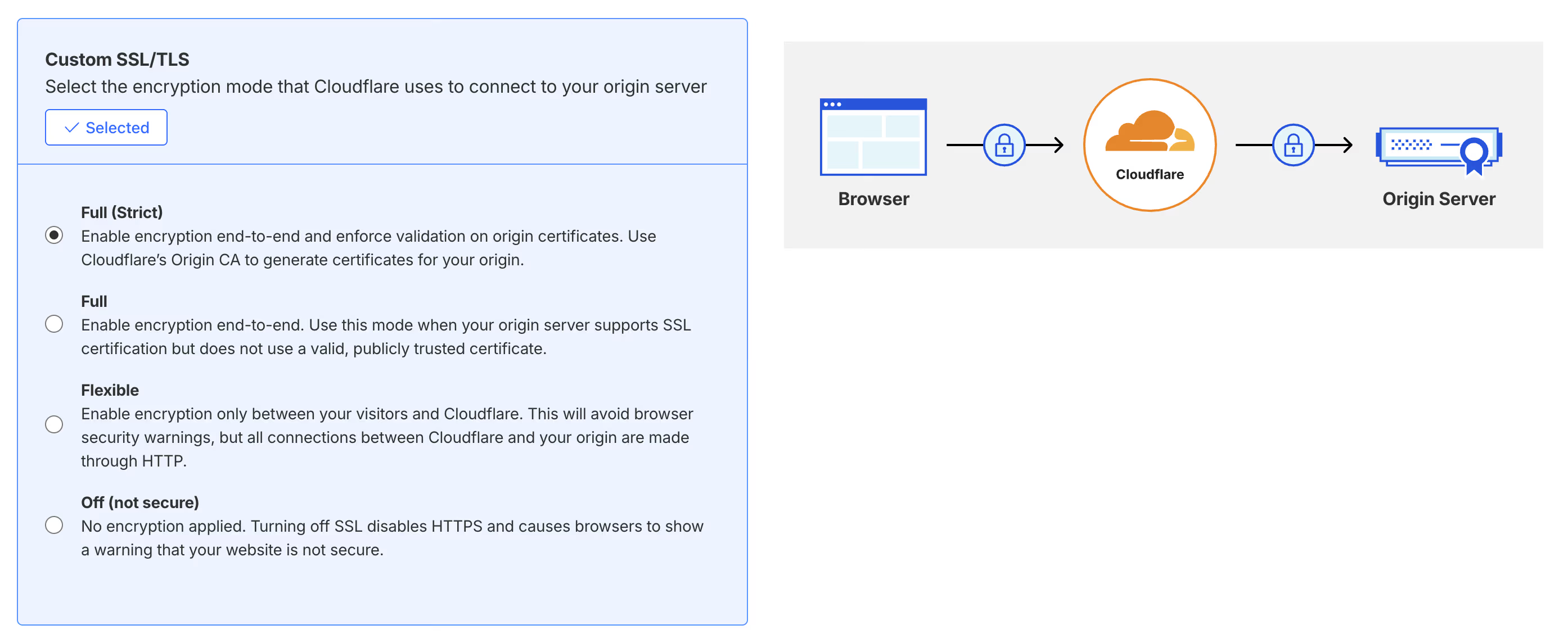
Rendez-vous dans SSL/TLS dans votre tableau de bord Cloudflare et réglez le mode de chiffrement sur Full (strict).
Ajouter le domaine dans Webflow
Du côté de Webflow :
- Allez dans Site settings → Publishing → Production
- Ajoutez votre domaine (racine et www)
- Publiez votre site
À propos de l'avertissement « Update needed »
Voici ce qui se passe. Une fois le nuage orange activé, Webflow ne voit plus vos enregistrements DNS. Il va donc se plaindre, ou du moins il risque de le faire. Vous verrez « Update needed » ou « Update pending » dans vos réglages de publication.
Ignorez-le.
C'est un comportement attendu. La vérification de Webflow ne peut pas voir à travers le proxy. Si votre site se charge correctement, tout va bien. Vous pouvez continuer à publier normalement. J'ai vu l'avertissement persister, et dans certains cas il disparaît.
Vérifier que ça fonctionne
Visitez votre site. S'il se charge, c'est gagné. Vous pouvez aussi :
- Utiliser SSL Labs pour tester votre certificat SSL
- Utiliser whatsmydns.net pour confirmer que votre domaine se résout vers des IP Cloudflare
- Vérifier la présence de
cf-raydans les en-têtes de réponse (ce qui indique que Cloudflare est bien dans la chaîne)
Voilà, l'O2O est réglé. Passons maintenant à la partie amusante.
Partie 2 : activer les fonctionnalités Cloudflare requises
Avant de déployer le Worker, nous devons activer quelques éléments dans Cloudflare et nous assurer que les bons abonnements sont actifs.
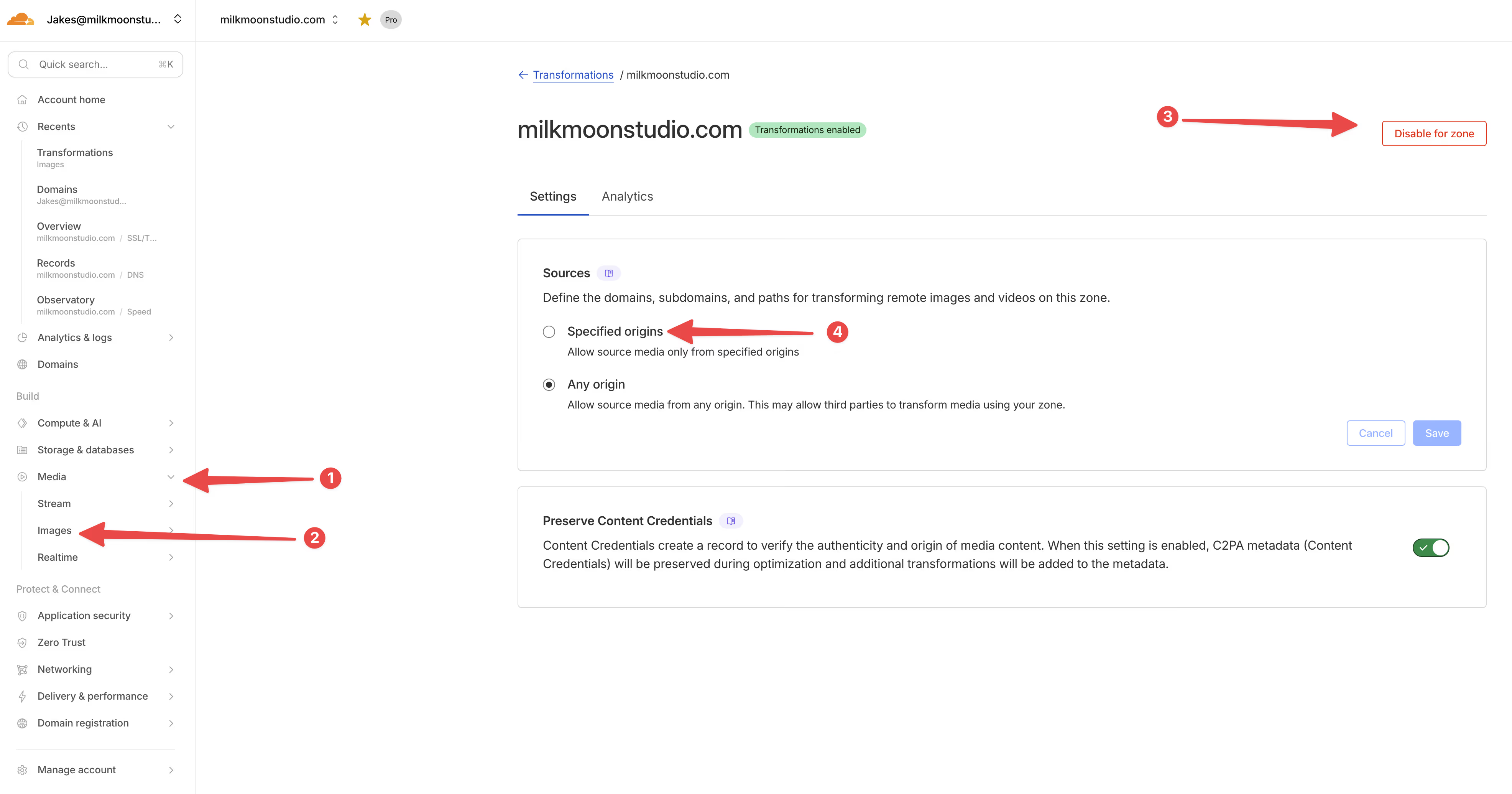
Activer Image Transformations
C'est l'ingrédient magique qui permet à Cloudflare de convertir et d'optimiser vos images à la volée.
- Allez dans le tableau de bord Cloudflare → Votre zone
- Naviguez vers Images → Transformations
- Cliquez sur Enable Image Transformations
Sans cela, les URL /cdn-cgi/image/ ne fonctionneront pas et vos images renverront simplement une erreur 404. Pas idéal.
Coûts : l'offre gratuite vous donne 5 000 transformations uniques par mois. Sur une offre payante, les 5 000 premières transformations uniques sont toujours incluses, puis c'est 0,50 $ par tranche de 1 000 transformations uniques par mois au-delà. Pour la plupart des sites Webflow, l'offre gratuite suffit largement pour commencer.
Ajouter les origines autorisées
Toujours dans Images → Transformations, cliquez sur Sources et ajoutez ces origines :
Origine :
-
cdn.prod.website-files.com assets.website-files.comassets-global.website-files.com-
uploads-ssl.webflow.com cdn.webflow.com-
www.yourdomain.comEssentiel !
Ce dernier point est crucial et facile à oublier. Les URL de transformation utilisent votre propre domaine comme source (parce que nous passons par /img-original/), donc Cloudflare doit avoir l'autorisation d'aller chercher des fichiers chez lui-même. Méta, on sait.
Activer les Workers
Vous devez avoir les Workers activés sur votre zone.
- Allez dans Workers & Pages dans le tableau de bord Cloudflare
- Si vous n'avez jamais utilisé les Workers, il vous sera demandé de configurer un sous-domaine
Coûts : l'offre gratuite vous donne 100 000 requêtes par jour. C'est beaucoup. L'offre payante coûte 5 $/mois pour 10 millions de requêtes si vous en avez besoin de plus.
Partie 3 : créer le Worker
Passons au Worker lui-même. C'est là que la magie opère.
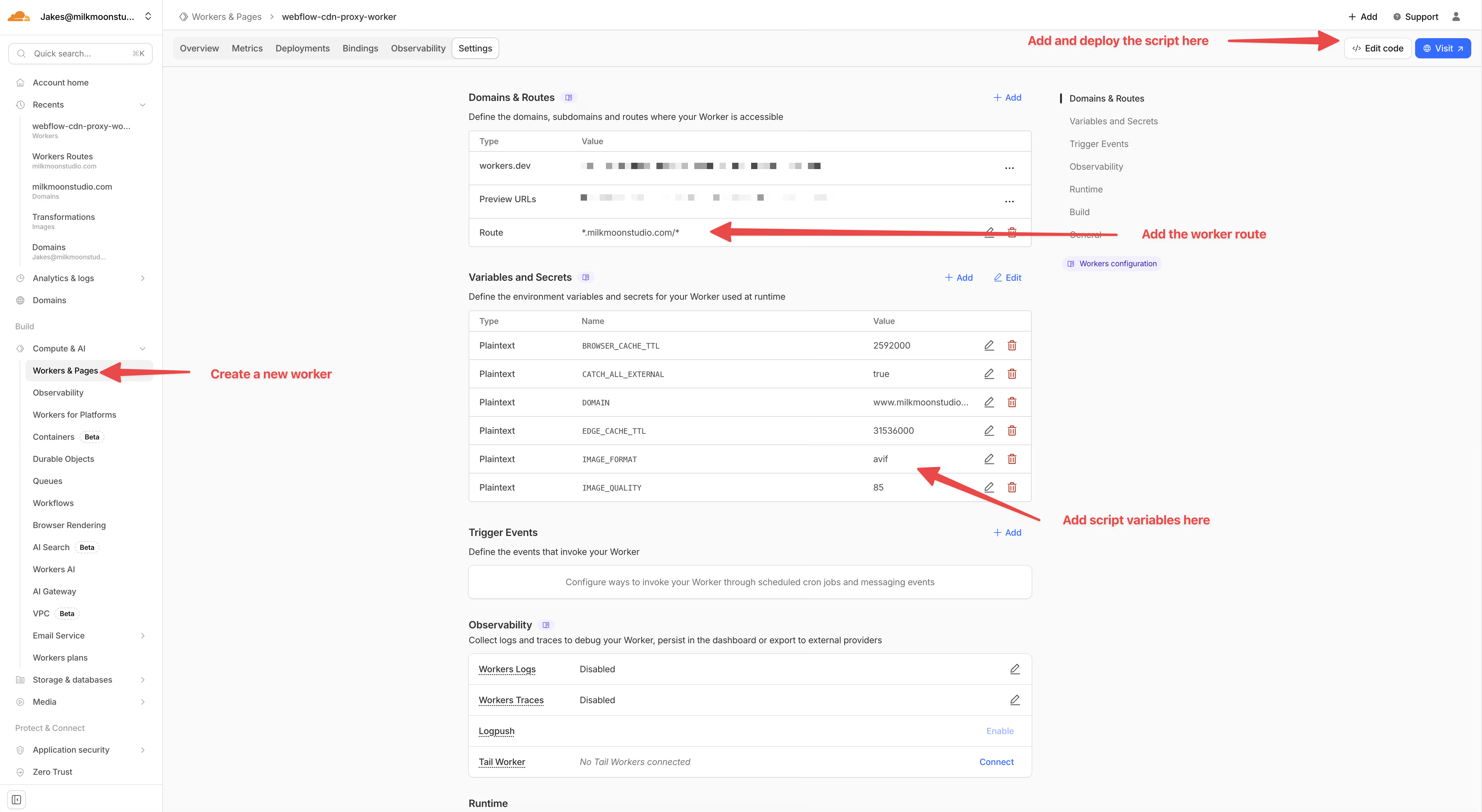
Étape 1 : créer un nouveau Worker
- Allez dans Workers & Pages
- Cliquez sur Create Application → Create Worker
- Donnez-lui un nom (quelque chose comme
webflow-optimizerousite-cache) - Vous verrez un modèle Hello World : supprimez tout
Étape 2 : coller le code du Worker
Nous avons un script de Worker complet qui gère tout. C'est un fichier JavaScript assez long qui :
- Intercepte les réponses HTML de Webflow
- Réécrit toutes les URL d'images pour utiliser Cloudflare Image Resizing
- Fait transiter directement les images AVIF (elles sont déjà optimales)
- Fait transiter et met en cache le CSS, le JS et les polices
- Gère les images OG/Twitter pour le partage social
- Ajoute les bons en-têtes CORS
- Met tout en cache en périphérie
Collez le script complet du Worker (vous pouvez le récupérer sur notre GitHub ou sur cette page).
Voir le Pen Webflow CDN - Cloudflare Asset Proxy Worker par Jakes van Eeden (@milkmoonstudio) sur CodePen.
Étape 3 : enregistrer et déployer
Cliquez sur Save and Deploy. Le Worker est maintenant en ligne, mais il ne fait encore rien, car nous ne lui avons pas dit où s'exécuter.
Partie 4 : variables d'environnement
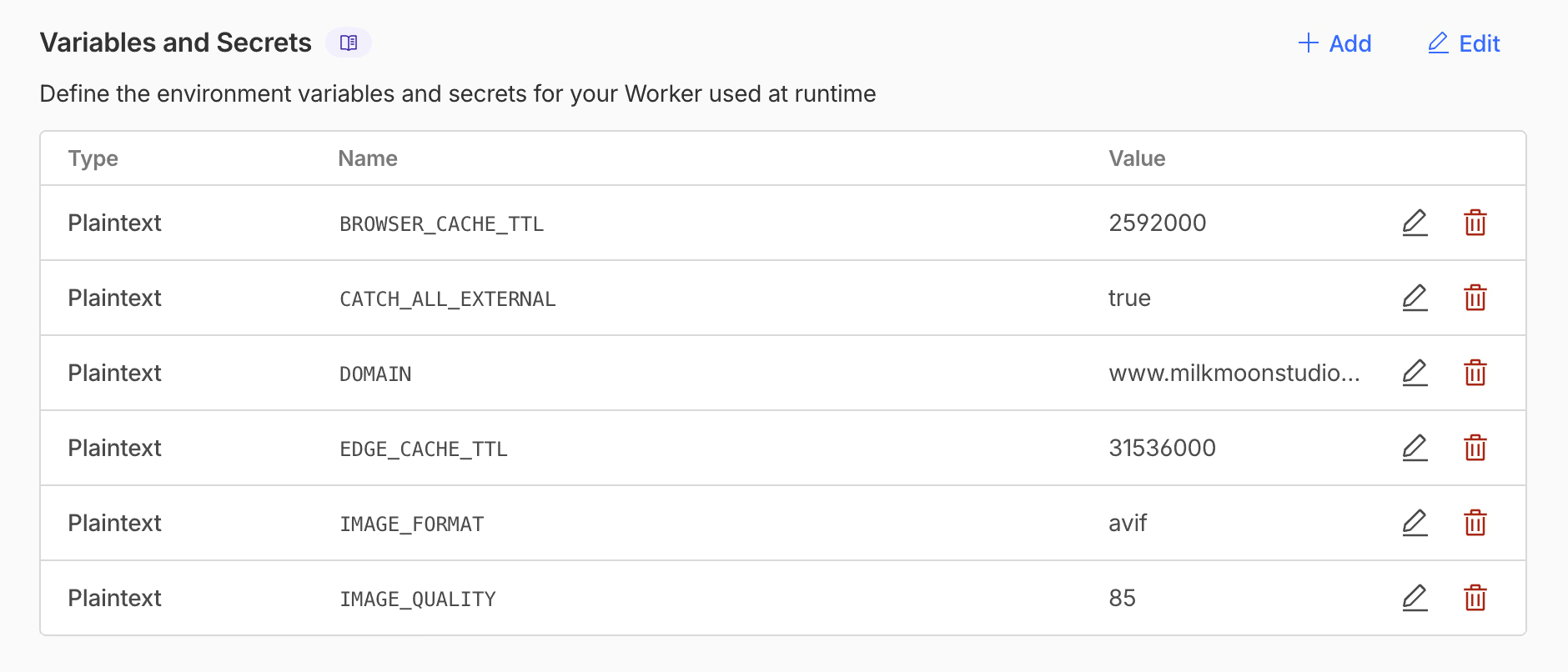
Le Worker utilise des variables d'environnement afin que vous puissiez le configurer sans modifier le code. Rendez-vous dans votre Worker → Settings → Variables and Secrets.
Variable obligatoire
Variable : DOMAIN
Value: Votre domaine (sans https://), donc dans notre cas www.milkmoonstudio.com
Cela indique au Worker quel domaine utiliser dans les URL réécrites. Si elle est absente, le code vérifie le domaine actuel et l'utilise par défaut.
Variables facultatives (avec des valeurs par défaut raisonnables, toutes les variables ont une valeur de repli)
Variable : IMAGE_FORMAT
Value: auto", webp", ou avif
Variable: IMAGE_QUALITY
Value: 85 (Qualité de 1 à 100, 85 est un bon équilibre)
Variable : OG_IMAGE_FORMAT
Value: jpeg (Format des images de partage social)
Variable: OG_IMAGE_QUALITY
Value: 80 (Qualité des images OG)
Variable : EDGE_CACHE_TTL
Value: 31536000 (Durée du cache en périphérie, en secondes) (par défaut : 1 an)
Variable : BROWSER_CACHE_TTL
Value: 604800 (Durée du cache navigateur, en secondes, par défaut : 1 semaine)
Variable : CATCH_ALL_EXTERNAL
Value: false (Traite aussi les images hors CDN Webflow, fonctionnalité très expérimentale qui nécessite Image Transformations pour tous les domaines utilisés)
Recommandations :
- Gardez
IMAGE_FORMATsurauto: il sert de l'AVIF aux navigateurs qui le prennent en charge et du WebP aux autres IMAGE_QUALITYà 85 donne un beau rendu pour la plupart des images. Descendez à 70-75 si vous voulez vraiment gratter des octets- Gardez
OG_IMAGE_FORMATsurjpeg: certaines plateformes sociales ne gèrent toujours pas l'AVIF/WebP pour les aperçus
Partie 5 : configurer la route du Worker
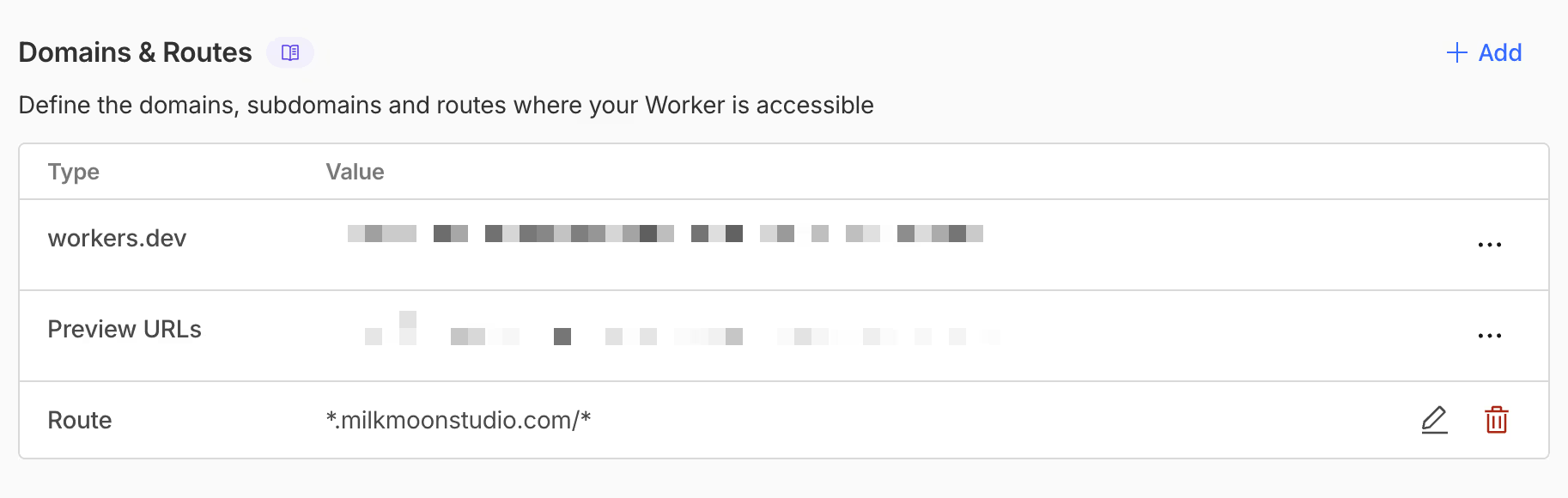
Voici un point critique qui piège beaucoup de monde. Le Worker doit s'exécuter sur votre domaine personnalisé, pas sur le sous-domaine *.workers.dev. L'API Cache ne fonctionne pas sur workers.dev, ce qui veut dire pas de cache, ce qui va à l'encontre de tout l'objectif.
Ajouter la route
- Dans votre Worker, allez dans Settings → Domains & Routes
- Cliquez sur Add → Route
- Configurez :
- Route :
*yourdomain.com/* - Zone : sélectionnez votre zone
- Route :
- Cliquez sur Add Route
Le * au début couvre à la fois www.yourdomain.com et yourdomain.com. Le /* à la fin couvre tous les chemins.
Si vous n'utilisez que www, vous pouvez être plus précis : www.yourdomain.com/*
Partie 6 : comment tout cela fonctionne
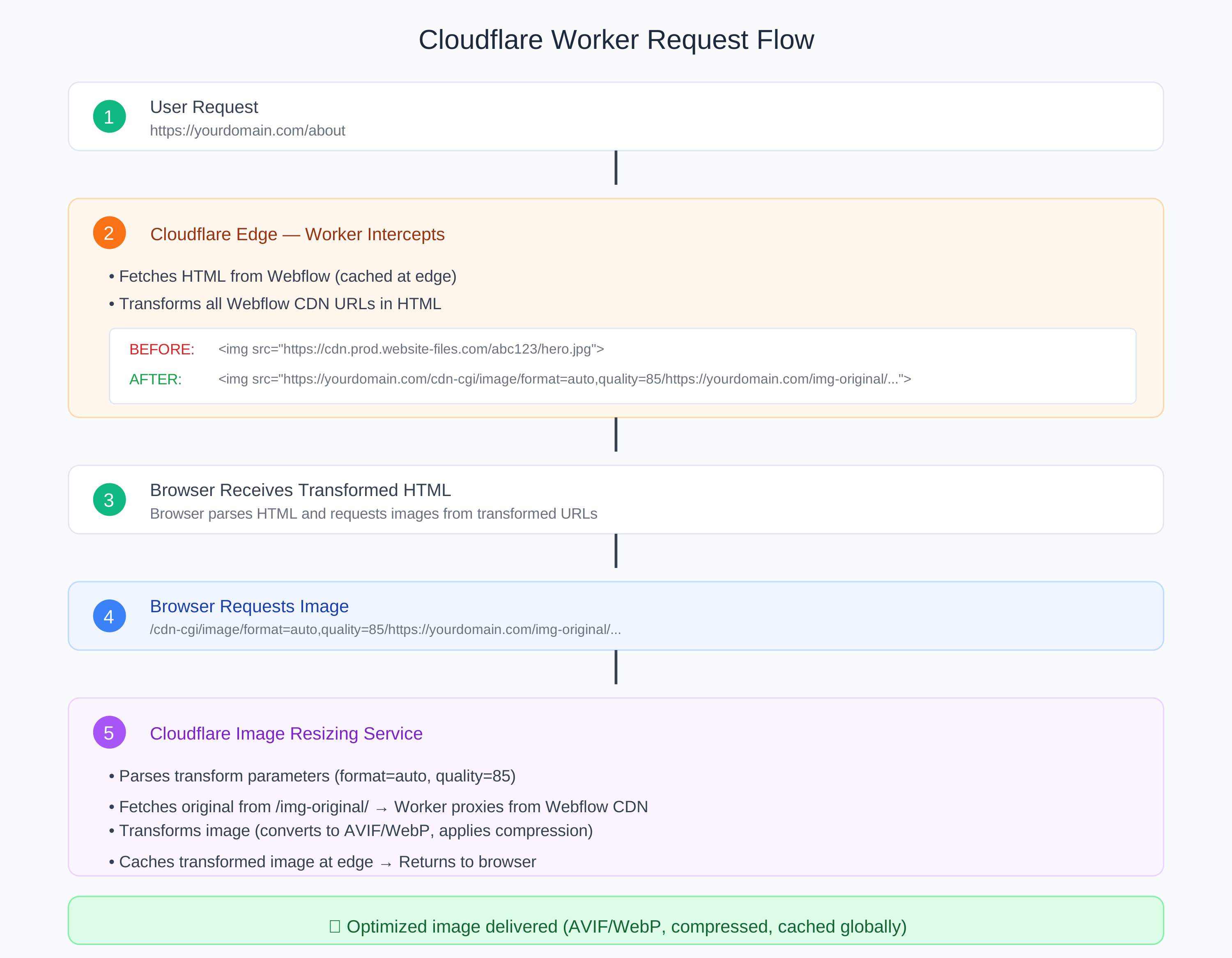
Voyons maintenant ce qui se passe réellement en coulisses. Cette partie s'adresse aux curieux (et à ceux qui, le jour où quelque chose tombe inévitablement en panne, doivent déboguer).
Le flux des requêtes
Quand quelqu'un visite votre site :
- La requête arrive chez Cloudflare : d'abord votre zone (O2O)
- Le Worker intercepte : il vérifie s'il s'agit d'une requête HTML
- Récupération chez Webflow : il obtient le HTML (mis en cache en périphérie)
- Transformation des URL : il réécrit toutes les URL du CDN Webflow
- Renvoi du HTML transformé : le navigateur reçoit la page modifiée
Quand le navigateur demande ensuite une image :
- La requête arrive sur
/cdn-cgi/image/format=auto,quality=85/https://yourdomain.com/img-original/... - Cloudflare Image Resizing : analyse l'URL de transformation
- Récupération de la source : obtient l'original depuis votre point d'accès
/img-original/ - Le Worker fait transiter :
/img-original/récupère le fichier depuis le CDN Webflow - Transformation : conversion en AVIF/WebP et application de la qualité
- Mise en cache : l'original et la version transformée sont mis en cache en périphérie
- Livraison : l'image optimisée est servie au navigateur
Structure des URL
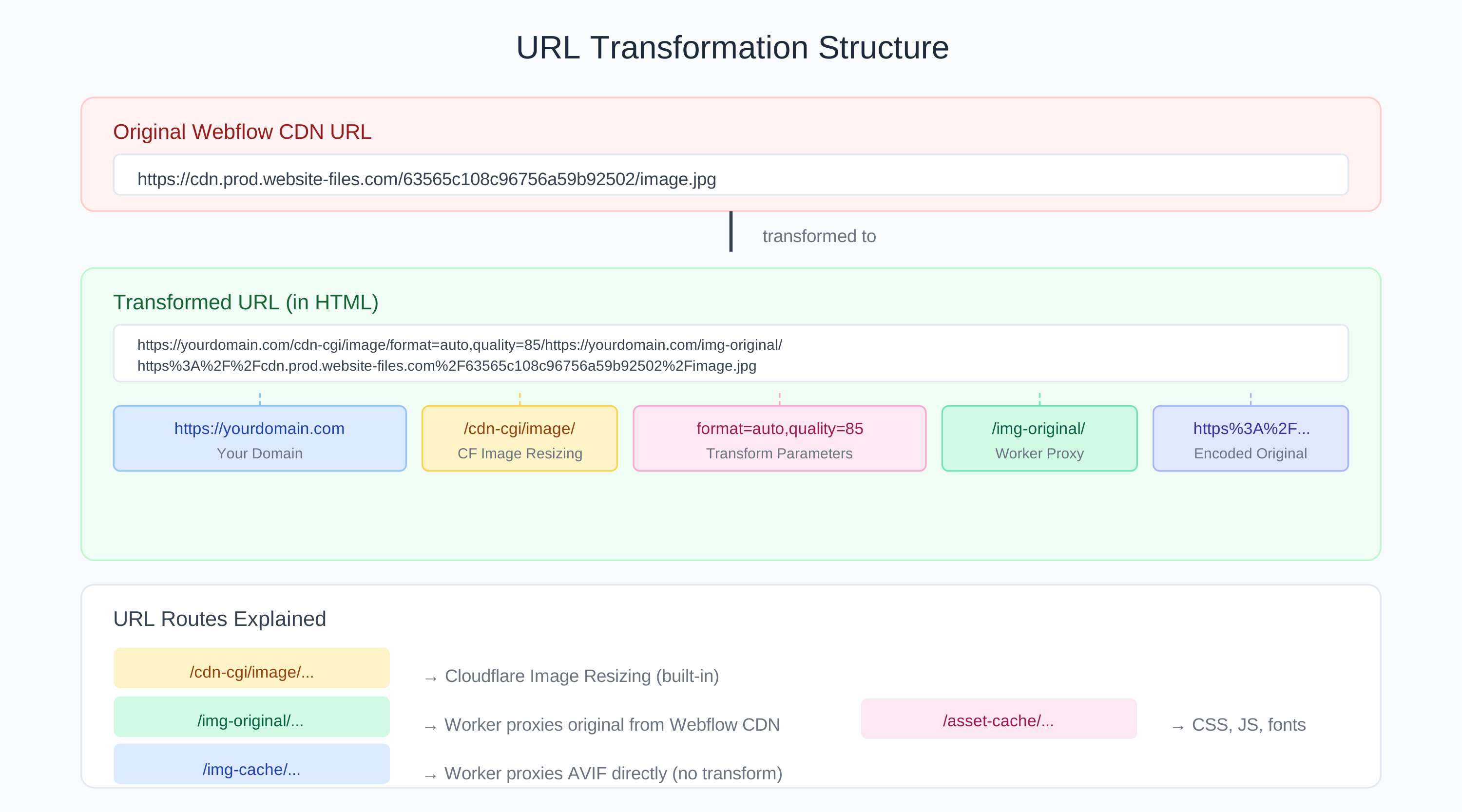
Décomposons à quoi ressemble une URL transformée :
Originale (dans Webflow) :
https://cdn.prod.website-files.com/63565c108c96756a59b92502/image.jpg
Transformée (dans votre HTML) :
https://yourdomain.com/cdn-cgi/image/format=auto,quality=85/https://yourdomain.com/img-original/https%3A%2F%2Fcdn.prod.website-files.com%2F63565c108c96756a59b92502%2Fimage.jpg
Décomposition :
https://yourdomain.com/cdn-cgi/image/: le point d'accès de redimensionnement d'images de Cloudflareformat=auto,quality=85/: les paramètres de transformationhttps://yourdomain.com/img-original/: notre point d'accès proxyhttps%3A%2F%2Fcdn.prod...: l'URL de l'image d'origine, encodée
Ce qui est transformé et ce qui est seulement proxifié
- PNG, JPG, WebP, GIF : optimisés via Cloudflare Image Resizing
/cdn-cgi/image/→/img-original/ SVG : assainis (scripts supprimés), format conservé/cdn-cgi/image/→/img-original/AVIF : proxifiés uniquement (déjà optimaux)/img-cache/- CSS, JS : proxifiés et mis en cache
/asset-cache/ Polices : (woff, woff2, ttf, otf, eot) proxifiées et mises en cache/asset-cache/ (very experimental)Favicons : optimisés comme des images/cdn-cgi/image/→/img-original/Images OG/Twitter : converties en JPEG/cdn-cgi/image/→/img-original/
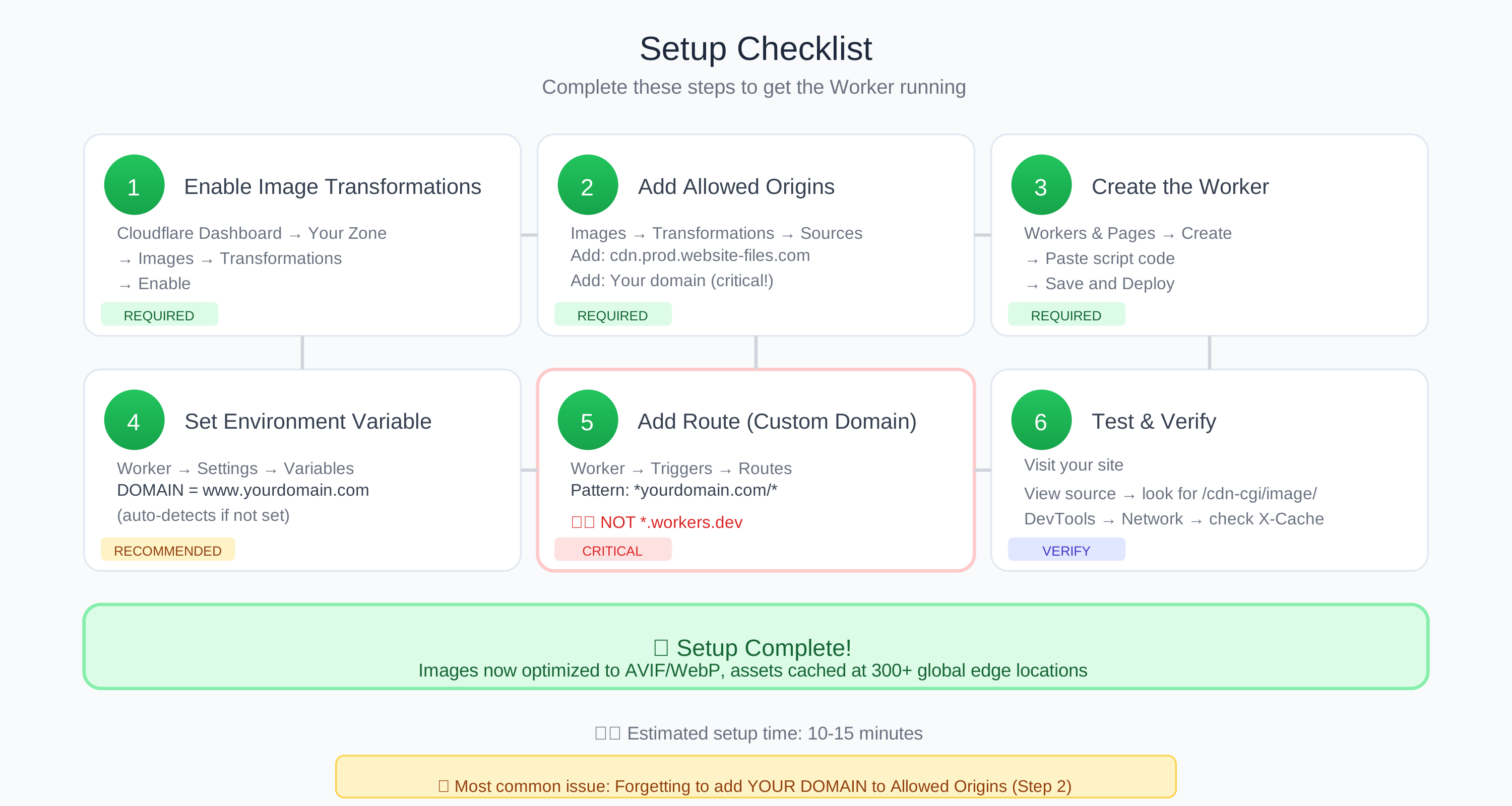
Partie 7 : tester votre configuration
Il est temps de vérifier que tout fonctionne correctement.
Vérifications de base
1. Afficher le code source de la page
- Visitez votre site
- Clic droit → Afficher le code source
- Recherchez
/cdn-cgi/image/: il doit apparaître dans les URL d'images - Recherchez
/asset-cache/: il doit apparaître dans les URL du CSS et du JS
Si vous les voyez, le Worker tourne et transforme votre HTML.
2. Consulter l'onglet Réseau
- Ouvrez les DevTools (F12 ou Cmd+Option+I)
- Allez dans l'onglet Network
- Rechargez votre page
- Filtrez par « Img »
- Vérifiez que les URL d'images viennent de votre domaine, pas du CDN de Webflow
3. Vérifier les en-têtes de cache : cliquez sur une image dans l'onglet Network et regardez les Response Headers (l'en-tête cf-cache-status propre à Cloudflare indique HIT ou MISS de la même manière) :
X-Cache: HIT= servi depuis le cache de Cloudflare (parfait !)X-Cache: MISS= première requête, désormais en cache (très bien aussi)Content-Type: image/avifouimage/webp= la conversion de format fonctionne
4. Tester le partage sur les réseaux sociaux
- Utilisez le Sharing Debugger de Facebook
- Utilisez un outil d'aperçu de cartes comme opengraph.xyz ou le compositeur de posts de X (l'ancien Card Validator de Twitter n'affiche plus d'aperçus)
- Vérifiez que les images OG se chargent sans erreur
Utiliser l'extension DrFlare
Le moyen le plus simple de tester votre configuration est l'extension DrFlare pour Chrome. Lancez-la depuis les DevTools et actualisez la page. Vous verrez des statistiques détaillées et pourrez survoler les images pour une analyse directement sur le site. Elle était obsolète, mais elle a été remise en service sous le nom de DrFlare Reloaded, à récupérer ici.
N'oubliez pas d'actualiser le navigateur une fois DrFlare ouvert.
Partie 8 : dépannage
Il arrive que les choses tournent mal. Voici comment régler les problèmes courants.
Les images renvoient une erreur 404
Symptômes : les images ne se chargent pas, erreurs 404 dans la console.
Liste de vérification :
- ✅ Image Transformations est-il activé dans Cloudflare ?
- ✅ Votre domaine a-t-il été ajouté aux origines autorisées ?
- ✅ La route du Worker est-elle active et correcte ?
- ✅ La variable d'environnement
DOMAINest-elle correctement définie ?
Consultez les journaux du Worker : tableau de bord Cloudflare → Workers → Votre Worker → Logs
Des assets se chargent encore depuis le CDN Webflow
Symptômes : les URL du CSS/JS n'ont pas été transformées.
Liste de vérification :
- ✅ Le Worker est-il déployé sur une route de domaine personnalisé (et non
*.workers.dev) ? - ✅ Le modèle de route est-il correct ? (par ex.
*yourdomain.com/*) - Videz le cache du navigateur et rechargez (Ctrl/Cmd + Maj + R)
Affichez le code source de la page. Si les URL ne sont pas transformées, le Worker ne s'exécute pas sur cette route.
Les images OG ne fonctionnent pas sur les réseaux sociaux
Symptômes : les aperçus sociaux affichent des images cassées.
À vérifier :
- Utilisez le Sharing Debugger de Facebook ou un outil d'aperçu de cartes pour voir l'erreur réelle
- Vérifiez que
OG_IMAGE_FORMATest réglé surjpeg - Vérifiez que la balise meta dans le code source de la page a bien été transformée
Webflow affiche « Update needed » pour le domaine
C'est normal ! Quand le proxy Cloudflare est activé, Webflow ne peut pas voir vos enregistrements DNS. Si votre site se charge correctement, ignorez cet avertissement.
Erreur 525 Handshake
Cela signifie généralement qu'il y a un problème avec votre configuration SSL :
- Vérifiez que le mode SSL/TLS est réglé sur Full (strict) dans Cloudflare
- Assurez-vous de ne pas avoir de réglages SSL en conflit
Partie 9 : les coûts
Parlons argent. Combien cela va-t-il vous coûter ?
Cloudflare Workers
- Offre gratuite : 100 000 requêtes/jour
- Offre payante : 5 $/mois pour 10 millions de requêtes
Image Transformations
- Offre gratuite : 5 000 transformations uniques/mois
- Offre payante : les 5 000 premières transformations uniques sont incluses, puis 0,50 $ par tranche de 1 000 transformations uniques/mois
Pour un site Webflow typique
La stratégie de cache réduit sensiblement les coûts :
- HTML mis en cache en périphérie → moins de requêtes vers l'origine
- Images originales mises en cache → la transformation n'a lieu qu'une seule fois par image
- Images transformées mises en cache → servies depuis la périphérie lors des visites suivantes
- TTL d'un an → les images restent en cache jusqu'à ce que vous les purgiez
- N'oubliez pas que les règles de cache et les page rules permettent une stratégie de cache plus fine. Par exemple, les pages de blog peuvent être mises en cache moins agressivement qu'une page d'accueil, car les articles sont mis à jour plus souvent, alors que les pages statiques peuvent souvent être mises en cache presque indéfiniment.
Vider le cache
Une fois votre stratégie de cache en place, gardez à l'esprit que les modifications peuvent ne pas apparaître immédiatement. Si vous réglez le cache en périphérie sur une semaine pour une page ou un asset, la version en cache ne sera abandonnée en périphérie qu'après cette semaine.
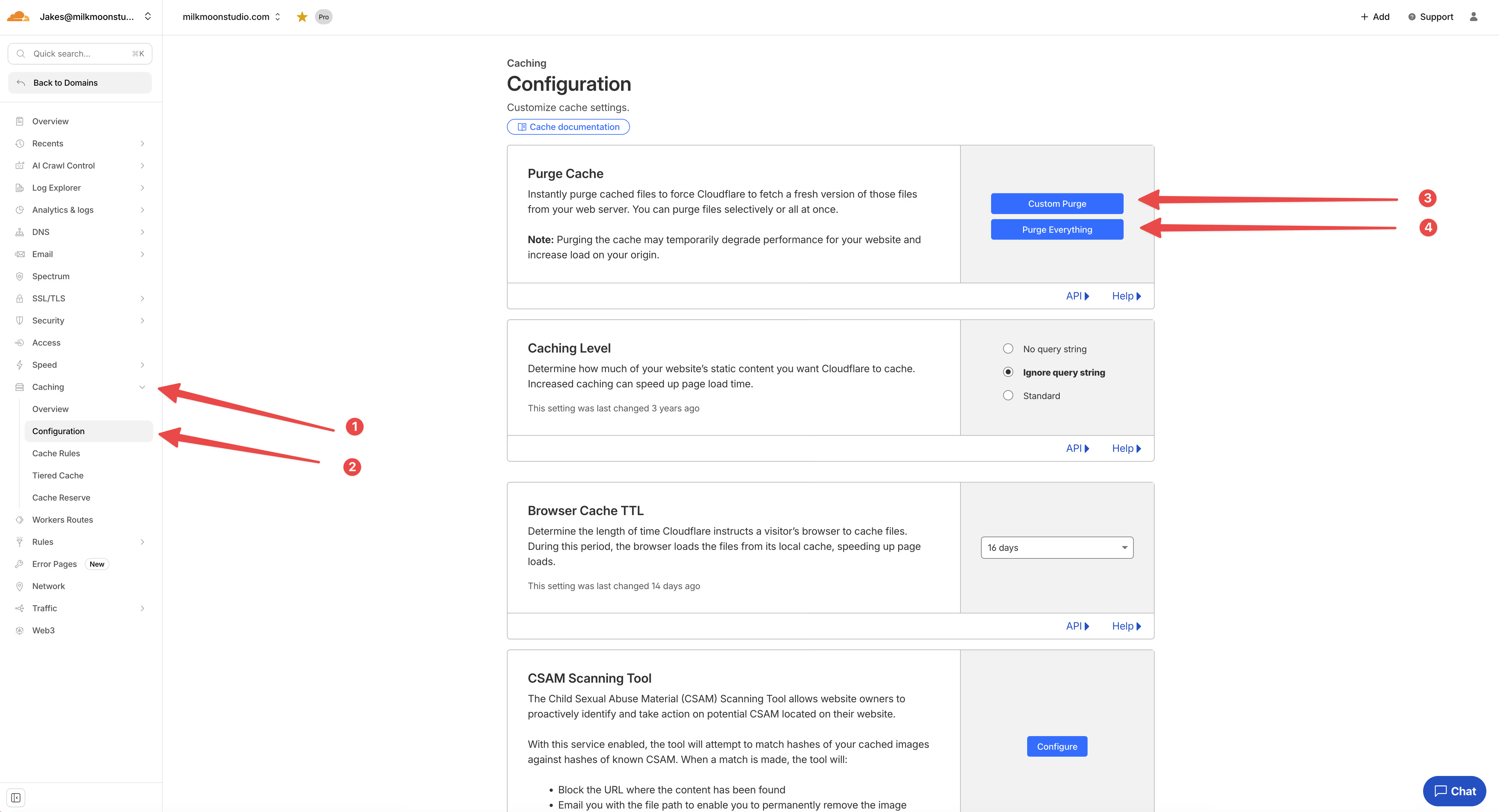
Pour vider le cache dans le tableau de bord Cloudflare, allez dans Caching → Configuration et utilisez soit Custom Purge (pour cibler précisément ce que vous videz), soit Purge Everything (qui vide l'intégralité du cache).
Ensuite, pensez à vider le cache du navigateur ou à tester en navigation privée. Si c'est le DNS qui met du temps à se propager plutôt que le cache, nous avons un article sur l'accélération de la résolution DNS lors de la publication de votre site Webflow, à consulter.
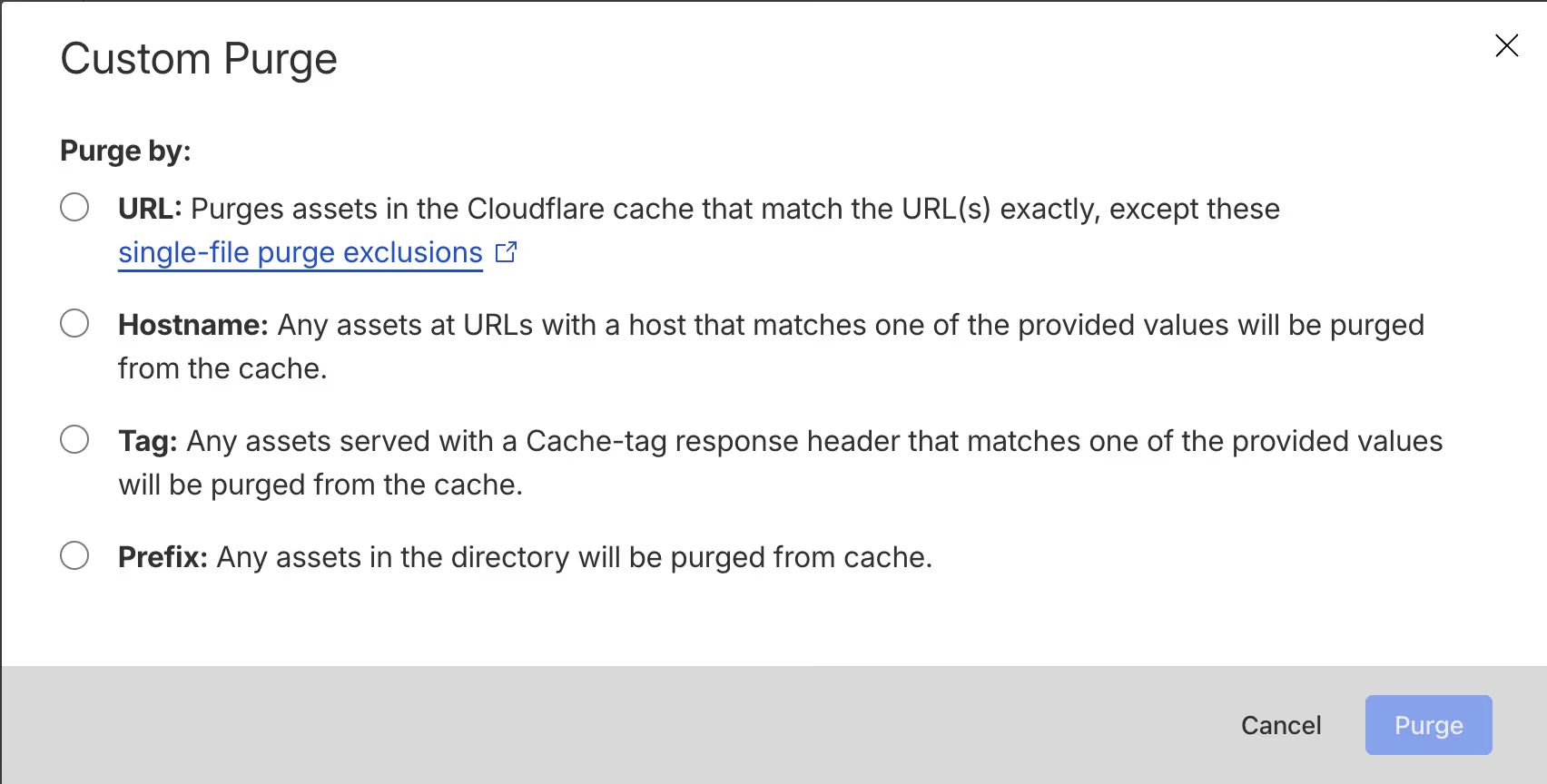
Custom Purge propose les options suivantes, qui permettent des purges ciblées.
Purger le cache avec un webhook dans le panneau de réglages de Webflow
Il est également possible de purger le cache au moment où vous cliquez sur Publier dans Webflow, en ajoutant un webhook dans vos réglages Webflow.
Webflow → webhook de purge du cache Cloudflare
Voici le résumé rapide :
Le flux
- Webflow déclenche un webhook quand vous publiez votre site
- Un intermédiaire reçoit ce webhook et appelle l'API de Cloudflare pour purger le cache
Le hic : Cloudflare n'a pas de point d'accès direct pour « recevoir un webhook », il vous faut donc un intermédiaire (un Worker Cloudflare, Zapier, Make ou une simple fonction serverless).
Étapes de configuration
1. Dans Webflow
- Allez dans Site settings → Apps & integrations → Webhooks
- Ajoutez un webhook avec le type de déclencheur : Site publish
- Faites-le pointer vers l'URL de votre intermédiaire (Worker, Zapier, etc.)
2. Dans Cloudflare
- Récupérez votre Zone ID (depuis la page de vue d'ensemble de votre domaine)
- Créez un API Token avec l'autorisation
Zone.Cache Purge
3. L'intermédiaire (exemple avec un Worker Cloudflare)
Votre Worker reçoit le webhook de Webflow et appelle le point d'accès de purge de Cloudflare :
POST https://api.cloudflare.com/client/v4/zones/{zone_id}/purge_cache
Avec le corps : {"purge_everything": true}
Documentation
- Webflow Webhooks : https://developers.webflow.com/data/docs/working-with-webhooks
- Cloudflare Purge Cache API : https://developers.cloudflare.com/api/resources/cache/methods/purge/
Partie 10 : limites
Rien n'est parfait. Voici ce qu'il faut savoir :
Limites connues
- Cache Reserve indisponible : Webflow utilise le proxy O2O, qui contourne Cache Reserve. Les assets ne sont mis en cache qu'en périphérie.
- JSON-LD non transformé : les URL des données structurées ne sont pas modifiées. Les moteurs de recherche gèrent très bien les URL d'origine.
- Transformation basée sur des regex : plusieurs passes sur le HTML. Acceptable pour des pages typiques (<200 Ko).
Ce qui ne fonctionne pas
- URL de données (
data:image/...) : intégrées au HTML, rien à faire transiter - URL Blob (
blob:...) : générées par le navigateur, impossibles à faire transiter - URL relatives : déjà sur votre domaine
- Assets hors CDN Webflow : sauf si
CATCH_ALL_EXTERNAL=true
Contenu dynamique
Le Worker ne transforme le HTML que lors de la réponse initiale. Les images ajoutées via JavaScript après le chargement de la page risquent de ne pas être transformées, à moins qu'elles ne figurent aussi dans le HTML initial. Si vous faites beaucoup de rendu côté client, gardez cela en tête.
Instructions de retour en arrière
Si quelque chose tourne vraiment mal (ce ne sera probablement pas le cas, mais on ne sait jamais) :
Désactivation rapide (en gardant le Worker)
- Allez dans Worker → Settings → Domains & Routes
- Supprimez la route
- Le site est immédiatement servi directement depuis Webflow
- Activez le Developer Mode pour contourner le cache
Suppression complète
- Supprimez la route du Worker
- Supprimez le Worker lui-même
- (Facultatif) Désactivez Image Transformations
- (Facultatif) Retirez les origines autorisées
Votre site reviendra à l'hébergement Webflow standard, avec le proxy O2O toujours actif. Vous conserverez les autres fonctionnalités de Cloudflare comme le WAF et la protection contre les bots.
Foire aux questions
Webflow utilise-t-il Cloudflare ?
Oui. Webflow a déplacé son hébergement sur Cloudflare en 2025. Les sites créés après le 21 avril 2025 y sont déjà, et les sites plus anciens ont dû faire pointer leurs domaines personnalisés vers les nouveaux enregistrements DNS de Webflow (le CNAME cdn.webflow.com et l'enregistrement A 198.202.211.1). Ce changement est précisément ce qui rend l'O2O possible, et c'est pourquoi les anciennes astuces de nos articles précédents ne sont plus nécessaires.
Comment configurer le CDN et le SSL de Cloudflare pour un site Webflow ?
Faites pointer les serveurs de noms de votre domaine vers Cloudflare, ajoutez des enregistrements CNAME avec proxy pour @ et www qui ciblent cdn.webflow.com, réglez SSL/TLS sur Full (strict), puis ajoutez le domaine dans Webflow sous Site settings → Publishing → Production et publiez. C'est l'O2O, et la Partie 1 ci-dessus le détaille pas à pas. Si vous voulez Cloudflare uniquement pour le DNS, utilisez plutôt les enregistrements avec nuage gris (DNS uniquement), mais vous n'obtiendrez alors aucune mise en cache ni optimisation.
Qu'est-ce que cdn.prod.website-files.com ?
C'est le CDN d'assets de Webflow, le domaine où vivent réellement vos images, CSS, JavaScript et polices. Comme ce n'est pas votre domaine, votre zone Cloudflare ne peut rien mettre en cache ni optimiser de ce qui en provient, même avec l'O2O activé. Le Worker de cet article règle le problème en réécrivant ces URL, de sorte que les fichiers transitent, sont optimisés et mis en cache via votre propre domaine.
Comment vider le cache après une publication dans Webflow ?
Webflow gère son propre cache lors de la publication, mais tout ce qui est en cache dans votre zone Cloudflare y reste jusqu'à l'expiration du TTL. Purgez-le dans le tableau de bord Cloudflare sous Caching → Configuration (Custom Purge ou Purge Everything), ou automatisez cela avec un webhook Site publish qui appelle l'API de purge de Cloudflare, comme décrit dans la section sur le cache ci-dessus. Videz ensuite le cache de votre navigateur ou testez dans une fenêtre privée.
Pour conclure
Et voilà. Vous disposez maintenant d'un site Webflow pleinement turbocompressé qui passe par Cloudflare, avec optimisation des images, mise en cache des assets et tous les bienfaits de la périphérie dont vous pouvez rêver.
Le meilleur ? Une fois que tout cela tourne, vous pouvez superposer d'autres fonctionnalités Cloudflare. Configurez des Page Rules (ou des Cache Rules, qui remplacent les Page Rules) pour un comportement de cache précis. Ajoutez des règles WAF pour la sécurité. Configurez la protection contre les bots. Utilisez Waiting Room si vous attendez des pics de trafic. C'est votre zone maintenant. Il faudra un peu expérimenter pour en tirer le maximum.
Une grande partie de l'optimisation vient de l'expérimentation avec le cache, les page rules, etc.
Nous faisons tourner cette configuration en production depuis un moment et les gains de performance semblent solides. Des temps de chargement plus courts, de meilleurs Core Web Vitals, des images plus légères et des clients plus contents. Si vous devez convaincre un client (ou votre patron) de l'importance de tout cela, notre article sur la façon dont la vitesse de page favorise la réussite d'une entreprise plaide efficacement en ce sens.
Si vous rencontrez des problèmes ou avez des questions, écrivez-nous. Nous sommes toujours ravis de discuter de l'optimisation des performances Webflow (c'est un peu notre spécialité). Nous essaierons de vous répondre dès que possible.
N'oubliez pas de consulter la section How-To de notre blog pour d'autres tutoriels. Nous avons des articles sur tout, de la configuration de Tag Manager au dimensionnement dynamique des polices.
À la prochaine, continuez à construire. ✌️
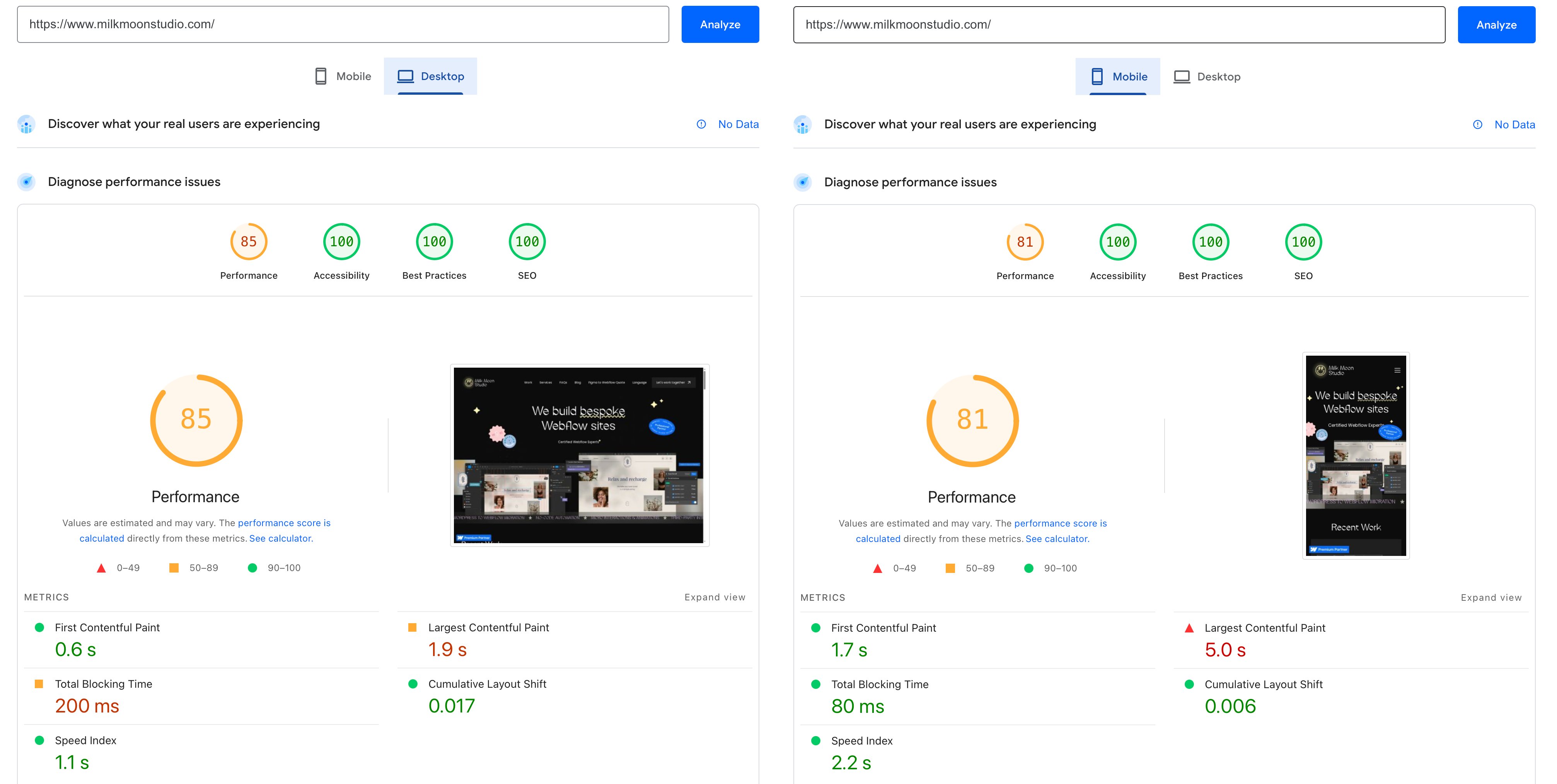
Ces tests ont été réalisés au moment de la publication, donc tout le bazar habituel que je teste sur notre site à un moment donné devrait tourner.